PAR POS™ v5.16r2 Release Notes & Feature Guide
New API Release
API Build 0.2.145 Release Notes
Release Resources
Admin Portal
Modifier Group Bulk Price Updater (BRNK-65934)
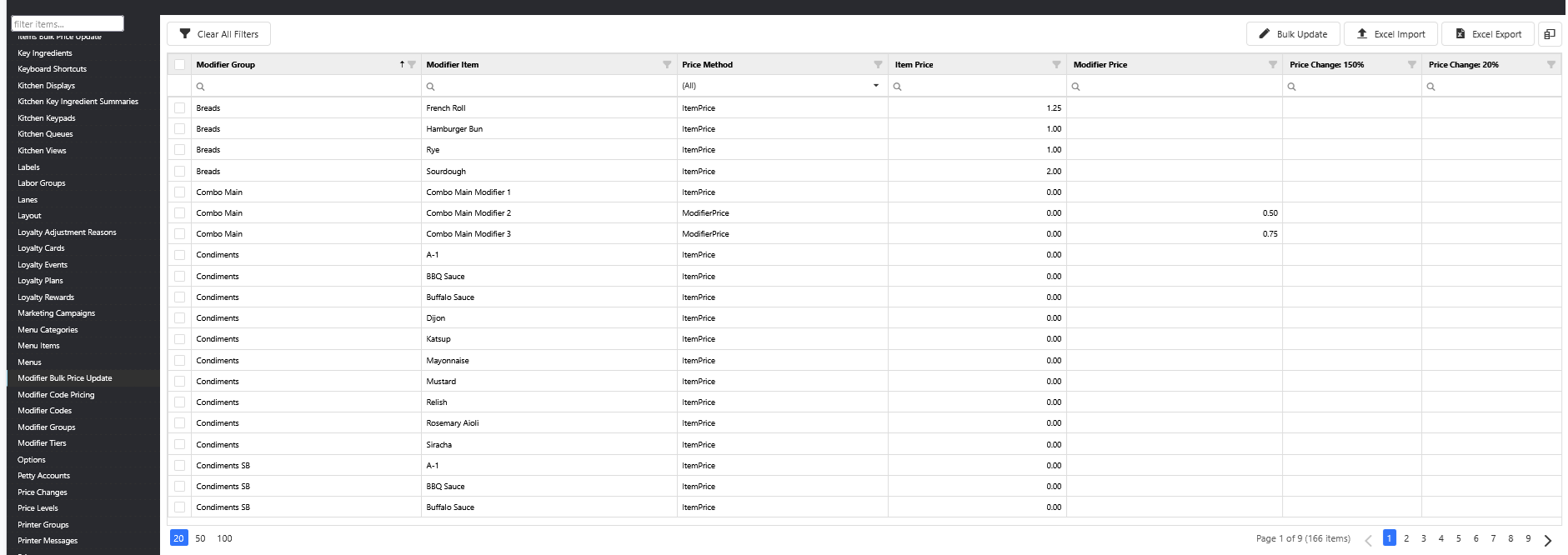
A new Modifier Bulk Price Update screen has been added to Settings Editor, allowing users to view and update modifier group pricing in bulk. This feature mirrors the existing item bulk price update workflow and includes Excel import/export support, flexible price adjustment options, and role-based access control.
Modifier Bulk Price Update Screen
-
A dedicated Modifier Bulk Price Update page is now available in Settings Editor for users with the appropriate permission.
-
The pricing grid displays modifier group name, modifier item name, price method, item price, modifier price, and any active price-change promotion columns.
-
Prices can be edited directly in the grid, with support for filtering, sorting, and paging across large data sets.
-
A bulk update modal allows users to apply a percentage-based or fixed-amount price adjustment across multiple modifiers at once.
IMPORTANT Note:
- All currency calculations use banker's rounding for accuracy.
Excel Import & Export
-
Users can export the current modifier pricing to an Excel file — either the full list or a filtered subset — with price method options included as dropdown selections in the file.
- Click on the Excel Export button to export
-
Users can import an updated Excel file back into the system, with automatic validation and clear error reporting for any issues found in the file.
- Click on the Excel Import button to import
Access Control
-
A new permission — Modifier Bulk Price Update — has been added to the role management system.
-
Found in the Admin Portal -> Configuration ->Roles
-
Modifier Bulk Price Update Role option is automatically disabled.
-
-
Administrators can grant or restrict access to this feature on a per-role basis.
Feature Enablement
This feature is automatically enabled; no settings change is required.
Workflow
-
Navigate to Settings Editor
-
Click Modifier Bulk Price Update
-
Use filters to filter down to the desired modifiers
-
Edit the Modifier Price or the desired Price Change column
-
Save and Publish
Modifier Group Pricing Now Available in Price Changes (BRNK-65936)
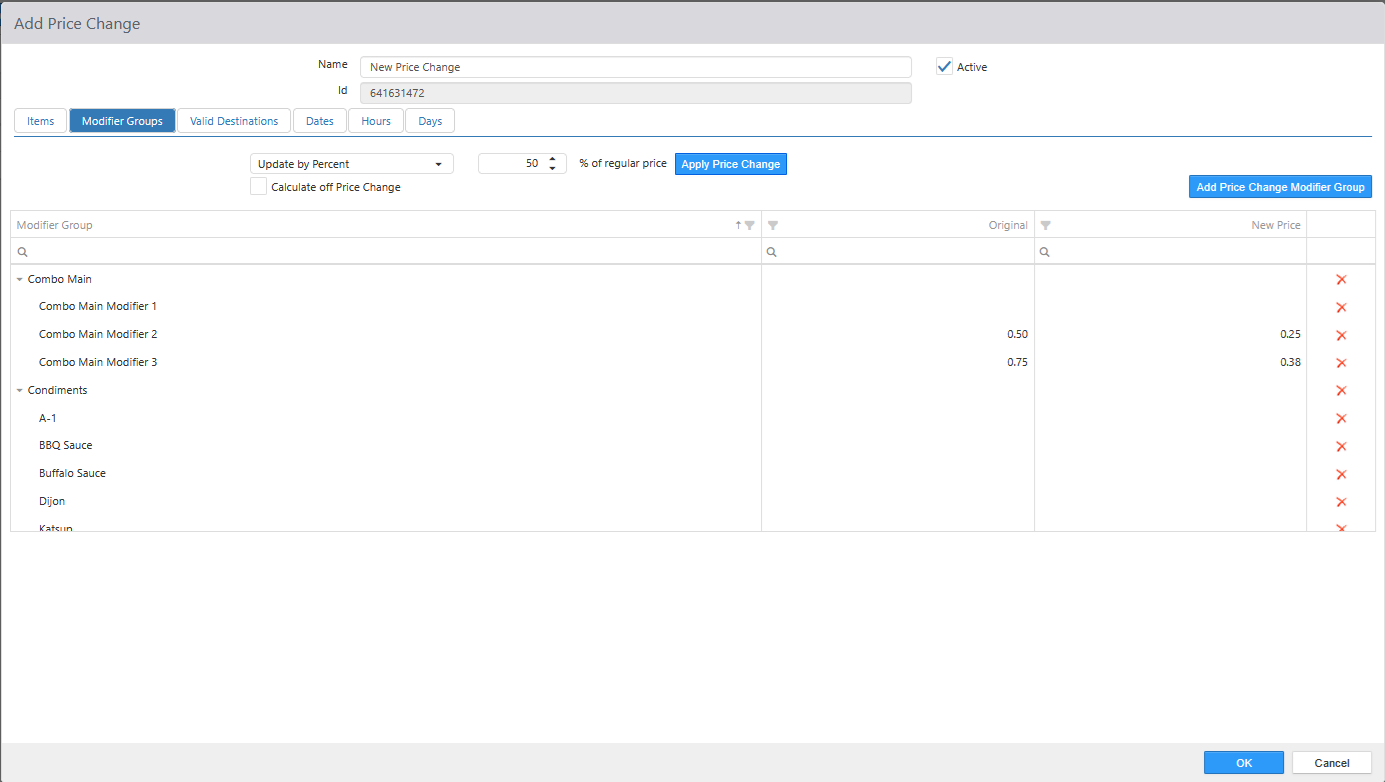
Modifier group pricing is now supported within the Price Change feature. Users can define price overrides for modifier group items directly in the Settings Editor, and those overrides are applied at the POS, validated through the backend, and accessible via the External API with full documentation.
Settings Editor (UI)
-
A new Modifier Groups tab has been added to the Price Change screen, allowing users to view and manage price overrides for modifier groups and their individual items.
-
The tab includes a tree-list interface with support for:
-
Bulk price updates by percentage or fixed amount
-
Adding and deleting modifier group price change entries
-
Price validation and confirmation workflows
-
-
The Modifier Group screen now loads and reflects active price change data and automatically cleans up price change entries when a modifier item's price method is changed to a non-editable state.
-
Only changed (delta) data is saved per operation, improving efficiency.
Point of Sale (POS)
-
Modifier item prices at the POS now respect active Price Change overrides, taking into account modifier group ID, item ID, destination, and date range — instead of always using the base configured price.
-
When multiple overrides could apply, the system uses the lowest ID as a tiebreaker.
-
Alternate modifier prices can now be configured and retrieved on a per-DSP (sales point) basis through the PriceChange APIs.
Feature Enablement
This feature is automatically enabled; no settings change is required.
Workflow
-
Navigate to Settings Editor
-
Click Price Changes
-
Click Add New Price Change, or select the desired price change
-
Click Modifier Groups
-
Click Add Price Change Modifier Group
-
Select desired Modifier Groups
-
Click OK
-
Make desired Price Changes
-
Update by Percentage
-
Update by Dollar
-
Update by entering the amount in the New Price column individually
-
-
Click OK
-
Save and Publish
Alert Subscription Filtering Enhancement (BRNK-67482)
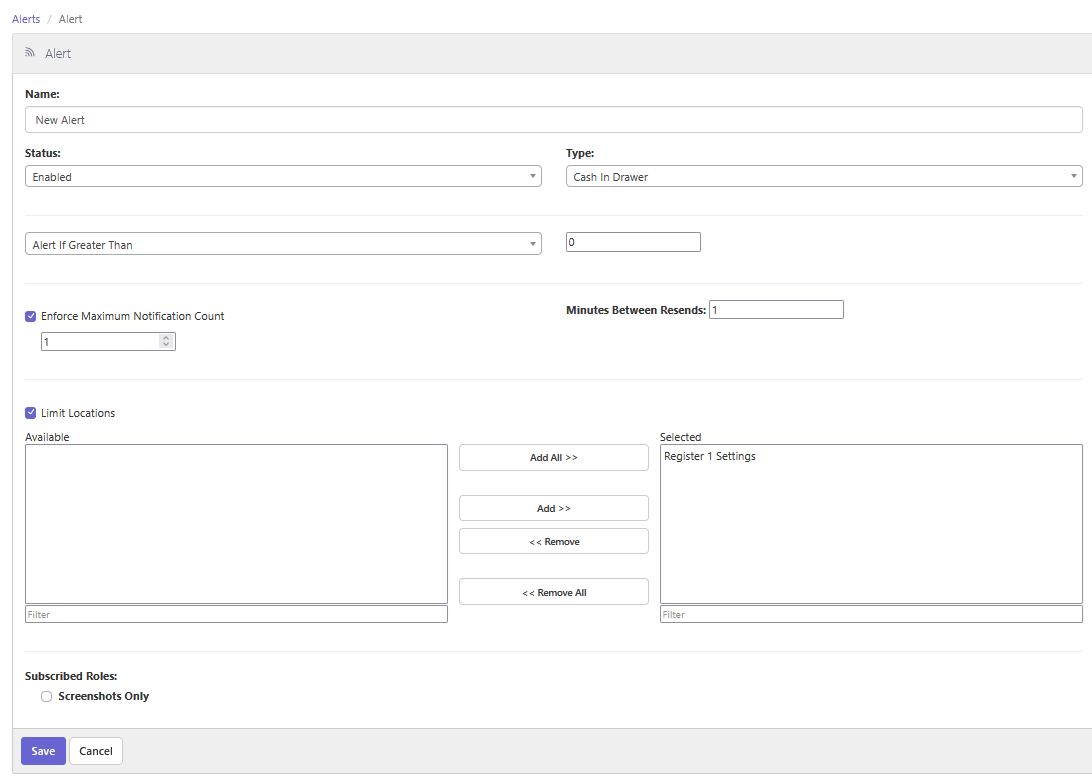
Alert subscriptions are now filtered by location access, ensuring users only receive notifications for locations they are permitted to access. This change improves both security and relevance of alert notifications across the platform.
What’s New
-
Alert subscriber filtering by location access: When determining who receives an alert, the system now checks whether each user has access to the location(s) associated with that alert.
-
Subscriber list accuracy: Alert configuration now displays only users who have appropriate access to the relevant location(s), giving administrators a more accurate view of who will be notified.
-
Multiple access paths supported: The system recognizes location access granted through direct assignment, accessible location settings, or location group membership when evaluating subscriber eligibility.
IMPORTANT Note:
-
Existing alert subscriptions may see a reduction in their subscriber lists if previously included users do not have access to the relevant locations. Administrators should review subscriber lists after this update to confirm the expected users remain included.
-
No action is required from end users — the filtering is applied automatically.
Feature Enablement
This feature is automatically enabled; no settings change is required. Please see the important note above.
Workflow
-
Navigate to the Admin Portal
-
Click Configuration
-
Click Alerts
-
Select the desired alert or click New Alert
-
Note that, under Subscribed Roles, there will only be Roles that have access to the selected locations
Enhance Delete, Void & Pay at End of Day Functionality to Support 24 Hour Stores (BRNK-67229)
This feature now enables 24-hour stores to use the “Delete, Void & Pay at EOD" feature. Previously, this feature was mutually exclusive with 24 Hour Operation.
The Problem: 24-hour stores accumulate abandoned unpaid orders that never get cleaned up:
-
Guest starts a kiosk order, needs cashier help for a coupon, then leaves
-
Kiosks time out and save the order for recall, but no cashier picks it up
-
Order stays open across EOD
-
On a second EOD, it gets force-closed to the EOD tender type (usually Cash)
Result: false sales, inflated transaction counts, wrong cash reporting, and incorrect franchise royalty calculations
The Solution: Business-day-aware EOD logic that:
-
Preserves legitimate open orders from the current business day
-
Cleans up abandoned unpaid orders from prior business days (delete, void, or pay as configured)
This feature will not:
-
Change standard 24-hour persistence for active orders
-
Change the EOD behavior for non-24-hour stores
-
Auto-delete/void orders from the currently processing business day
-
Eliminate handling of partially paid abandoned orders (those still go through Pay-at-EOD)
Decision logic at EOD
| Order state | Business day | Action |
|---|---|---|
| Unpaid, unsent items only | Prior business day | Delete items, close order (no sales impact) |
| Unpaid, sent items | Prior business day | Void items, close order (reporting per accounting config) |
| Partially paid | Prior business day | Pay remaining balance to configured EOD tender type |
| Fully tendered but open | Any | Close order (no extra payment) |
| Any unpaid/open order | Current business day | Persist across EOD (24-hour behavior preserved) |
Feature Enablement
-
Enable 24 Hour Operation
-
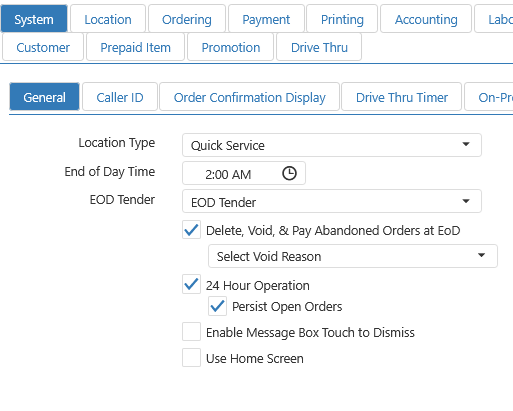
Navigate to Settings Editor → Options → System → General tab.
-
Click 24 Hour Operation
-
-
Enable Delete, Void & Pay Abandoned Orders at EOD
-
Click Select Void Reason and select the desired Void Reason
-
This step is required. If this step is missed, a Save/Publish will fail.
-
These Void Reasons are pulled from the Void Reasons section of Settings Editor
-
The selected reason is used only for EOD auto-voids. It does not appear as a selectable void reason on the register during normal operation.
-
-
Enable Persist Open Orders
- This step is suggested as it is required for the 2-day clean-up life cycle to work correctly.
-
Configure EOD Tender
-
Save and Publish
Integrations Portal
Enhancements to Loyalty Adapter (BRNK-65732)
This release delivers enhancements to the Loyalty Adapter "Friends and Family" pilot program, introducing a loyalty sign-up flow, QR code receipt printing, a configurable customer lookup mode, and an "Other" identifier that travels through the full loyalty order lifecycle. These changes give operators more flexibility in how customers are identified and enrolled in loyalty programs at the point of sale.
Loyalty Signup at Point of Sale
-
When a phone number search during customer lookup returns no results, the POS can now automatically prompt the cashier to register the customer for the loyalty program.
-
Signup requires a valid 10-digit phone number and explicit customer consent (terms & conditions acceptance).
-
The signup feature can be turned on or off via a configuration toggle (EnableLoyaltySignup); it is disabled by default.
QR Code Printing on Loyalty Receipts
-
The loyalty receipt can now optionally print a QR code at the end of a transaction.
-
This allows guests who did not have a loyalty account associated with their order to scan the code later and claim points for their visit.
-
QR code printing is controlled by a new Receipt.PrintQRCodeForOrder configuration option.
Configurable Default Customer Lookup Mode
-
The default lookup method shown in the customer lookup dialog (Phone, Email, or Other) is now driven by API configuration.
-
If the configured value is missing, unrecognized, or invalid, the system safely falls back to Phone lookup.
"Other" Loyalty Identifier Support
-
A new optional "Other" look-up code can now be assigned to a customer at the start of a loyalty session.
-
This code is carried through all stages of the order — validation, redemption, void-redeem, and finalization — and is automatically cleared when the customer is removed from the order.
-
This supports alternative loyalty identification methods beyond phone number and email.
Loyalty Validation on Send Order
- A new loyalty validation check now runs when the cashier clicks the Send Order button, ensuring loyalty data is verified before the order is transmitted.
Kitchen
Print All on First Bump (BRNK-66273)
This release introduces Print All on First Bump, a new kitchen workflow feature that batch-prints all order labels and chits when a kitchen operator first bumps an item. It also adds a complementary option to suppress kitchen chit and label printing when orders are sent to the kitchen, preventing duplicate prints when both features are used together.
This feature does NOT work with the Show Unsent Orders feature. If both are enabled when attempting to Save and/or Publish, an error message will show, and the Publish will not process.
New Setting: Print All on First Bump
-
When enabled, all order labels and chits are printed at once when the first item on an order is bumped from the kitchen.
-
On subsequent bumps, only new or edited items are printed — already-printed items are skipped to avoid duplicates.
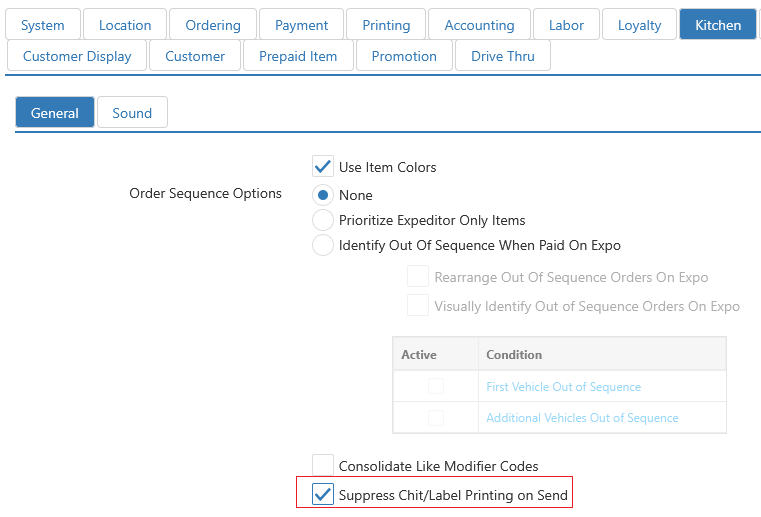
New Setting: Suppress Kitchen Chit/Label Printing on Send
-
When enabled, kitchen chits and labels are not printed when an order is sent to the kitchen.
-
Void item chits are never suppressed — they always print regardless of this setting.
KDS Display Behavior
- When Print All on First Bump is enabled, unsent orders are now hidden from the KDS display, keeping the screen aligned with what has been printed.
NOTES:
- The default behavior is to print labels only for items affected by the edit.
- Reprinting labels for all items requires additional receipt/chit scripting configuration.
Feature Enablement
-
Navigate to Settings Editor
-
Click on Kitchen Queues
-
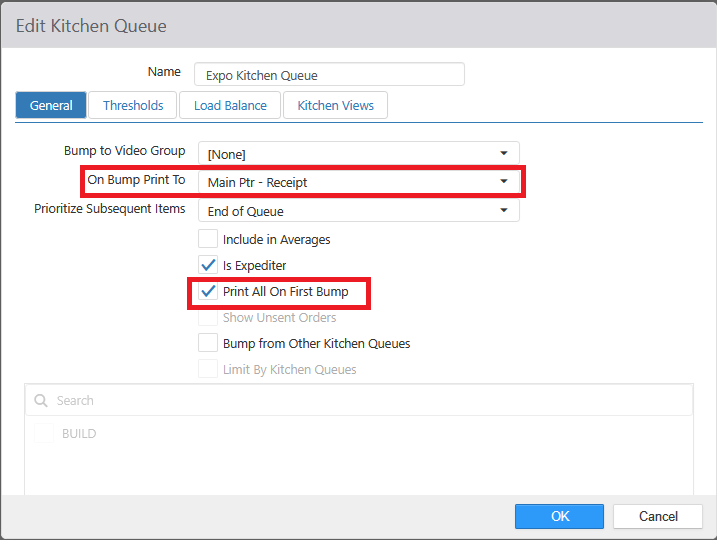
Select desired Kitchen Queue
-
Select On Bump Print To – change to the printer to print the labels/chits
-
Click the box to the left of Print All On First Bump
-
Save and Publish
To enable Suppress Chit/Label Printing on Send:
-
Navigate to Settings Editor
-
Click on Options
-
Click the Kitchen tab
-
Click the General tab
-
Click the box to the left of Suppress Chit/Label Printing on Send
-
Save and Publish
Workflows
Only Print All on First Bump Enabled:
-
Ring in an order
-
Pay/send the order
-
All the Labels/Chits print
-
An item is edited, and another item is added
-
Pay/send the order
-
A label/chit is printed for the edited item as well as the added item
-
Order Bumps from Kitchen
-
All the Labels/Chits print
Both Print All on First Bump and Suppress Chit/Label Printing on Send
-
Ring in an order
-
Pay/send the order
-
An item is edited, and another item is added
-
Order Bumps from Kitchen
-
All the Labels/Chits print
Printer
Add Printer Message for Delivery Remarks (Notes) (BRNK-66514)
A new %Notes% tag has been added to the print template system, allowing customer delivery instructions to appear automatically on printed receipts and labels. This enables merchants to surface special delivery notes (such as "Leave at side door”) directly in their print output without any manual intervention.
What’s New
-
New
%Notes%template tag — Merchants can now include%Notes%in their printer message templates. When an order contains delivery instructions, this tag is automatically replaced with the customer's notes at print time. -
Receipt printing support — The
%Notes%tag is recognized and substituted when printing order receipts and messages. -
Label printing support — The same
%Notes%tag is also supported in label printing workflows, ensuring consistent behavior across all print types. -
Graceful empty handling — If an order has no delivery notes, the
%Notes%tag renders as blank text, so print layouts remain clean with no unwanted gaps or placeholder text showing through. -
Notes are sourced from the customer's delivery address on the order (e.g., notes entered during a digital/online order).
IMPORTANT: Notes entered elsewhere may not be captured by this tag.
Feature Enablement
-
Navigate to Settings Editor
-
Click Printer Messages
-
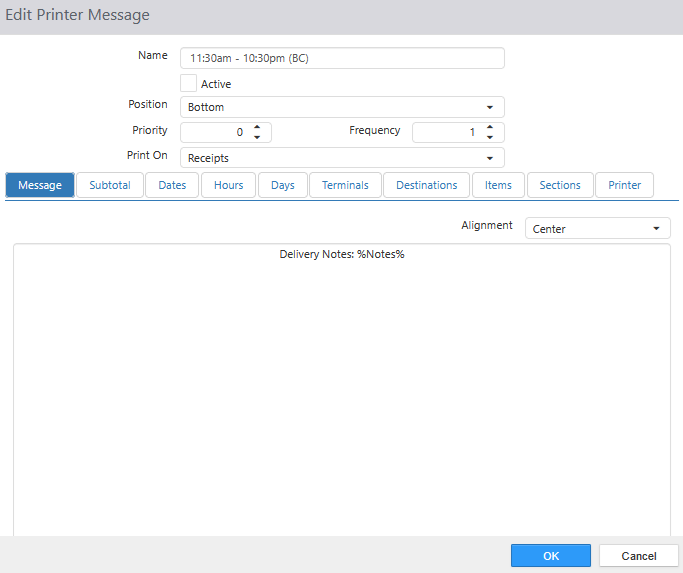
Click Add New Printer Message or select the desired printer message.
-
Add the tag where you would like the delivery notes to show
- Tag =
%Notes%
- Tag =
-
Click OK
-
Save and Publish
Workflow
-
A guest enters an order through a 3rd party app
-
The order hits the PARPOS system
-
The order is sent to the kitchen
-
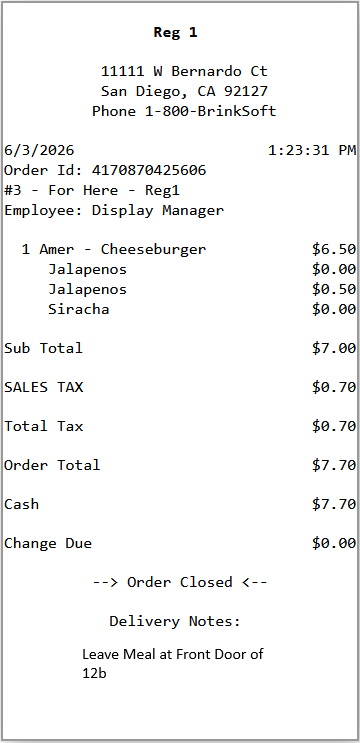
A receipt prints that shows the delivery information.
Example of receipt setup to show Delivery Notes at the bottom:
Box Count Labeling Added to Printer Config Tool (BRNK-66275)
This release introduces Box Count Labeling, a new setting that automatically adjusts label printing for large orders with identical items — reducing label clutter and helping your kitchen staff work faster. For high-volume orders, this cuts down on label waste, reduces printer clutter, and makes it easier for staff to verify counts at a glance — especially during peak hours.
An admin can set a Box Count threshold at the store level. When an order comes in with multiple identical items, the system checks that threshold and decides how to print labels:
Small orders (below the threshold), individual labels. Each item gets its own label showing its place in the order. For example, if a customer orders 4 Large Pepperoni Pizzas and your threshold is set to 10, the printer produces:
-
Box 1 of 4 – Large Pepperoni
-
Box 2 of 4 – Large Pepperoni
-
Box 3 of 4 – Large Pepperoni
-
Box 4 of 4 – Large Pepperoni
Staff can quickly confirm every box is accounted for without counting.
Large orders (above the threshold), one consolidated label. Instead of printing a label per item, the system prints a single summary label. For example, if a customer orders 25 Large Pepperoni Pizzas, you get a single label that reads "25x Large Pepperoni" instead of 25 separate labels.
IMPORTANT Note:
- Only identical items are eligible for consolidation. Mixed or modified items are not affected.
- Not all items qualify — only items set up as "box-able" items participate in this label behavior.
- If a threshold isn't configured, your current label printing behavior stays the same.
- This feature only affects how labels print — it does not change how orders are routed or grouped in the kitchen.
Feature Enablement
To take advantage of this feature, the chit printer or kitchen ticket scripts must be updated manually to include logic that checks and acts on the Boxed Item function.
-
Navigate to Settings Editor
-
Click on Item Groups
-
Create at least one Item Group that contains “Boxed Items.”
-
Update the Script in Scripting Functions
-
Scripts are programmed in Java
-
Reach out to support if assistance is needed
-
Support can provide a default template script
-
-
Save and Publish
Workflow
Below the Threshold:
-
Ring in 4 large Pepperoni Pizzas
-
Pay for the order
-
4 Labels print, one per pizza
Above Threshold:
-
Ring in 25 large Pepperoni Pizzas
-
Pay for the order
-
1 Label prints out, one for the entire order
IsEdited Status Added to Printer Config Tool (BRNK-66280)
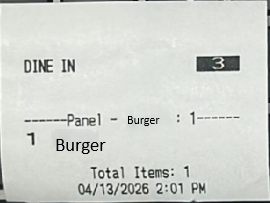
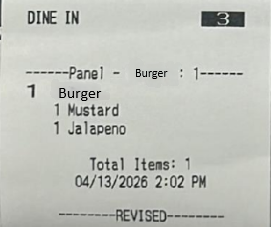
This update exposes a new status indicator on order items that allows the chit printer and kitchen ticket scripts to detect whether an item has been edited. Scripts can now distinguish between newly added items and modified existing items, enabling more informative printed output.
What Changed
-
New
IsEditedstatus for scriptable order items: Order items now expose an "is edited" flag that scripts can read during order processing. -
Smarter chit printer scripts: Chit printer and kitchen ticket scripts can now conditionally format output based on item status — for example, labelling modified items as [REVISED] and new items as [NEW].
-
Read-only property: The new flag is purely informational and cannot be changed by scripts, ensuring no unintended side effects.
Notes
- This change is fully backwards compatible. Existing scripts that do not reference the new
IsEditedproperty are unaffected.
Feature Enablement
To take advantage of this feature, the chit printer or kitchen ticket scripts must be updated manually to include logic that checks and acts on the IsEdited status.
-
Update the Script in Scripting Functions
-
Scripts are programmed in Java
-
Reach out to support if assistance is needed
-
Support can provide a default template script
-
-
Save and Publish
Workflow
-
Ring in a few items
-
Pay/Send order
-
Label 1 prints
-
-
Edit one of the items rang up in step #1
-
Send Order
-
Label 2 prints
-
Register
Delivery Notes on Future Order Screen (BRNK-67055)
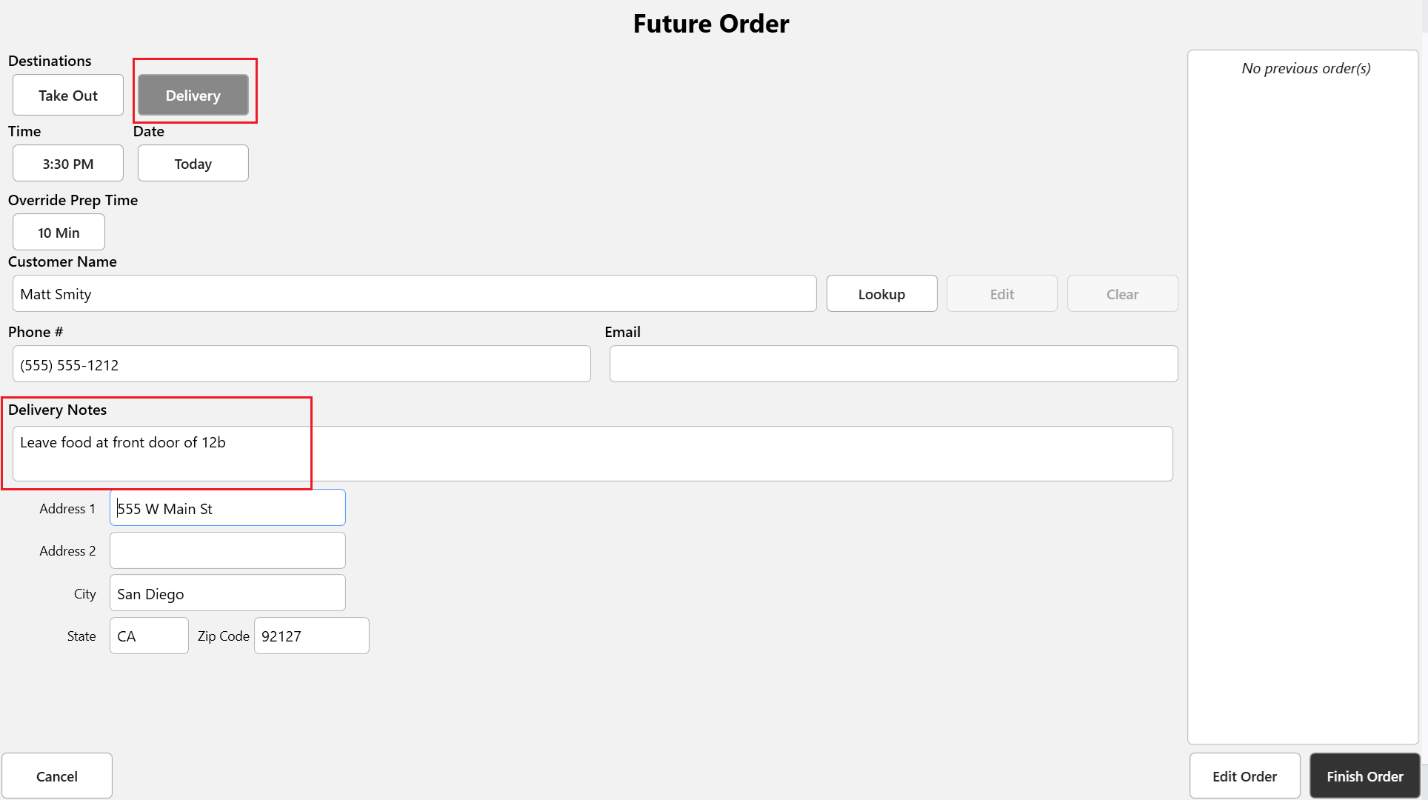
Future Orders now support dedicated Delivery Notes, allowing cashiers to enter per-order delivery instructions without affecting the customer's saved address information. Standing address notes and order-specific delivery notes are now stored and displayed independently.
Future Order Screen
-
A new editable Delivery Notes field is displayed when a delivery destination is selected on a future order.
-
When a customer and address are selected, the customer's saved Address Notes appear in a read-only panel for easy reference.
-
A Copy to Delivery Notes button lets cashiers instantly copy standing address notes into the delivery notes field for the current order.
Customer Address Book
-
Customer addresses now have a dedicated Delivery Notes field, separate from the standing Address Notes.
-
Both fields are visible when selecting or managing a customer address, so cashiers can see all relevant information at a glance.
-
The Edit Customer dialog includes the new Delivery Notes field when managing saved addresses.
Order Printing
-
Printed orders display the per-order delivery notes when available.
-
For older orders that pre-date this change, the system falls back to the standing address notes, ensuring no disruption to existing workflows.
Receipt Printing
- Printed receipts will now show per-order delivery notes when available, falling back to standing address notes for addresses that have not yet had delivery notes set
Feature Enablement
This feature is automatically enabled; no settings change is required.
Workflow
-
Ring in an order
-
Click Manage Future Orders
-
Click Delivery under Destinations
-
See Delivery Notes
Surcharges Can Now Be Split Per Order (BRNK-65932)
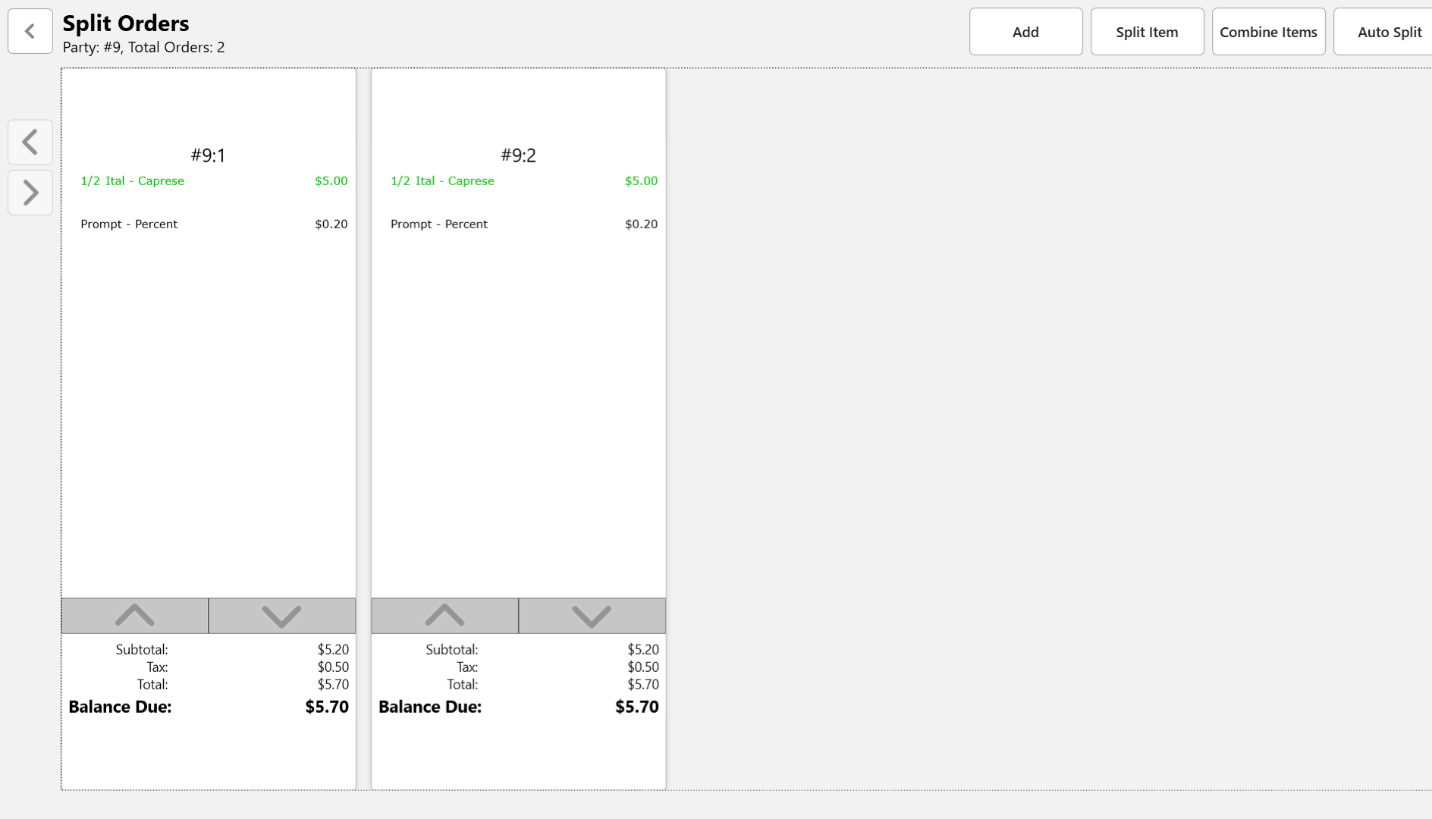
When an order is split, per-order surcharges are now correctly recalculated on each resulting check, ensuring order totals are consistent whether a transaction is placed as a single order or divided into multiple checks.
Split Order Surcharge Behavior
-
Per-order surcharges are now automatically recalculated when an order is split, rather than applying default or missing values.
-
Empty split orders (those with no items) no longer incorrectly have per-order surcharges applied.
-
Surcharge amounts on split orders are now calculated based on the source order.
-
Operators can now correctly distribute manual surcharges across split checks.
Feature Enablement
This feature is automatically enabled; no settings change is required.
Workflow
-
Ring in at least one item
-
Apply Surcharge
-
Click Split Item
-
Click Add
-
Enter the number of times you want to split the order
-
Move over the required items to the second order
- Note the surcharge split automatically
-
Click the back arrow (top left-hand side of the screen, next to Split Orders)
-
Pay out both orders
Ability to Adjust or Override Prep Time for Future Orders at Time of Capture (NUC-2117)
This release introduces a Manual Prep Time Override feature for future orders in the POS system. Operators can now manually set a custom preparation time on any future order, replacing the default calculated prep time. The override is saved, displayed with a visual indicator, and respected by the automatic order-send scheduler
Override Prep Time Entry
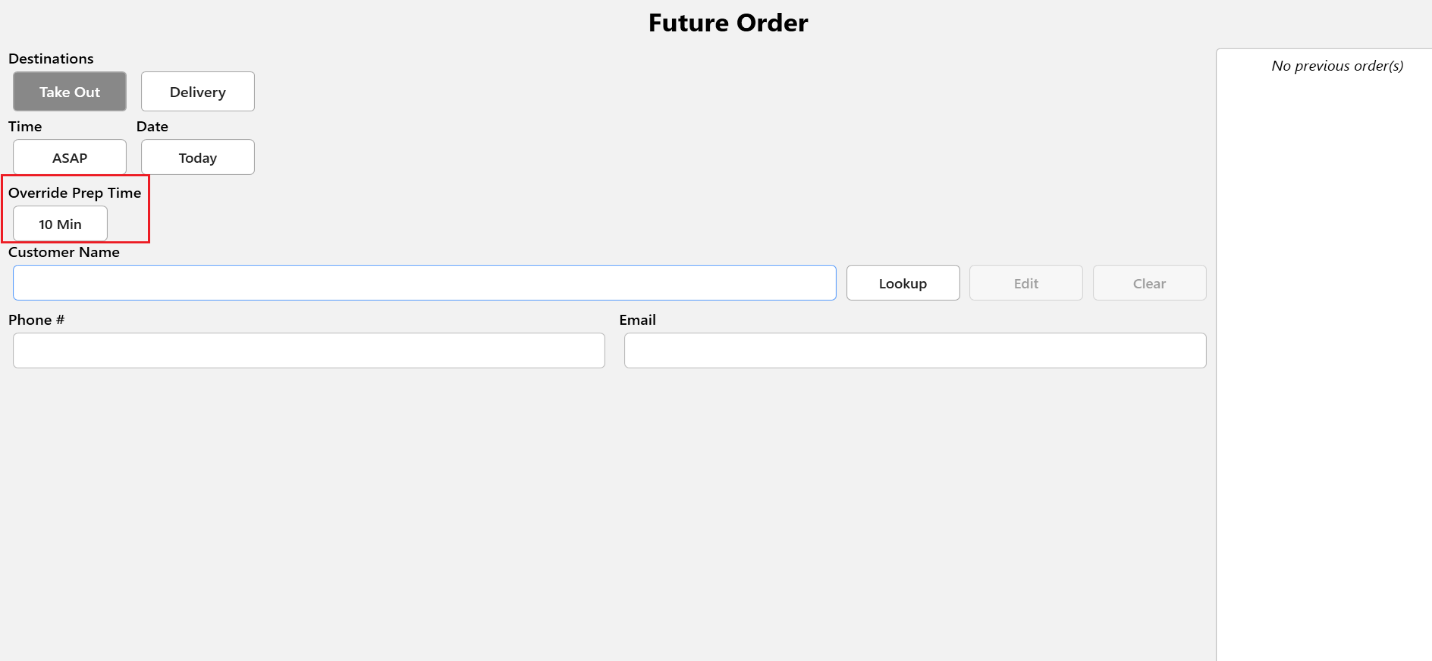
- A new Override Prep Time button appears in the Future Order window, showing the currently selected duration.
- Tapping the button opens a dialog where users can type a custom prep time, use +/– buttons to adjust the value, or tap a quick-select chip (5 to 60-minute intervals).
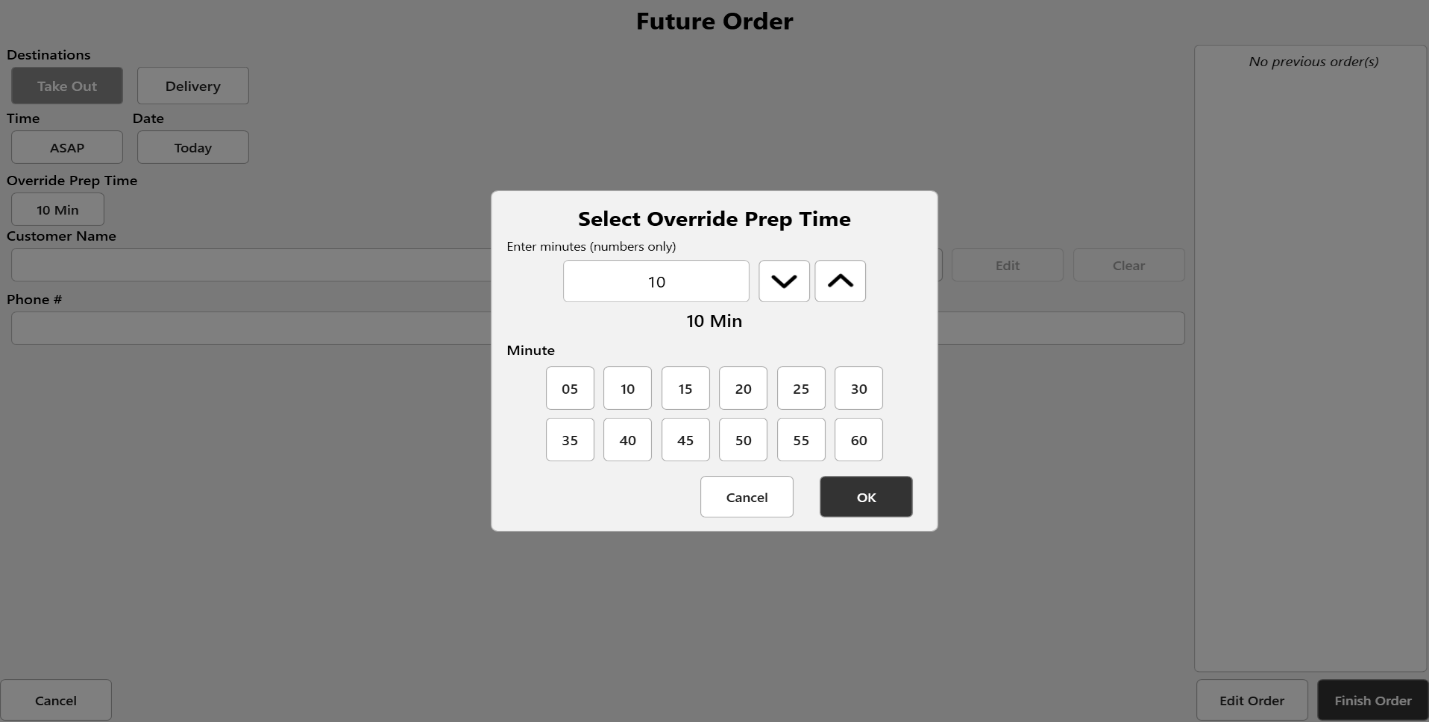
- Valid prep times range from 1 to 1,440 minutes (1 minute to 24 hours). Input is validated with clear, localized error messages.
Visual Indicator on the Future Orders List
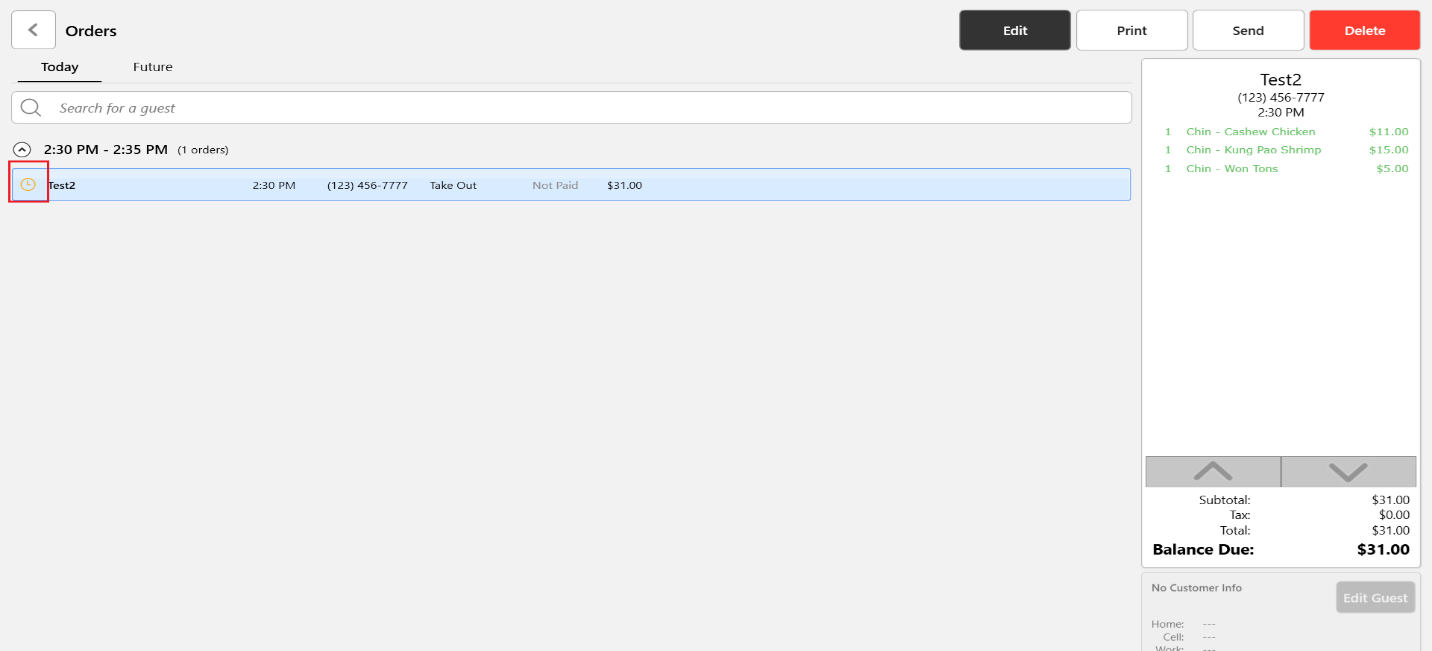
- When a future order has a manually overridden prep time, an orange clock icon appears next to it in the Manage Future Orders list.
Scheduling and Auto-Send Behavior
-
The future order scheduler now uses the overridden prep time (when set) to calculate the correct auto-send time for each order.
-
Orders without an override continue to use the default system-calculated prep time; existing behavior is unchanged.
-
Both new and existing future orders are handled correctly when overrides are applied or updated.
Persistence
-
The override value is saved to the database as part of the future order record and survives re-opening or re-editing the order.
-
If an order is reopened, the previously entered override is pre-populated in the dialog.
-
The system correctly handles the absence of an override (stored as empty/null) and falls back to the default prep time in those cases.
Data Migration
-
Any override data stored in the older internal format is automatically and safely migrated to the new format at load time.
-
Migration is non-destructive: the new typed value always takes precedence, legacy data is cleaned up, and out-of-range values are discarded rather than causing errors.
Audit Logging
- When a prep time override is set, the action is recorded in the audit log for traceability.
Feature Enablement
This feature is automatically enabled; no settings change is required.
Workflow
-
Ring in a few items
-
Click the Future Orders button
-
Click the time button below Override Prep Time
-
Edit the prep time
-
Can use the up and down arrows
-
Can use the minute buttons
-
-
Click OK
-
Enter Customer Name
-
Enter other required fields
-
Click Finish Order
5.16 r2 Bug Fixes
| Description | ID |
|---|---|
| Resolves an issue with the chit configurator script in which a single chit fails to print modifier-only items configured to Route Separately from the parent item. | AS1-3512 |
| Fixed an issue with the chit configurator script where summary chits were not printed by replacing separate print methods with a single method that handles both single and summary chits based on ChitType. | AS1-3521 |
| Fixed issues with Re-Print Chit/Receipt only working on register 1 | BBS-10578 |
| Fixed issues with two specific macros that were not working with the Quantity Button due to a panel change. | BBS-13675 |
| Fixed an issue where Enhanced Refunds were not working with Penny Rounding. | BBS-13880 |
| Resolves a pricing issue in multi-location environments where price changes tied to specific dates, days, or times were incorrectly being disabled. Prices now apply reliably according to their configured restrictions, regardless of the location's time zone. | BBS-13881 |
| Addresses a security vulnerability in which full credit card numbers and raw payment-tracking data were being written to application logs in plain text. All sensitive card data is now properly masked in log output across all occurrences. | BBS-13882 |
| This update delivers security and stability improvements to FirstData and Heartland payment processing integrations. It incorporates upstream bug fixes related to the handling of credit card data during payment transactions. | BBS-13891 |
| Fixed an issue where code was removed that controlled SignalR, causing ORBs from working. | BBS-13893 |
| Resolves a stability issue in the point-of-sale UI where certain panel screens could crash or throw errors when their message handlers were set up more than once. The fix ensures these panels now handle repeated initialization gracefully. | BBS-13916 |
| Corrected issue where the register was failing to rev settings locally during End of Day | BBS-13997 |
| Fixed issues with Printer Re-Routing not working as expected. | BBS-14065 |
| Fixed issue with Future Order Screen where fields below Store Remarks, Delivery Notes and Address Notes were unreachable, no scrollbar. | BBS-14096 |
| Fixed issue where Delivery Notes were not showing up on receipts/chits using the Printer Config Tool. | BBS-14097 |
| Shift editing from the pos is very easily soft-locked. The start time should be earlier than the end time. This case resolves this issue. | BRNK-65694 |
| Resolves a race condition that caused SMG survey codes to be missing from order status events when closing an order. Downstream survey and reporting systems will now consistently receive complete order data at close-order time. | BRNK-66755 |
| Resolves issue with the Recall Order Print Chit not printing for Backup Primary or Secondary, but printing after the Primary register is rebooted. | BRNK-67355 |
| Corrected issues with errors when printing duplicate receipts for refunded orders | BRNK-69116 |
| Corrected issues with Punchh Rewards not working during Happy Hour. | BRNK-69136 |
| Manager Functions PIN returns “Insufficient Permissions” incorrectly; corrected. | BRNK-69159 |
| Corrected issue with Credit Card Refund incorrect balance calculation. | BRNK-69199 |
| Hotfix MSIs for Register/Kitchen could appear to be installed successfully but not replace DLLs. Issue now fixed. | SEL-1456 |
