PAR POS™ v5.16r5 (5.0.16411) Release Notes & Feature Guide
About This Release
PAR POS 5.16r5 is a point release covering enhancements to limited-use promo codes, non-cash payments without a cash drawer, Brother label printing, Print All on First Bump kitchen printing, and bug fixes. This document summarizes what's new, how each change works, and what, if anything, you need to do to use it.
Promotions
Limited-Use Promo Codes
Reference: BRNK-64837
Promo codes can be limited to a configurable number of redemptions (for example first 20 orders, or use this code up to 18 times), instead of only single-use or unlimited. Limits are enforced in real time, including optional per-customer and time-window controls.
How It Works
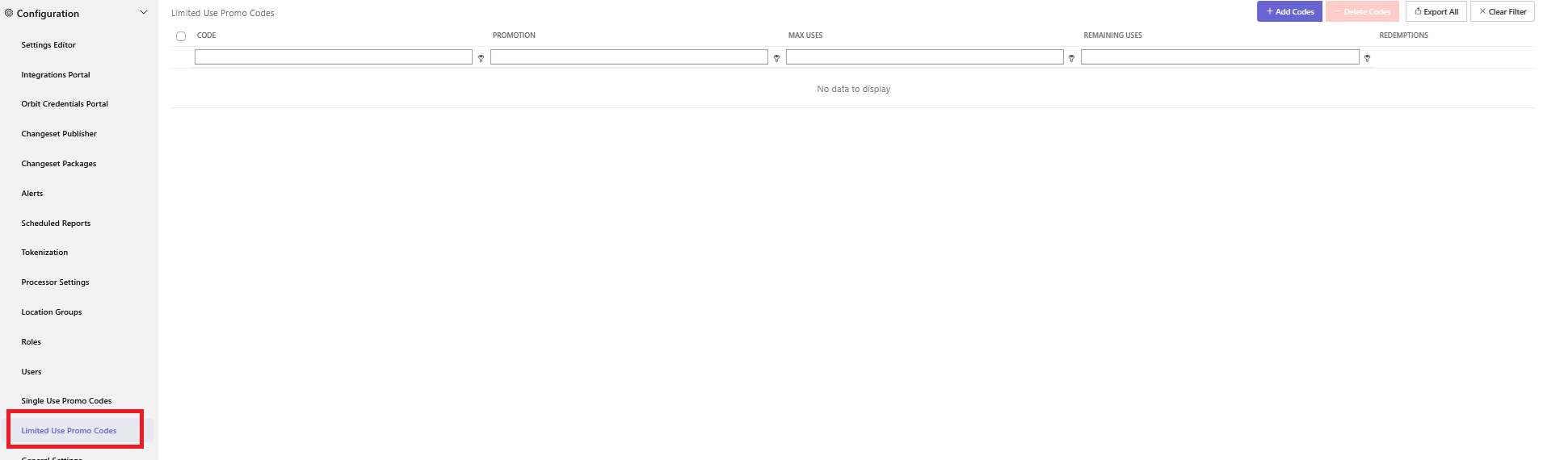
- The list view displays each code's name, associated promotion, maximum uses, remaining uses, scope, and status.
- A redemption detail view shows expanded transaction history for individual codes.
- A delete confirmation dialog allows administrators to remove promotion codes safely.
- The existing "Promo Codes" navigation item has been renamed to "Single Use Promo Codes" to avoid confusion with the new limited-use type.
- Export option allows the user to export the redemption detail view.
- A Role permission controls access. Users with existing single-use promotion permissions automatically receive equivalent limited-use permissions.
- This is located on the Admin Portal ->Configuration->Roles
NOTE: The redemption limit can go up to 99999, but the best practice is to limit auto generation of codes to 500 at a time, to prevent timeout issues.
Feature Enablement
Log into the Admin Portal and:
- Click Configuration → Limited Use Promo Codes
-
Click Add
-
Choose Manual (to enter all codes manually) or Generate (PAR POS will auto generate the codes)
-
From the Select a Promotion drop down, choose the promotion to work with the codes
-
If Manual was selected in step 3 above:
-
Enter codes — one per line or comma-separated, max 20 characters each
-
If Generate was selected in step 3, enter the:
-
Count — the number of codes to be generated
-
Length — the length of each code
-
Characters:
-
Alpha — letters only
-
Numeric — numbers only
-
Alphanumeric — both letters and numbers
-
-
-
-
Set Redemption Limit (minimum 1)
-
In the Limit to Locations section, choose which location(s) will be using the promo and the codes generated in step 5 and click Add
-
Click Save
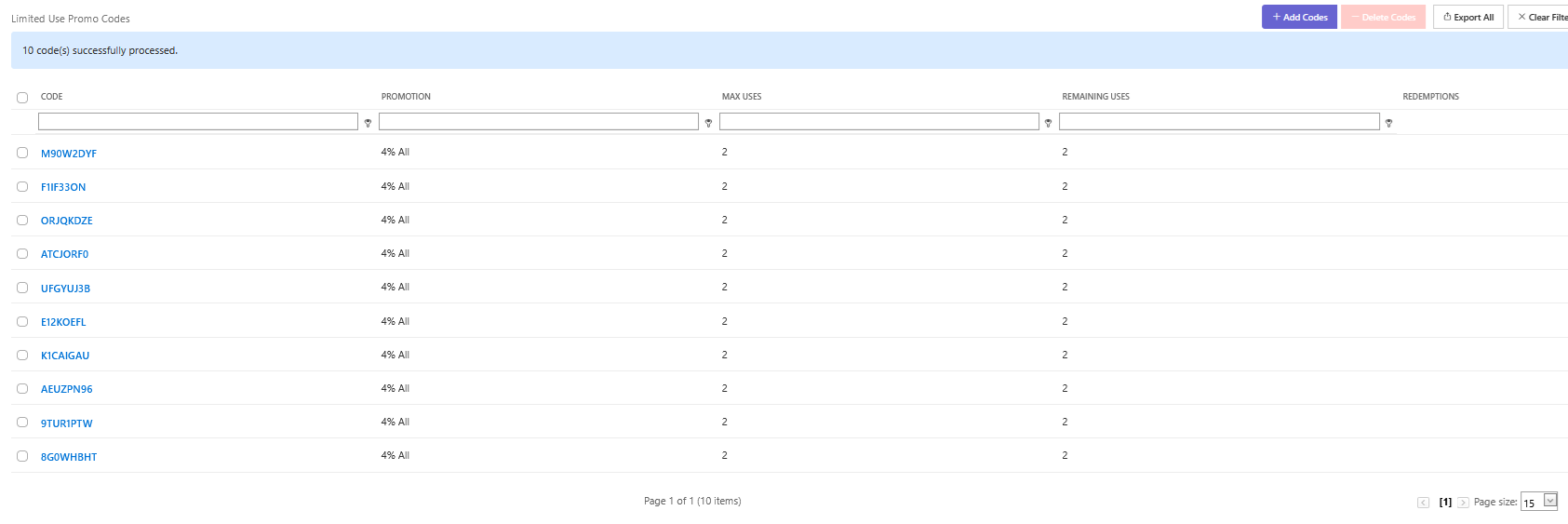
Register Workflow For this example, the configuration for the limited-use promotion is:
- Generate, Promo = 10% Off, Count = 3, Length = 5, Alphanumeric, Redemption Limit = 2
- Ring in an order.
- Apply the 10% promotion that was configured with limited use (see Feature Enablement above).
- Enter the 5-digit alphanumeric code.
- Confirm the 10% promotion was added to the order and the order total was reduced.
- Tender and close the order.
- Ring in a second order.
- Apply the 10% promotion that was configured with limited use.
- Enter the 5-digit alphanumeric code (same code as in step 3).
- Confirm the 10% promotion was added to the order and the order total was reduced.
- Ring in a third order.
- Apply the 10% promotion that was configured with limited use.
- Enter the 5-digit alphanumeric code (same as in steps 3 and 8).
- Note the error message indicating that the promotion has exceeded the number of allowed uses.
Ordering & Checkout
Non-Cash Payment Without a Cash Drawer
Reference: BRNK-69864
Phone-order staff who are not assigned a cash drawer can now take credit card and gift card payments. Before the 5.16r4 release, those employees were blocked from any payment with a “You do not have cash drawer assigned” error message.
How It Works
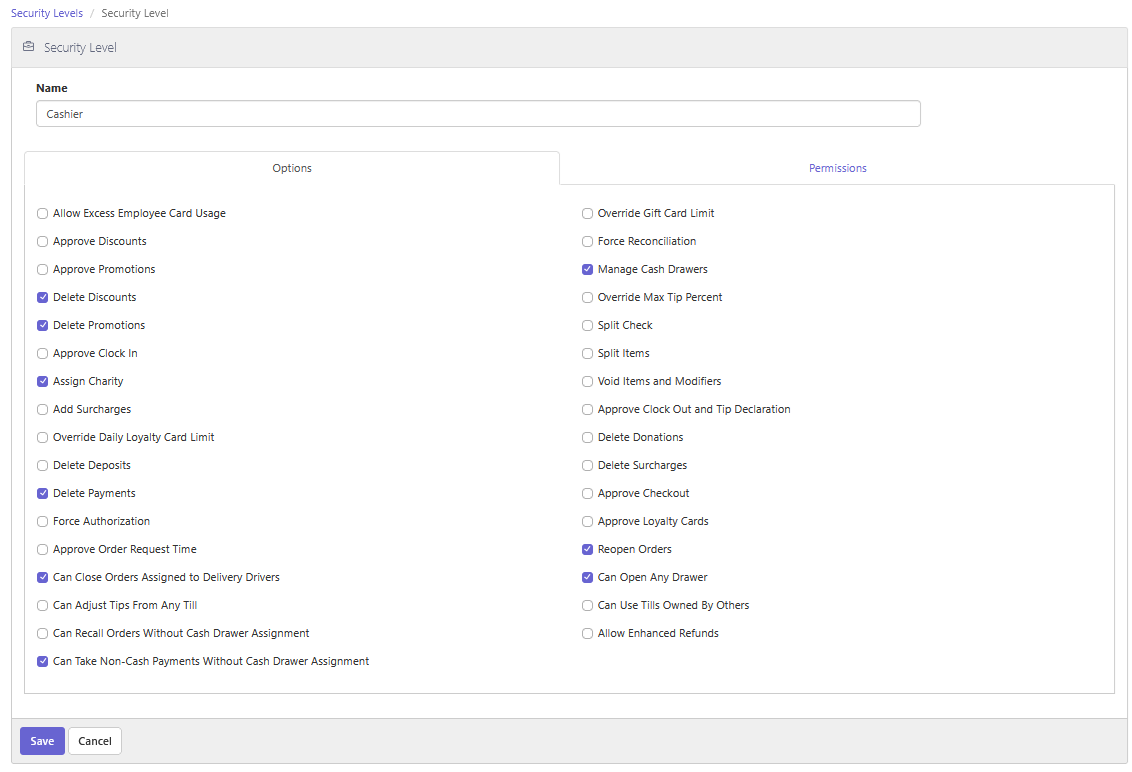
- A new security-level checkbox gates the behavior. If it is enabled, the register allows only Credit Card and Gift Card tenders without a till assignment.
Note: Cash payments still require a drawer. Mixed tenders (cash + card) are out of scope.
Feature Enablement
In Admin Portal, navigate to Staff, then Security Level.
- Select the desired Security Level or create a new Security Levels.
- Enable Can Take Non-Cash Payments Without Cash Drawer Assignment
- Click Save
- Assign that security level to the Job setup for employees who take phone orders.
- Navigate to Staff -> Jobs
- Select the job that is setup for employees who take phone orders
- Click the Security Level drop down
- Select the Security Level created above
- Click Save
Register Workflow
- An employee with the Phone-Order security level logs into the register.
- Select the Phone Order destination.
- Ring in items ordered by the guest.
- Tender the order using a Credit Card or Gift Card tender.
Kitchen
Print All on First Bump Updates
Reference: BRNK-70767
Print All on First Bump (introduced in 5.16r2) now covers orders that never appear on the kitchen display, and times void labels so the kitchen receives one accurate set instead of duplicates. These updates apply to script-based chits/labels only. Existing PAR POS (non-script) bump printing is unchanged. There is no new setting.
How It Works
Orders that include at least one KDS-routed item still print on the first item bump. Later bumps for the same order do not reprint the full set.
Orders with no KDS items
Some orders never appear on the KDS (for example beverage-only orders). Those orders used to skip printing entirely because no bump ever occurred. They now print at the earliest available event:
- Above-store / injected orders: labels print immediately when the order is injected.
- In-store POS orders: labels print immediately when the order is Sent and Paid.
Mixed orders
When an order has both KDS items and items that are not routed to a kitchen display, printing still waits for the first KDS bump. That print set now includes all items on the order, including items that never appear on the KDS.
Void labels
Void printing is aligned with the first-bump workflow so a void does not create a second label set:
- Order still on the KDS: voiding an item does not print on Send. VOID labels are held and included in the next first-bump print. Only one updated set is produced.
- Order already fully bumped off the KDS: VOID labels print immediately, because no later bump will occur.
Note: In 5.16r2, void item chits always printed immediately, even when Suppress Chit/Label Printing on Send was enabled. For script-based printing with Print All on First Bump enabled, that is no longer true while the order is still on the KDS.
Print accuracy
- After an order is recalled, edited, and resent, the next bump prints one revised set. Subsequent bumps do not print additional sets.
- An item that is bumped, edited, and resent back to the makeline is included in the next bump print.
- The Print Chit button on Recall Order prints even when Suppress Chit/Label Printing on Send is enabled.
Feature Enablement
No new toggle is required. Enable the existing Print All on First Bump configuration, with script-based chits/labels.
Kitchen queue (required)
In Admin Portal, navigate to Configuration → Settings Editor → Kitchen Queues, then select the Spark makeline queue:
- Set On Bump Print To to the chit/label printer. This field is required.
- Check Print All on First Bump.
- Leave Show Unsent Orders off.
- Confirm the kitchen view for that queue is Item Mode.
- Click Save and Publish.
Note: Print All on First Bump does not work with Show Unsent Orders. If both are enabled, Save/Publish shows an error and the publish does not process. The feature applies to Item Mode only.
Suppress print on send (typical workflow)
In Settings Editor, navigate to Options → Kitchen → General:
- Check Suppress Chit/Label Printing on Send.
- Click Save and Publish.
With both settings on, send does not print; the first bump prints the full set.
Script-based printing
These updates apply only to script-based chits/labels. Classic PAR POS bump printing is not changed.
Kitchen Workflow
| Scenario | Expected result |
|---|---|
| Order with KDS items; bump the first item | One full label/chit set prints. Later bumps print nothing extra. |
| Soft-drink-only (or other non-KDS) order | Prints on inject (above-store) or Sent and Paid (POS). |
| Mixed pizza + drink | Prints on first pizza bump. The drink is included in that same set. |
| Void an item while the order is still on the KDS | No print at send. The next bump prints one set with VOID labels. |
| Void after the order is fully bumped off the KDS | VOID set prints immediately. |
| Edit and resend after a bump | The next bump prints one revised set, not multiples. |
Printing
Brother Printer Label Parity
Reference: AS1-3739
Brother TD label printing enhancements when using script-based chits/labels. Print jobs are no longer lost when the printer sleeps. Includes a feature-flagged new driver, layout and calibration work, vertical and horizontal text printing, and retry after idle exceptions.
How It Works
- A new Brother driver can be enabled with the
PARPOS.EnableNewBrotherPrinterDriverfeature flag. - Layout work matches the label (fields, bold, spacing, height/width for calibration).
- Sleep/retry checks: wake from sleep, queued jobs, unplug/replug network, open/close roll compartment, remove/reinsert roll.
Note: Cutting power mid-job is expected to fail.
- Reconnect timeout: TD-4420DN ignores a duplicate status poll on a new session.
- Vertical and horizontal text printing and fixed-position center and right lines.
Feature Enablement
Note: Used only with script-based chits/labels. Must use a supported Brother printer (TD-4420DN class hardware for the timeout work).
- Enable feature flag
PARPOS.EnableNewBrotherPrinterDriverfor the new driver path.
Bug Fixes
| # | Problem | Resolution | Ticket |
|---|---|---|---|
| 1 | When searching by user or date and user, the Admin Portal would crash, and the Original Location column showed incorrect data. | We have optimized the way our system uses indexing. | BRNK-70617 |
| 2 | Changeset Publisher keyword search stopped looking inside the changeset details. | Corrected the issue by adding a multi-select Search By control. | BRNK-70618 |
| 3 | Changeset Publisher was no longer showing the correct information in the Original Location column | Fixed this issue by optimizing the way the system saves and audits key details of the Changeset (when it was created, who created it, and when it was last changed). | BRNK-70619 |
| 4 | Searching Changeset Publisher by a user and a date timed out and dropped the user on the Admin Portal Application Error page. | Audit data is copied onto the ChangeSet row, so the search no longer scans the audit table. | BRNK-70620 |
| 5 | On the Admin Portal ChangeSet Packages screens, retrying a package that failed to apply gave no feedback. Retry is fire-and-forget: the page posted to the server, the server returned 202 Accepted and queued the work, and the page reloaded immediately onto the same failed or still-working status. |
The issue was resolved by optimizing the UI, which now shows the messages right away, “The retry request has been submitted.” or “The retry request could not be submitted.” The locations grid shows a status icon for each location: a green check when published, a red warning when failed or in a hard fault. Refreshing during a retry no longer looks like the action was cancelled. The page shows the real backend status (validating, publishing, published, or failed). The banner disappears on refresh, and the retry keeps running. The Retry button stays hidden when the package cannot be retried, such as when it is already published, cancelled, or still working |
BRNK-70621 |
| 6 | Fixed an issue where the Changeset Service would stop responding (hang) under high load. | The job methods were optimized so they no longer deadlock. | BRNK-70622 |
| 7 | Headless changeset packages that landed in a transient fault could get stuck until the next Service Host restart. | Support now has a way to start a sweep to correct this issue. No longer requires a Service Host restart. | BRNK-70623 |
| 8 | On the Admin Portal Location Group Creation screen, Parent Location Group was a normal dropdown. As the number of location groups grew, finding the right parent meant scrolling a long list. | That field is now a searchable autocomplete. Typing part of a group name filters the list so the parent can be selected without scrolling the full set. | BRNK-70624 |
| 9 | While testing receipt and chit printing, the selected customer dropped off a delivery future order after the cashier left that screen and came back. Address Notes and the Copy button disappeared, and Order.Customer.Address.Notes did not print on the receipt or chit | Editing the order’s Delivery Notes field no longer clears SelectedCustomer. Other keyboard-backed customer and address fields still clear the customer, including a manually edited custom delivery address. | BRNK-70543 |
| 10 | Some customers could not print future orders on the register. Error: Print Failed, Order not Found. | PrintOrder now checks the persisted future-order store when the order is missing from live state. An order that is not in either place still throws Order not found. | BRNK-70503 |
| 11 | Orbit had sent a price with more than two decimal places. The order was a 1 percent comp, which produced fractions of a cent, and that price was passed with three digits. The register’s money handling looped on that extra precision and hung. Failover would not have helped, because the primary was still up and still taking requests. | Prices and tax amounts that third parties send through the Orbit API are rounded to two decimal places before the register uses them. | BRNK-70883 |
| 12 | A specific customer published layout changeset that added a new panel. On the register, that panel drew on top of the menu, so the screens overlapped. A register restarted cleared the overlay. | Optimized the way Hot Reloads (changes in the settings editor are published, but registers do not restart) work with panels added. | BRNK-71081 |
| 13 | An order paid with more than one tender would not close when rounding was set to Nearest $0.05. A gift card, credit card, or app discount plus cash left a few cents of balance due or change due. Staff had to balance the order by hand. | Optimized the rounding functionality so Nearest rounding uses only the cash still owed. A $9.13 cash remainder becomes $9.15, and the order closes at zero balance and zero change. Cash-only orders still go round the full total. Up, Down, and rounding off are unchanged. Orders already in the journal keep the rounding rules from when they were taken. | BBS-14264 |
| 14 | When rounding is on, the method is Nearest, the round-to amount is coarser than one cent, and the tender allows change; Replay threw BalanceDue on orders that had already closed, so the register stayed on the desktop (failed loading local state). | During startup, the register rebuilt each order with the current software’s rounding rules. The event’s own state version was dropped, so an order closed under the old rules no longer matched the journal. Now the system passes that event version into the rounding calculation. Startup now uses the rules from when the order was taken. Taking and closing new orders is unchanged. | BBS-14237 |
| 15 | At the start of the order, the cashier looks the guest up by phone. Generic loyalty returns that the user was not found and asks whether to create one. Signup is turned on, so that prompt is expected. If the cashier selects “No”, the register still shows the original lookup error: “Invalid User”. | Declining the new user no longer brings that error back. The lookup and the “create a user?” prompt still run when signup is enabled. Choosing “No” leaves the order without a loyalty user and without the error. | BRNK-70794 |
| 16 | Reprint Credit Draft for an Aurus payment printed the generic credit voucher. The reprint was missing the original ParPay receipt details: EMV data, ticket number, batch number, and in the reported case, the masked card number. The reprint path did not know which payment device had taken the payment, and it did not rebuild the receipt from the saved sale. | For a payment device whose model is Aurus, the sale stores EMV data, entry method, and response text on the payment. Reprint Credit Draft, Reprint All Credit Drafts, and Print Last Order Credit Drafts rebuild the receipt from that saved data plus the current tip and amount. If a tip is already on the payment, the tip-entry lines are left off, and the authorized amount includes the tip. A reprint after a tip adjustment uses the adjusted tip. If the device does not support this reprint, the register falls back to the old print task. Other device models, gift cards, and house accounts stay on the old path. | BRNK-71686 |
| 17 | An order paid outside the register had no in-store payment voucher. Reprint Credit Draft only accepted credit card payments, so an external tender produced no voucher. | Reprint Credit Draft now accepts an external tender. The voucher is built from the payment’s additional data (approval, cardholder, card type, masked account, reference number). It can be reprinted only on the same business date, and only when the payment device says it supports a credit-draft reprint. Otherwise, the cashier gets one of two messages, in English or French: the payment was on a previous business date, or the device does not support reprinting. Credit card reprint rules are unchanged. Order-level draft printing now looks at every payment on the order, so an external payment on the current business date can print a voucher too. | BRNK-71687 |
| 18 | Presto VoiceAI submitted non-revenue items incorrectly, causing issues with Donation Total and Non-Revenue Items on the Sales Summary. | ExternalOrderBuilder now copies NonRevenueItem from the item in settings when it builds the order item (NonRevenueItem = settingsItem.NonRevenueItem). | BRNK-74228 |
| 19 | Orders sent through the in-store API AddKioskOrder reach the kitchen display with nested modifiers at one indent. The same item sent through SOAP SubmitOrder keeps the extra indent. | The call now passes, following the same pattern RequestProcessor already uses. New OrderUpserted events get the right level, so the register order list and the kitchen display indent them. Orders already saved before the fix keep the level that was written on them. | BRNK-74229 |
| 20 | An in-store API / Orbit order sent with IsTaxExempt=true still had tax calculated once it reached the register. If Orbit had already paid the order without tax, the register showed underpayment. | KioskOrderHelper. |
BRNK-74232 |
| 21 | Orders printed one order number on the kitchen chit and a different number on the receipt. Both printouts use Order.Number. The number was changing while the order was open. |
Send assigns a number only when the order number is still -1. An order that already has a number keeps it. Removed the business-date check and set a future-day Orbit future order to -1 until it is sent. The expected timing is:
|
BRNK-74264 |
| 22 | Register.exe was crashing on tablets with Out of Memory Exception Errors. | A short-term measure to alleviate the memory load is to set LargeAddressAware flag so that Register.exe can utilize up to 4 GB instead of 2 GB. | BRNK-74265 |
| 23 | Verifone Integrated was not showing the correct change due after a successful Verifone cash-out. | A Null Reference Exception was found and corrected, so the change due now shows successfully after a cash-out. | BRNK-74067 |