Marketplace Delivery Actions on the PAR Ordering Tablet
The PAR Ordering Tablet now gives your team access to delivery management actions directly from the order view. Staff can view guest contact details, track drivers, and reach delivery provider support without leaving the tablet.
Which actions appear depends on the delivery integration for that order. Not all actions are supported by every integration. If an action is unavailable, it appears greyed out with the message "This action is disabled because the integration does not support it."
Supported Integrations
| Integration | Type |
|---|---|
| Uber Eats | Marketplace (Link) |
| DoorDash | Marketplace (Link) |
| Grubhub | Marketplace (Link) |
| DoorDash Drive | Dispatch (DSP) |
| Uber Direct | Dispatch (DSP) |
Access the Actions Menu
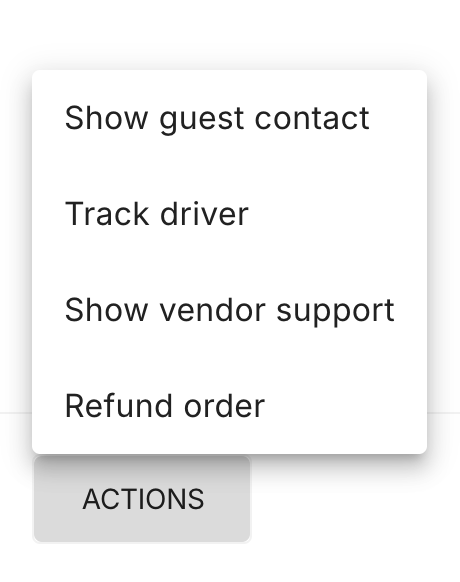
Delivery actions are available on any active delivery order. To open the Actions menu:
-
Open the order in the tablet order view.
-
Tap the Actions menu on the order.
-
Select an action from the menu.
Available Actions
Show Guest Contact:
- Show guest contact displays the guest's name and phone number so you can reach them directly.
- This action is only available for orders fulfilled by a Dispatch integration (DoorDash Drive or Uber Direct). Marketplace orders from Uber Eats, DoorDash, and Grubhub do not include accessible guest contact information. The option is hidden for those order types.
Track Driver:
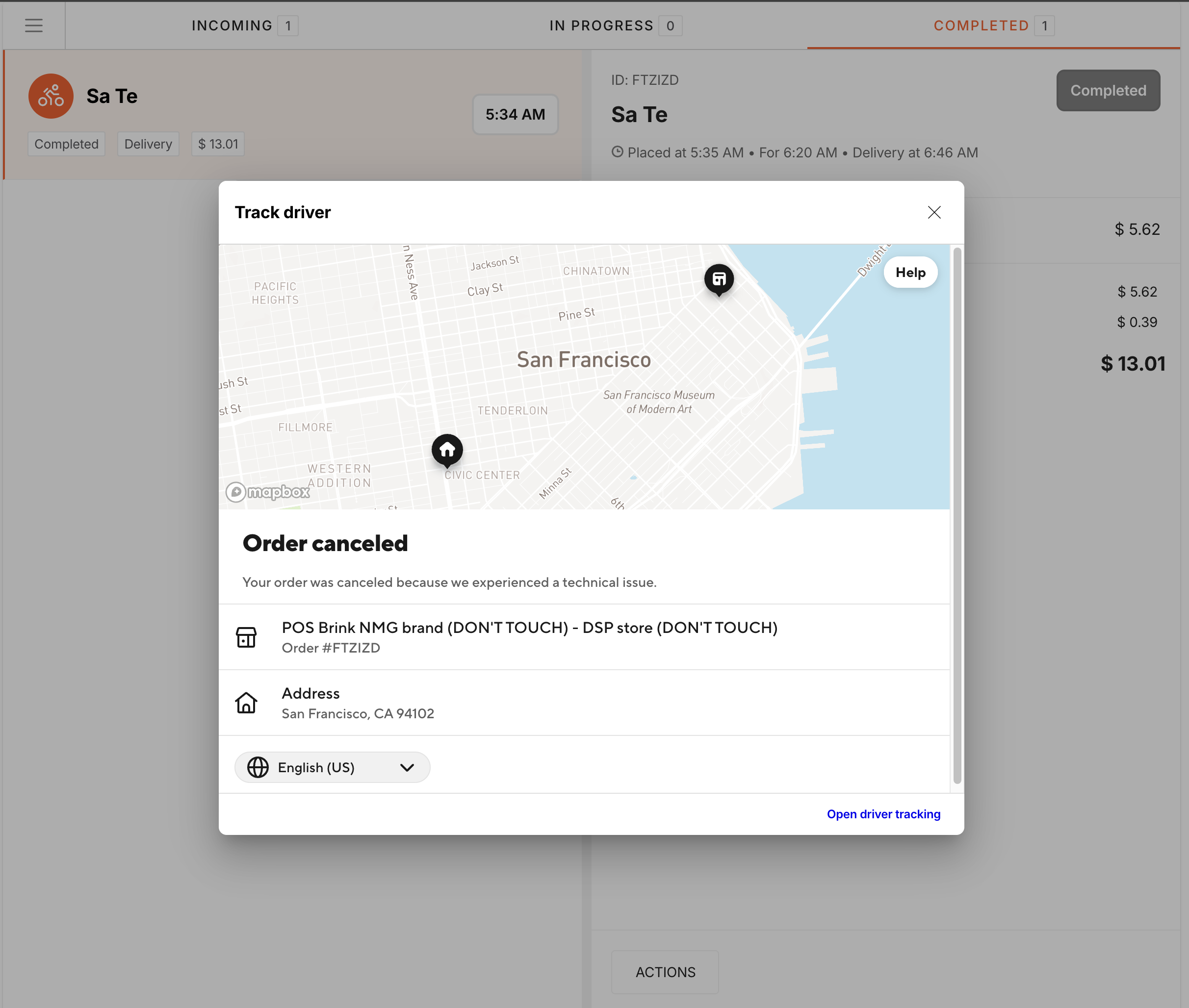
- Track driver displays the driver's name and phone number and provides a tracking link so you can monitor delivery progress from the tablet.
- When driver tracking is available, the tablet shows whether the driver is arriving soon or running late based on the estimated arrival time. If the tracking source is not updated in real time, the tablet labels it accordingly (for example, "Last updated X ago") so you know how current the location is.
- This action is only available for orders fulfilled by a Dispatch integration (DoorDash Drive or Uber Direct). Driver contact information is not available for marketplace (Link) orders. The option is hidden for those order types.
Show Vendor Support:
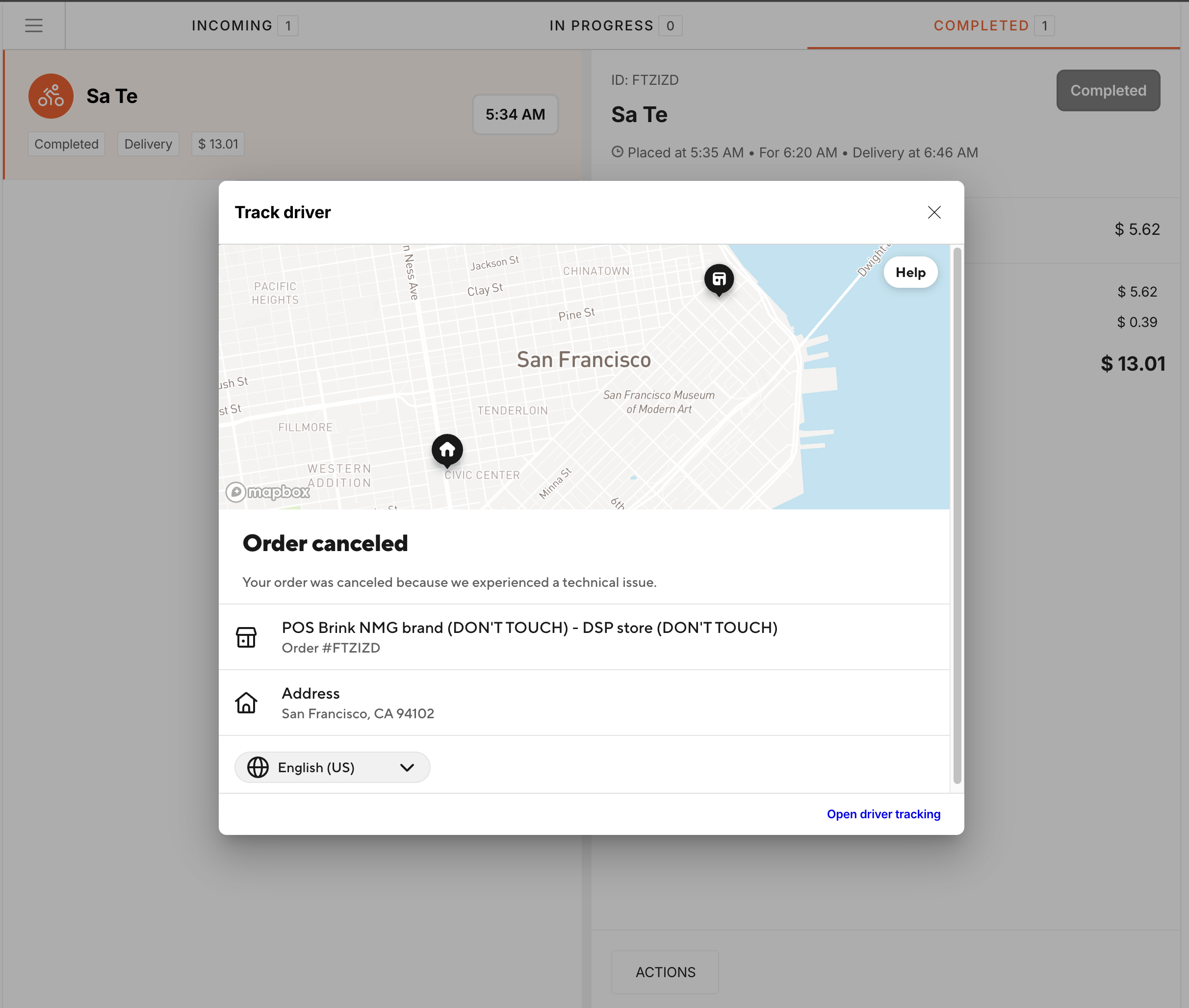
- Show vendor support displays support contact details for the delivery provider on that order. Use this when you need to call or email a delivery provider about an issue.
- This action works for all supported integrations.
- When you open the vendor support view, the tablet shows:
- The delivery provider's name and logo
- A reference identifier to have ready when you call:
- For marketplace (Link) orders (Uber Eats, DoorDash, Grubhub): the order code
- For Dispatch orders (DoorDash Drive, Uber Direct): the delivery ID
- The provider's support phone number(s) and email address
Each identifier and contact detail has a copy button. Contact information is display-only. The tablet does not support outbound calls or live chat.
Phone numbers displayed in the vendor support view are based on your store's country. US stores see US-specific phone numbers.
