How to Map Modifiers to POS?
| User Role | Store Group | Store |
|---|---|---|
| Brand Manager | ✅ | ❌ |
| Area Manager | ✅ | ❌ |
| Store Manager | ❌ | ❌ |
Unlike the Items and Combo Meals, Modifiers are imported from the POS system rather than being mapped.
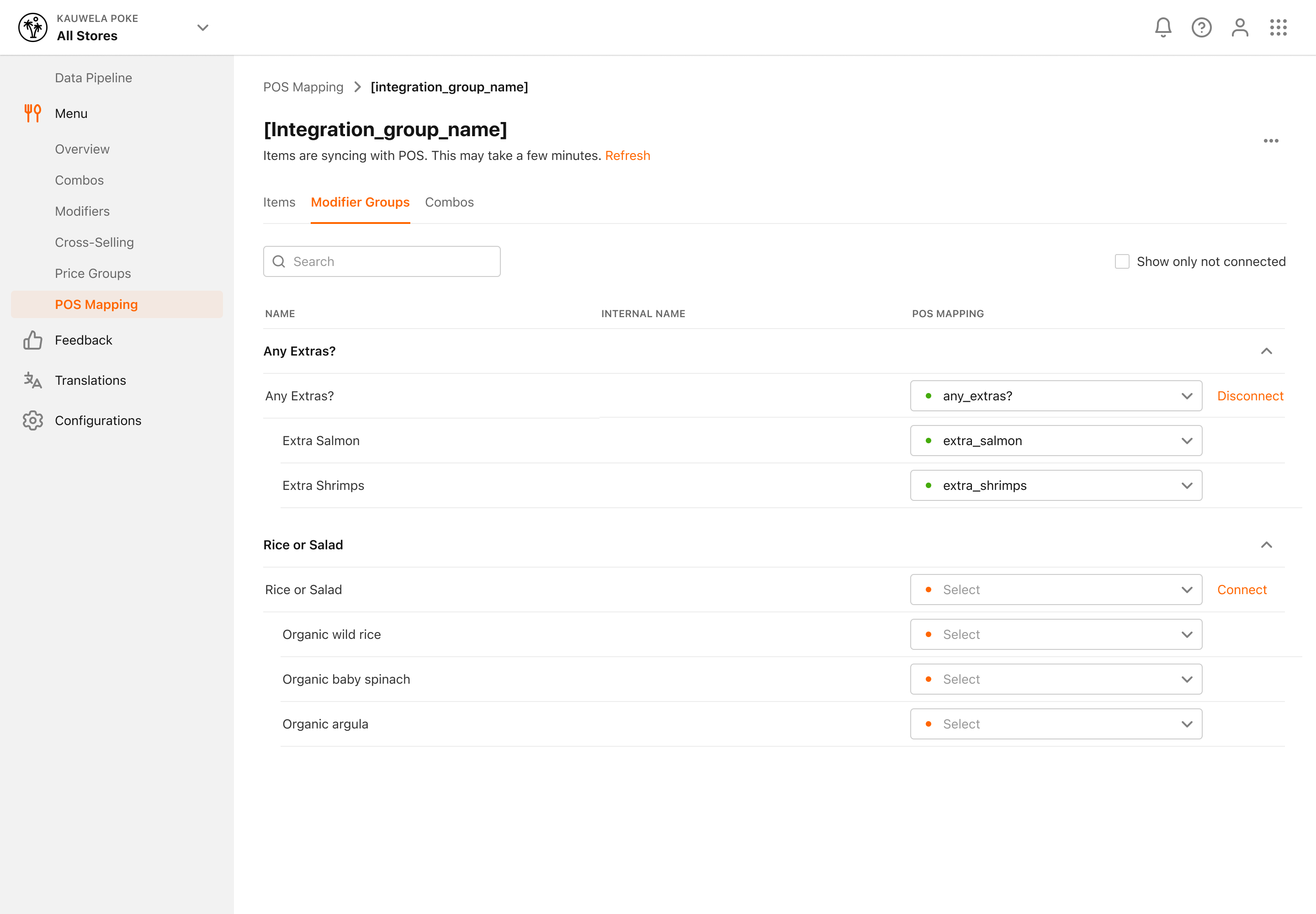
Modifier Sync can be initiated from the Store Group or Store POS Integration page. It imports all Modifier Groups and Modifiers from the connected Items found in the POS system, and creates their respective entities inside the MENU Management Center.
After the import has been completed, new Modifier Groups can be created with the imported Modifiers or the existing Modifier Groups can be modified. When importing, the name for the Modifier Groups & Modifiers is pulled from the configuration in the POS, and the names can then be modified through the Management Center, to make them Customer-friendly.
Prior to importing Modifiers, you need to have the POS tab available at the top bar indicating that you have an integration with the POS system. If that is not the case, contact your manager for further instructions.
Store Group Level
To import Modifiers:
- Click POS Integration in the left navigation bar
- Depending on a type of integration, different types on entities will be listed
- Select Sync Modifiers to start the import
- Confirmation dialog appears
- The user is informed that the process can take up to one hour, depending on the number of Modifiers, during which all the Stores are closed
- Click Yes to start the process
Store is temporarily disabled, until modifier sync completes.
When the synchronization is completed, date and time when the process was completed will be displayed in the POS Synchronization section, next to Modifiers.
Single Store Level
The process of importing Modifiers from the POS for Single Store is the same as for Store Groups.
