Google Analytics for Web App
This article will hep you create and connect your Google Analytics to the PAR Ordering Web app.
Set up Google Analytics (Universal Analytics)
https://support.google.com/analytics/answer/10269537
Step by step
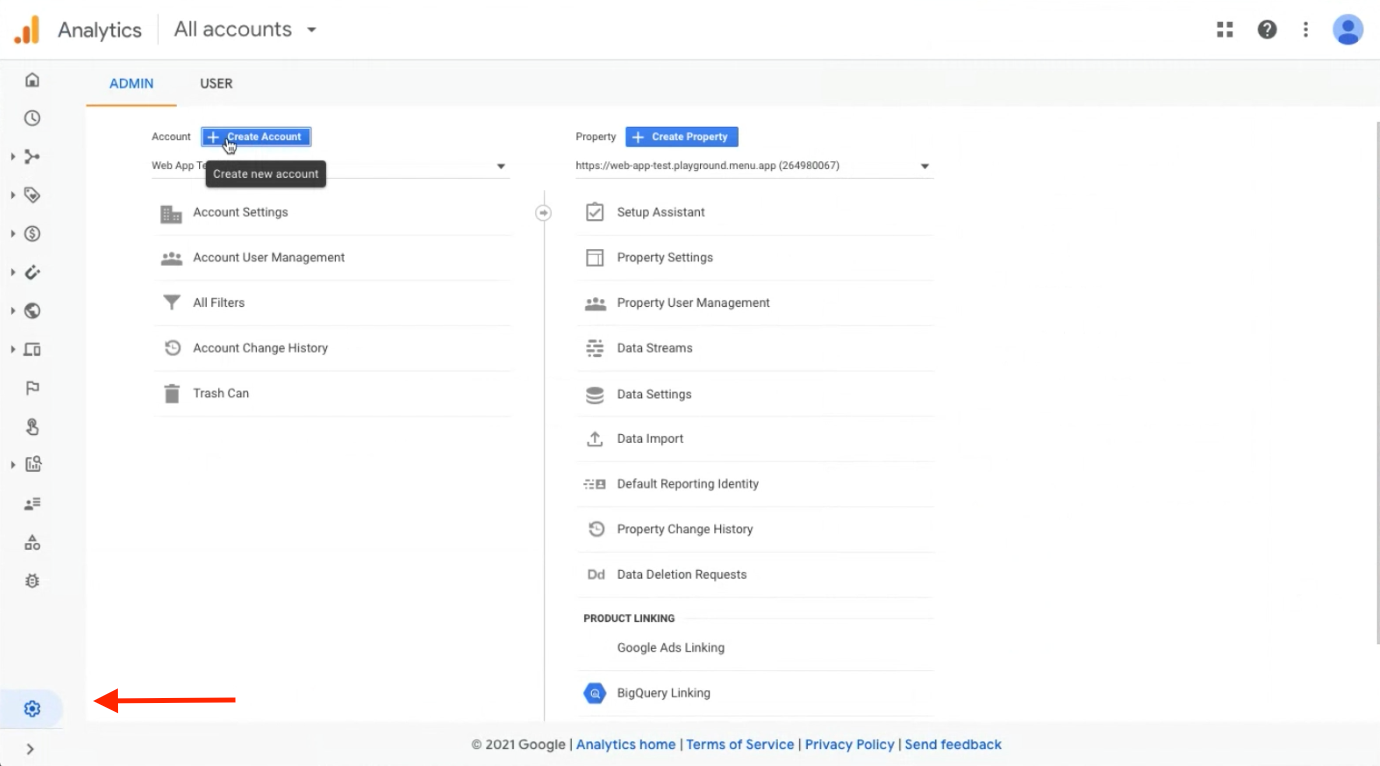
1. You need to have an Analytics account. If you don’t have it, please create one in Admin:
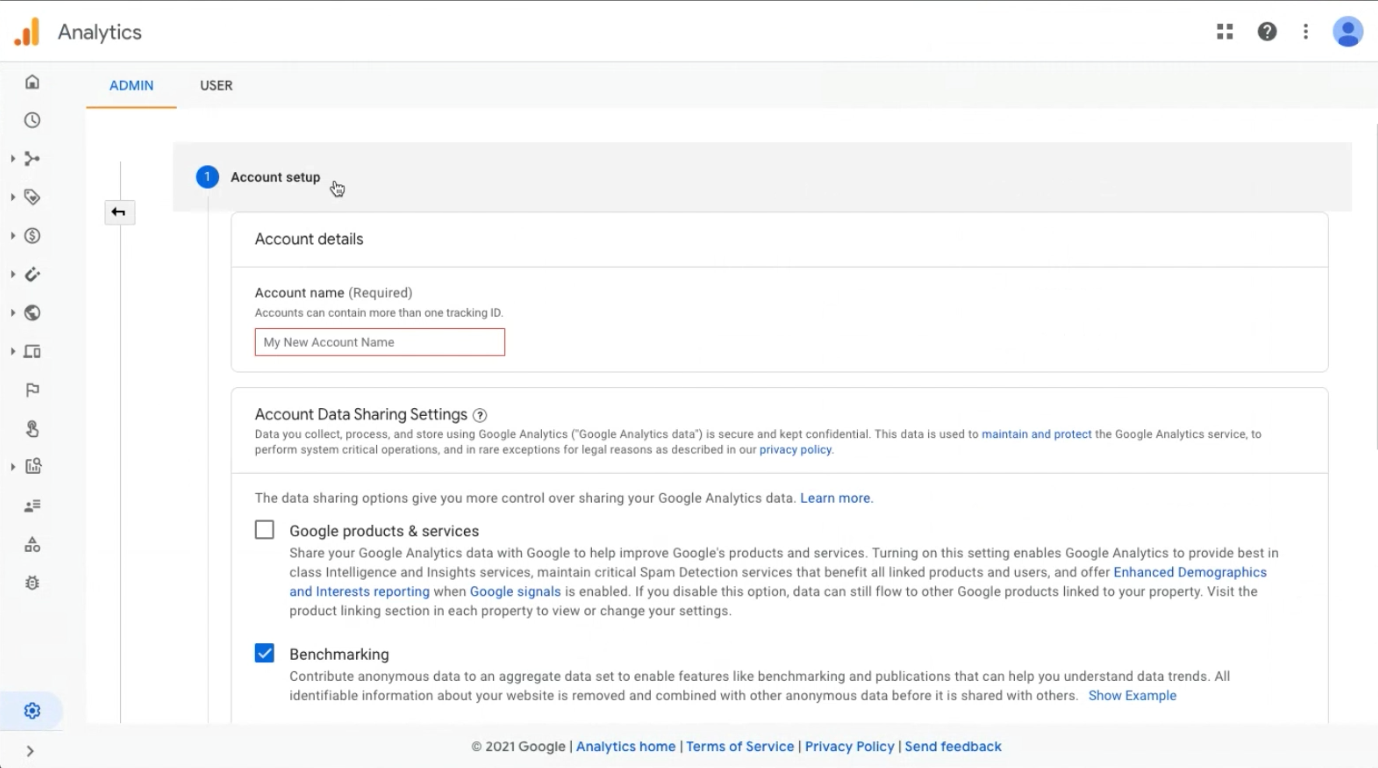
- Add account name
- Once created, proceed to the next step
2. In Admin, create a Property:
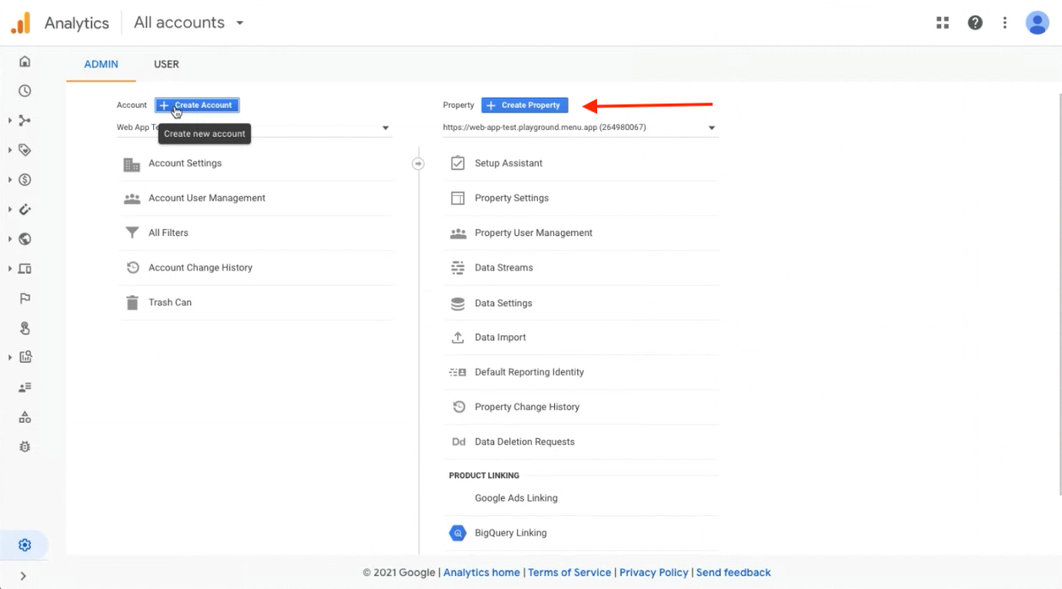
- Add property name
2.1 When creating a property, in the first step, make sure to Show Advanced Options:
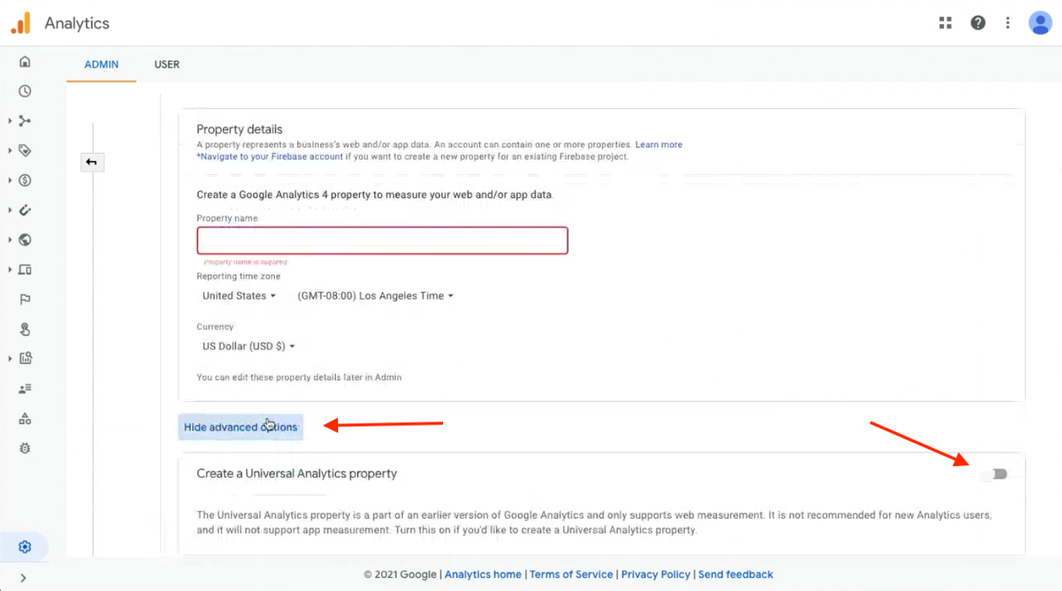
2.2 Make sure to enable Create a Universal Analytics Property:
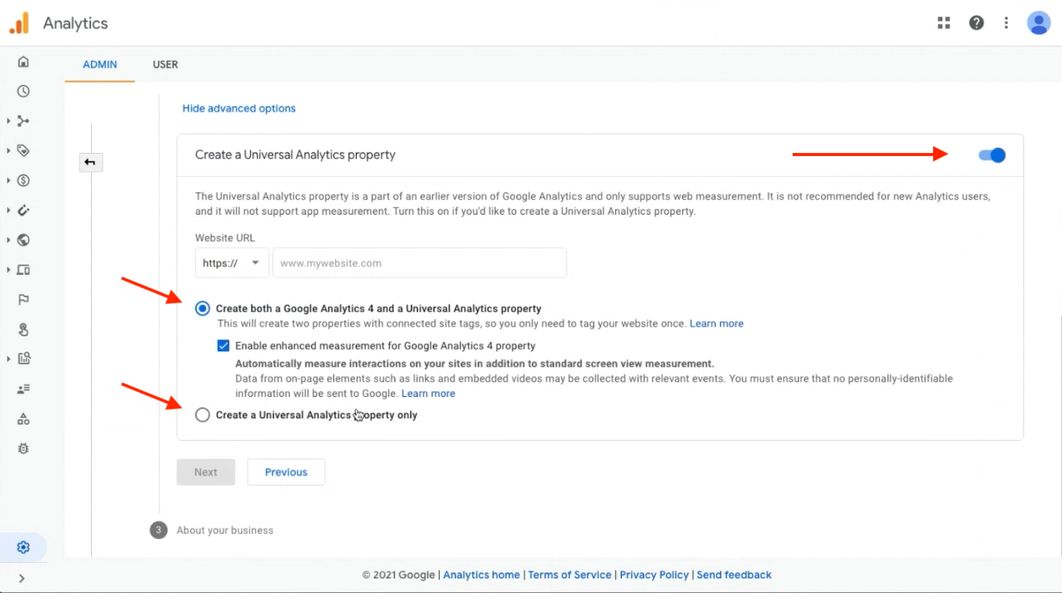
You can also choose to create Google Analytics 4, or just Universal Analytics property.
Add website domain.
3. Add details about your business:
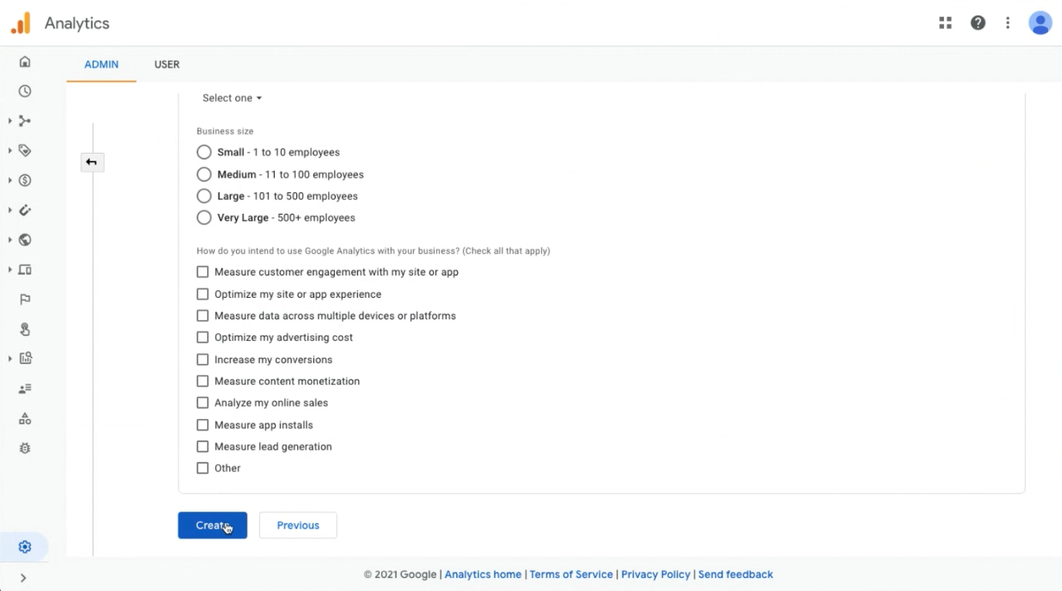
3.1 And create a property.
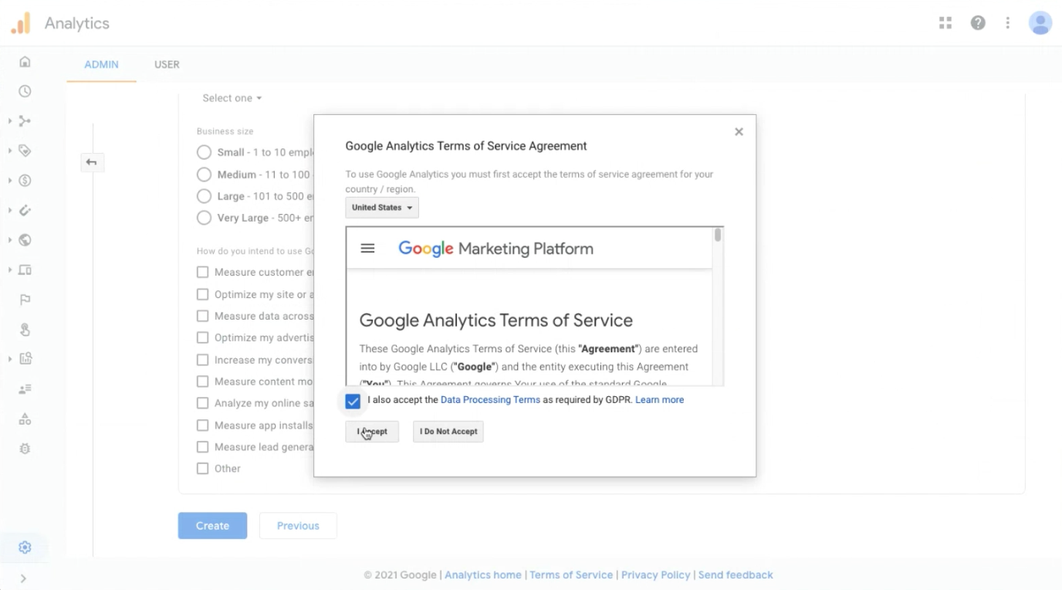
4. Accept Google terms:
5. When your property is created, get your Google Analytics Tracking ID:
5.1 Please make sure it starts with “UA-”.
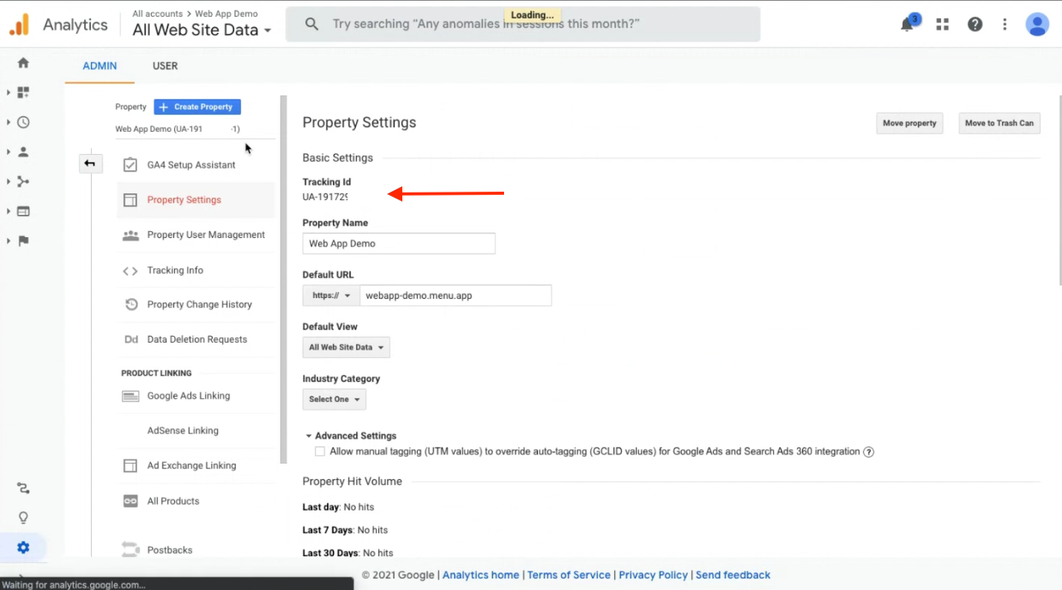
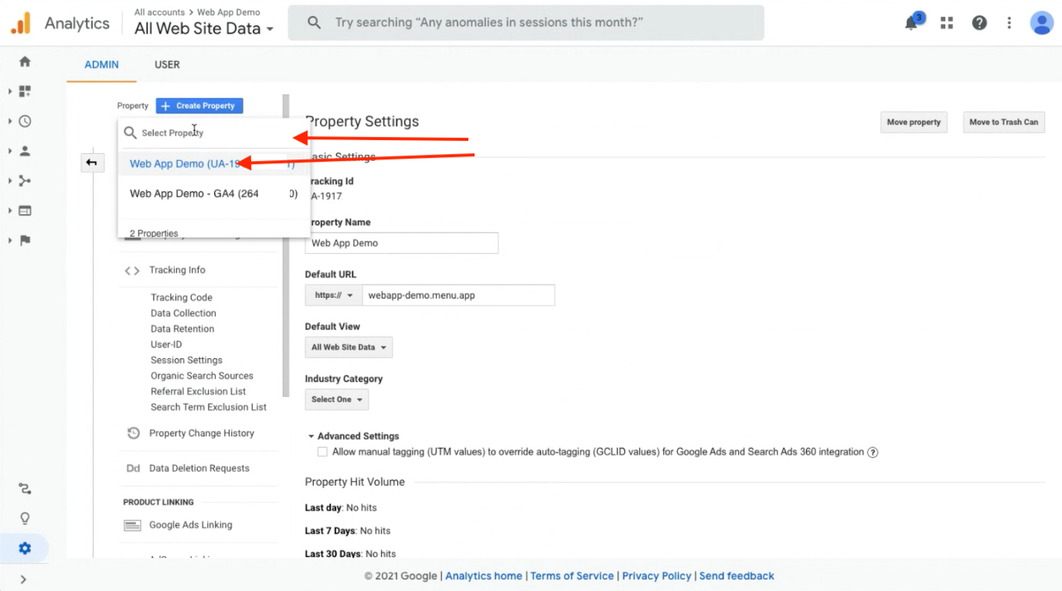
5.2 If you created Google Analytics 4 property also, make sure you click on dropdown to find your UA property:
6. Send the code to your Account manager and the team will make sure to include it to your Web app
