Menu Visibility and Pickup Time Filtering Settings
Overview
The PAR Ordering Platform includes two settings in the Management Center that control how menus and pickup time slots display in your web ordering app. Use these settings to adjust whether guests can browse menus outside of serving hours and how pickup time results are filtered when guests are viewing a specific menu.
These are brand-level settings that apply to the web ordering app. Contact your PAR Ordering representative if you have questions about how these settings interact with your mobile app experience.
Adjusting These Settings
-
Open the Management Center.
-
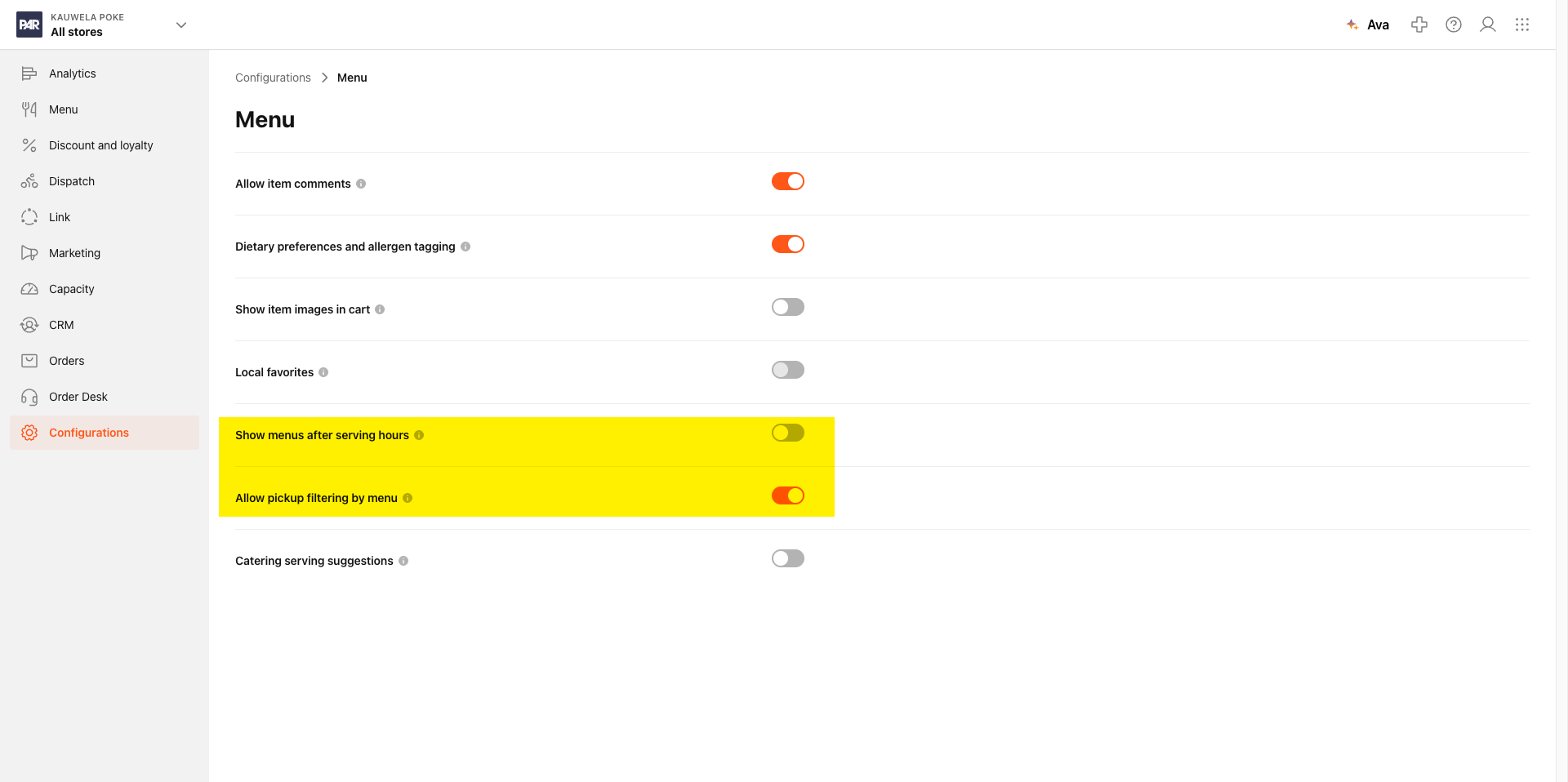
Navigate to Brand > Configuration > Menu.
-
The two settings are:
- Show Menus After Serving Hours
- Allow Pickup Filtering by Menu
Both toggles are independent — enabling one does not affect the other.
You need brand edit permissions to change these settings. If the toggles appear greyed out, contact your administrator to request the appropriate access level.
Show Menus After Serving Hours
| Setting | Behavior |
|---|---|
| On | Menus remain visible to guests in your web ordering app even when the current time falls outside that menu's configured serving hours. Guests can browse items, but ordering availability still follows normal serving hour rules. |
| Off (default) | Menus are hidden when the current time is outside their serving hours. This is the default behavior. |
When to use this setting: Turn this on if you want guests to be able to browse a menu (for example, your lunch menu) after that menu's serving hours have ended. This is useful for discovery — guests can explore your offerings without being able to place orders outside of hours.
Turning on Show Menus After Serving Hours does not allow guests to order outside of serving hours. Items remain unavailable to order — only the menu becomes visible for browsing.
Allow Pickup Filtering by Menu
| Setting | Behavior |
|---|---|
| On (default) | Pickup time results are filtered by the active menu's serving times. Guests browsing a specific menu only see pickup slots that fall within that menu's serving hours. This is the default behavior. |
| Off | Pickup times are not filtered by menu. Guests see all available pickup slots across all menus, regardless of which menu they are currently browsing. |
When to use this setting: If guests report limited or no pickup time options while browsing a specific menu, turning this setting off broadens the visible pickup windows by removing menu-based filtering.
Saving Your Changes
After adjusting either toggle, click Save in the page header to apply your changes. Changes take effect on the next refresh of your web ordering app — no menu republishing or redeployment is required.
Frequently Asked Questions
Why can't my guests see the lunch menu in the afternoon?
- By default, menus are hidden outside their serving hours. To let guests browse a menu after its serving hours have ended, turn on Show Menus After Serving Hours under Brand > Configuration > Menu.
Will turning on Show Menus After Serving Hours let guests order outside of serving hours?
- No. Guests can browse menu items for discovery purposes, but they cannot place orders outside of that menu's configured serving hours. Ordering availability is not affected.
Why are the pickup times my guests see so limited?
- When Allow Pickup Filtering by Menu is on (default), pickup slots are scoped to the active menu's serving times. To show guests a broader set of pickup windows across all menus, turn this setting off under Brand > Menu Products > Configuration.
Do I need to republish my menu after changing these settings?
- No. These are brand-level settings. Changes take effect on the next web app refresh — no republishing or redeployment is needed.
Do these settings affect the mobile app or kiosk?
- These settings currently apply to the web ordering app. Contact your PAR Ordering representative if you have questions about how these settings interact with your mobile app or other ordering channels.
Troubleshooting
| Symptom | What to Check |
|---|---|
| Guest reports a menu is not visible outside serving hours | Verify that Show Menus After Serving Hours is turned on under Brand > Menu Products > Configuration. |
| Guest reports limited pickup time options | Check whether Allow Pickup Filtering by Menu is turned on. Turning it off returns pickup times across all menus. |
| Toggles are greyed out | Your user account likely has view-only permissions for this brand. Contact your administrator to request brand edit access. |
| Toggle change did not save | Confirm you clicked Save in the page header after making changes. Changes are not applied until saved. |
