How to View Redemption Statistics?
| User Role | Chain | Chain Venue |
|---|---|---|
| Brand Manager | ✅ | ❌ |
| Chain Manager | ❌ | ❌ |
| Company Manager | ❌ | ❌ |
| Local Manager | ❌ | ❌ |
As a Brand Manager, you have an overview of Statistics of your Brand in the CMS. Brand Statistics include Redemption Statistics which represents the Statistics of all the Coupons ordered through the PAR ordering channels in your restaurant Brand.
To view Redemption Statistics:
- Select Brand List at the top navigation bar
- Select your Brand
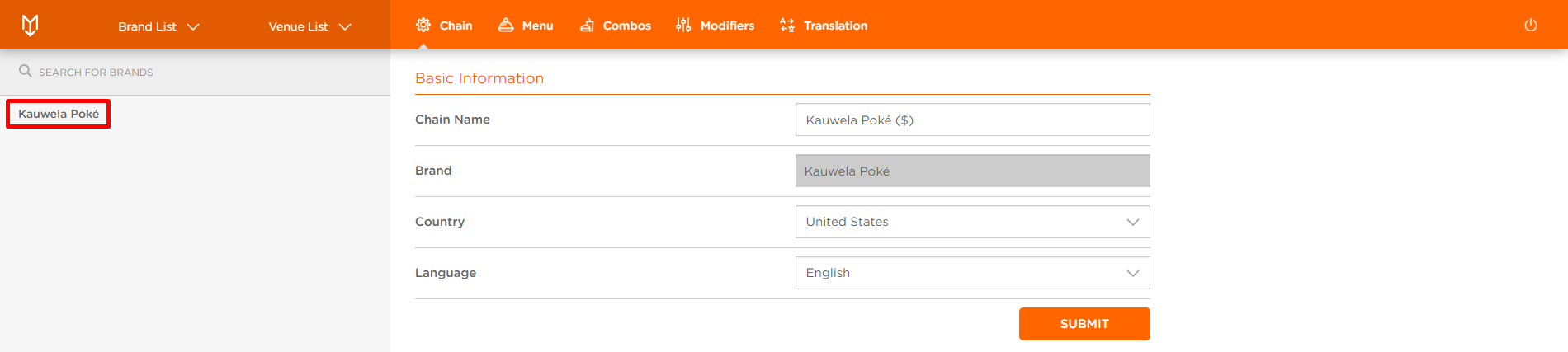
- Click Statistics at the top navigation bar
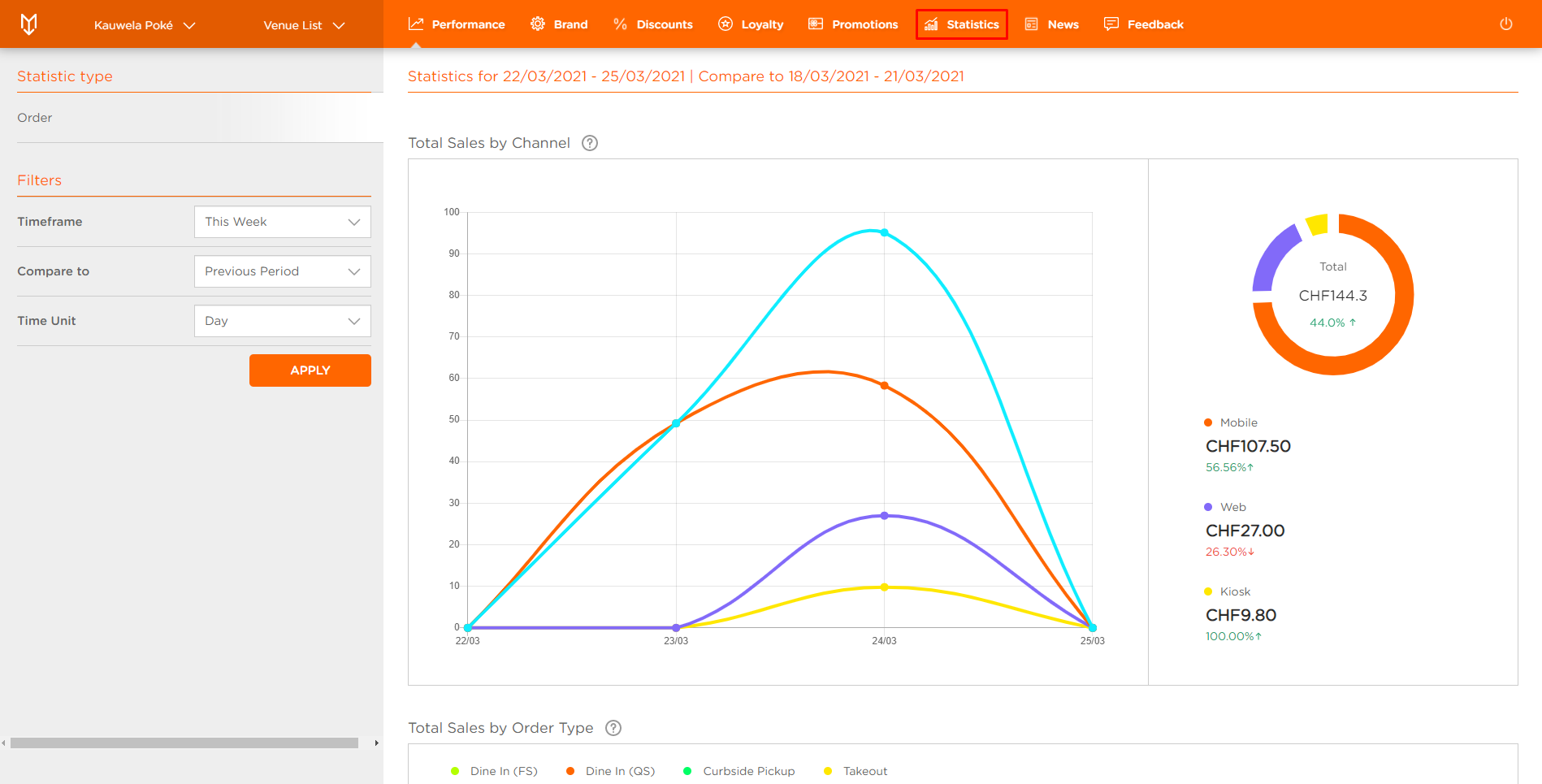
- Statistics page appears with this week's Brand Redemption Statistics in Redemptions tab
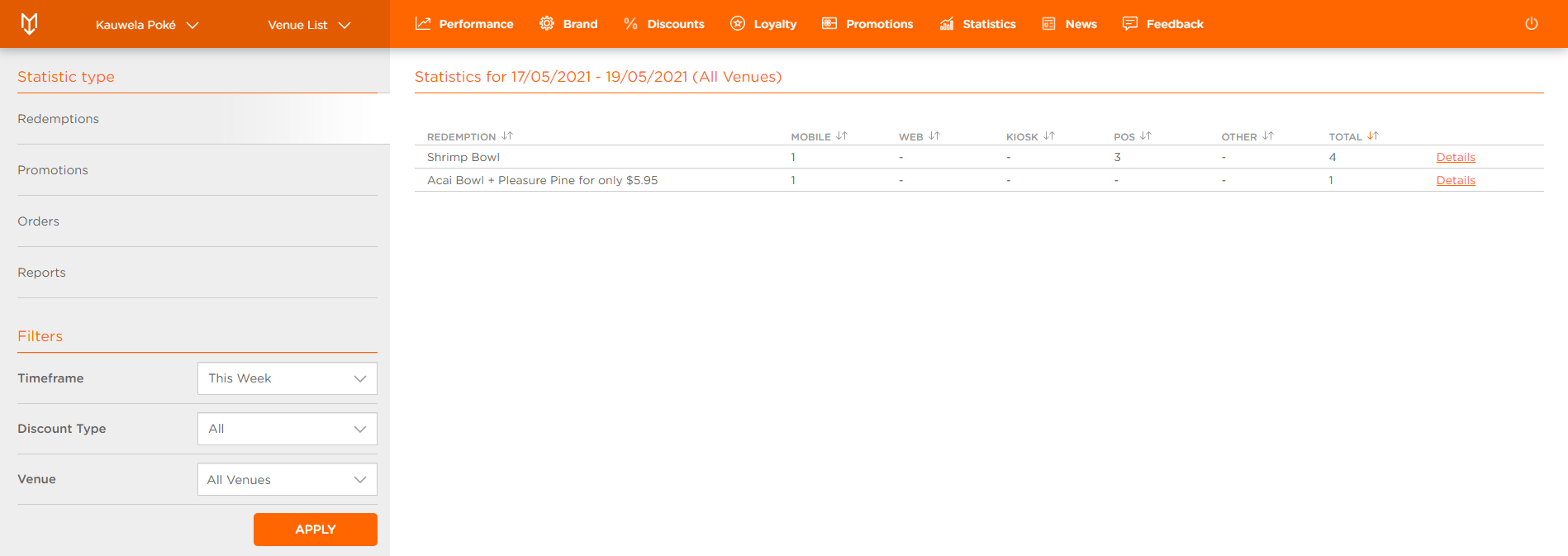
Timeframe: Filters Redemption Statistics for Orders according to the time frame set in Filter settings (Today, Yesterday, Last Week, This Week, Last Month, This Month, This Year, Beginning of Time, Set Time Range)
Discount Type: Filter the Redemption Statistics for Orders according to the type of Discount (All, Coupons, Rewards, Promotions)
Venue: Filter the Coupon Statistics for Orders according to the Venues of placed Orders
- Click APPLY
You've successfully filtered Brand Redemptions.
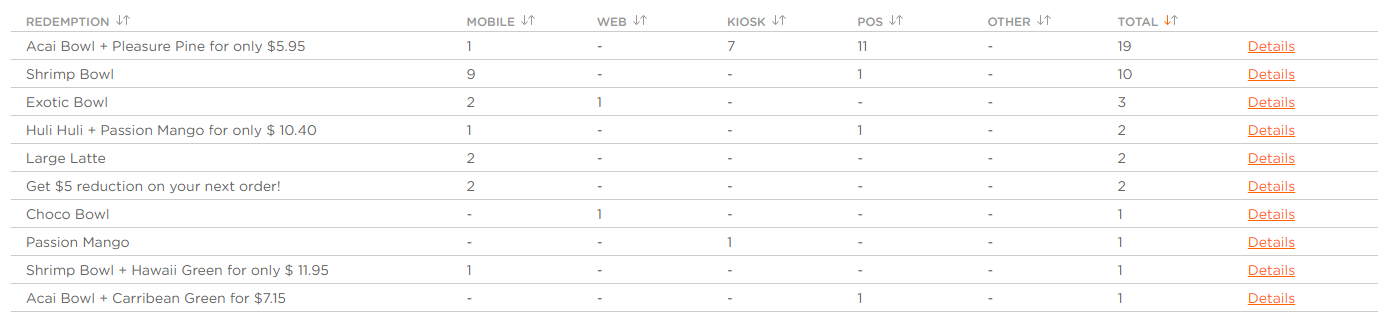
The following information is displayed in the Redemptions Statistics page:
REDEMPTION: Name of redeemed component (e.g. Acai Bowl + Pleasure Pine for only $5.95)
MOBILE: Number of Orders on Mobile application
WEB: Number of Orders on Web application
KIOSK: Number of Orders on Kiosk
POS: Number of Orders on POS
OTHER: Number of Orders on other channels
TOTAL: Total number of Orders
- Click Details to get more info on the Statistics of one Redemption for a specified time frame
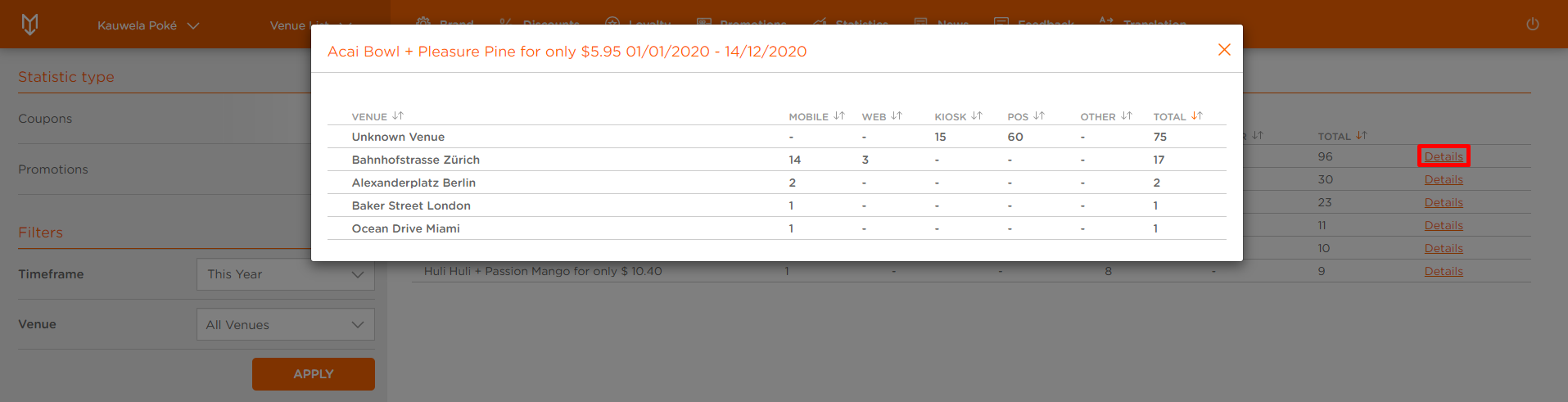
VENUE: Venues of placed Orders for this Redemption
MOBILE: Number of Orders for this Redemption on Mobile application
WEB: Number of Orders for this Redemption on Web application
KIOSK: Number of Orders for this Redemption on Kiosk
POS: Number of Orders for this Redemption on POS
OTHER: Number of Orders for this Redemption on other channels
TOTAL: Total number of Orders for this Redemption
