How to Use and Implement the Catering Bundle Feature
Overview
The Smart Catering Bundles feature is designed to ensure guests receive the appropriate amount of food by providing a curated and adaptive catering experience. Unlike traditional catering bundles, which offer fixed combinations of menu items and static portion sizes, Smart Catering Bundles dynamically adjust based on guest count and configurable restaurant rules. This system automatically recalculates portions, updates suggestions, and provides real-time guidance as order details change, helping customers avoid under- or over-ordering. Restaurants can set specific portioning rules, over-ordering thresholds, and allow for auto-adjustments, making the ordering process both flexible and efficient. The feature streamlines group ordering, improves operational consistency, and enhances the overall customer experience by offering intelligent, guest-count-aware recommendations without restricting the customer’s ability to complete their order.
Understanding Catering Bundles
- A Catering Bundle is a regular product that becomes a bundle when placed in the designated bundle category.
- It is intended for group orders and automatically adjusts quantities based on the party size you select.
Setting Up a Catering Bundle
-
Configure the Bundle:
-
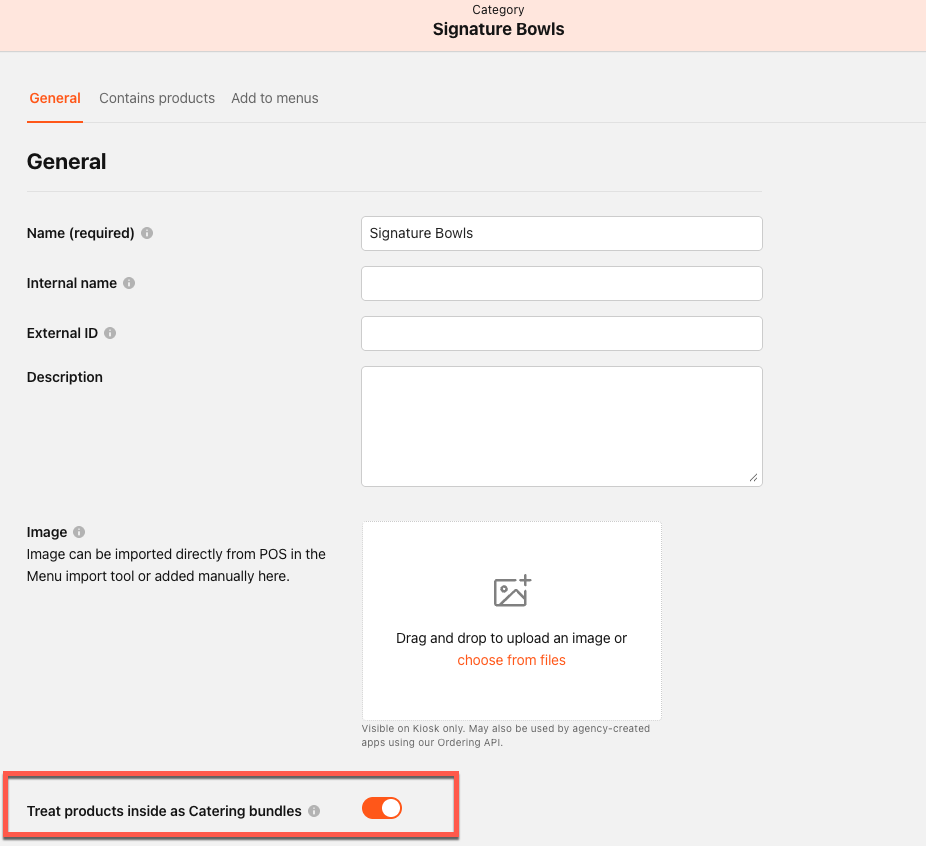
Bundles are configured under Menu > Categories.
-
Add one or more product groups to your bundle.
-
Toggle on Treat products inside as Catering Bundles.
-
The bundle itself will not have a quantity selector; only the products within each group will.
- Quantities will scale automatically based on the number of guests selected when ordering.
- The interface will display “Serves N” under the bundle name, where N is your selected party size.
- If you manually adjust any product quantity, the label updates to: “Serves N (may vary due to changes)”.
-
Product Group Quantity Rules
-
Each product group must serve the full party size.
-
If total servings in a group exceed the party size:
- Products are removed from the bottom up until servings match the party size.
-
If total servings are less than the party size:
- Products are added from the top down, repeating as needed, until the group serves at least the party size.
-
Overall, it is acceptable for a group to serve more than the party size, but never fewer.
- For example, if the servings are for 10 or 12 people, and the total headcount is 11, the products would be adjusted to up to serve 12. However, if the headcount were only 10, the products would be adjusted down to serve 10.
Product group min / max rules will impact the bundle logic. It is advised that the single max quantity is set to “999” in order to accommodate large catering parties.
Servings Configurations
The serving size of the bundle will be based on the individual serving configurations of each product within the product group.
-
You can set up or edit the servings for a product by navigating to Menu > Products.
-
Or click Edit Product from the Contains Product tab under the Category.
-
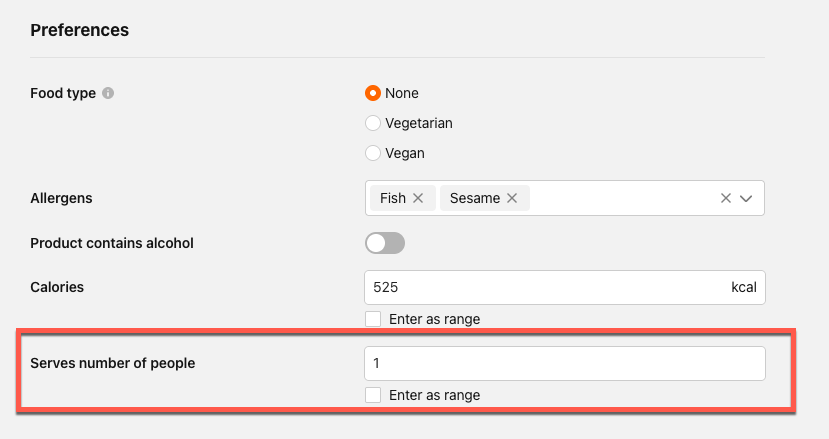
Under the General tab, enter the number of servings for the product under Preferences > Serves number of people, e.g., "1" serving equals 1 person.
-
Check Enter as Range to use a range of servings for the product.

-
Check Enter as Range to use a range of servings for the product.
Rules
-
If the servings field is blank, the system assumes the product serves 1 person (not displayed in the UI)
-
If the main product has a serving count set, serving counts in child products are ignored.
-
The main product can inherit serving counts from child products only if those products are in the Size product group.
-
For products in Size groups with servings greater than 1:
- The number of people served, total price, and price per person are displayed.
User Experience
-
If Serves number of people is set to 1:
- “Serves 1” is displayed on the UI.
- Only the total price is shown (not the price per person).
-
Increasing product quantity multiplies the serving count.
-
The Add button updates to reflect the total price for the selected quantity.
-
Price per person is calculated as total price divided by the number of people served (using the higher number if a range is specified).
Example Scenario
-
Party Size: 4
-
Product Group: Juice
- Orange Juice (1 serving)
- Apple Juice (1 serving)
-
The system will auto-adjust to add Orange Juice and Apple Juice twice each, totaling 4 servings and displaying “Serves 4”.
-
If you change Apple Juice to 3 servings, the label updates to “Serves 4 (may vary due to changes)”.
Using the “More Info” Modal
-
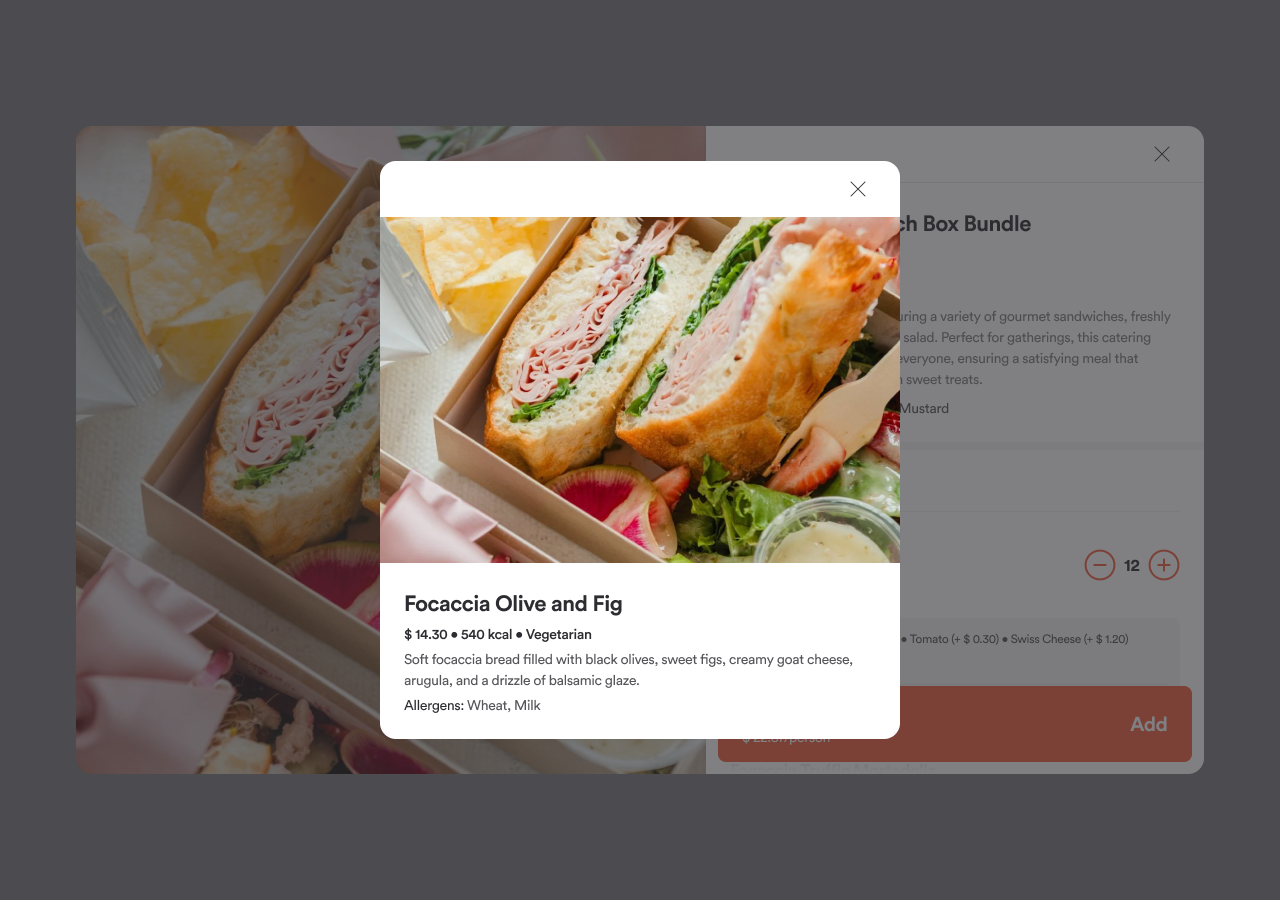
The “More info” link appears only if a product has a description in the Management Center.
-
Clicking the link opens a modal with:
- Product image (if available)
- Product name
- Price
- Calories (if available)
- Food type
- Servings & price per person (if defined)
- Allergens (if added)
- Tags (food type and allergens if filters are used)
