How to Control in Which Store Groups My Item Is Available?
| User Role | Store Group | Store |
|---|---|---|
| Brand Manager | ✅ | ❌ |
| Area Manager | ✅ | ❌ |
| Store Manager | ❌ | ❌ |
Context
You can show/hide an Item on your customer facing apps through the MC. The visibility of a Category can be controlled per Store Group and/or Channel.
To manage the Visibility of an Item:
- Select the Overview sub navigation of the Menu option of the side navigation bar on All Stores level.
- Select the Subcategory and Click on the Item you need to show/hide
- Click on the three dots and select the Manage Visibility option
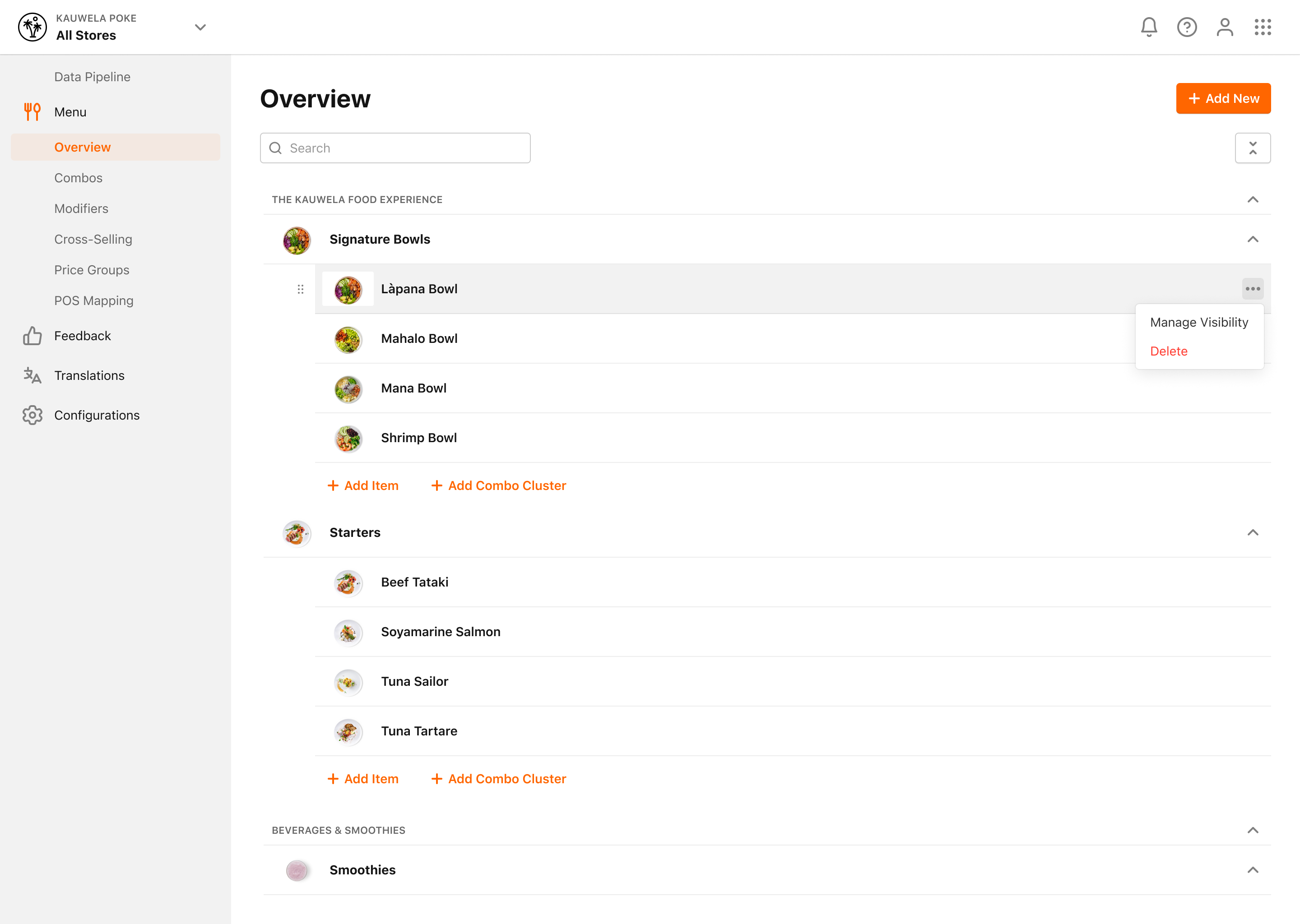
- Click on the Manage Visibility option
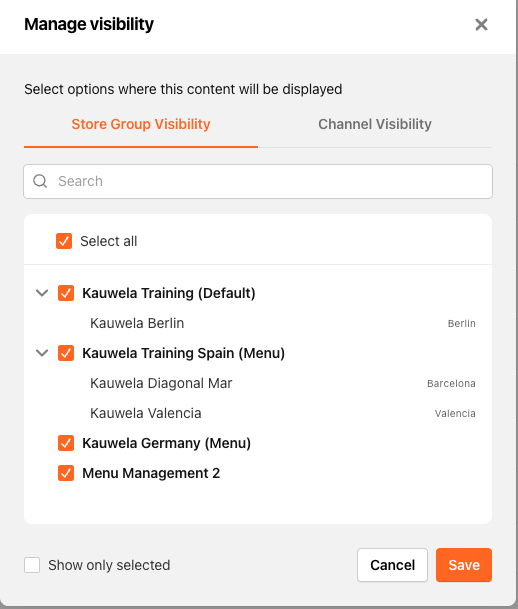
- Manage Visibility modal appears
- Select the Store Groups where you want your Item to be available or deselect them where you don't want your Item to be available
- Click Save to confirm the changes
You can also:
- Use the Search bar to search for a specific Store Group by name
- Activate Show Only Assigned to see where the Item is currently available
Please note that:
- Store Visibility: Manage Visibility on Store Group level
- Channel Visibility: Manage Visibility for PAR Ordering Ordering & External Channels
For more information on Channel Visibility for Items, please check out How to control in which Channels my Item is available? article.
Your Item will only be visible & available for ordering in the Store Group enabled through the Visibility feature.
Categories and Subcategories that are empty (don’t have items or combo clusters) in Brand Menu will be shown in Store Menu. Same goes for Modifier Groups. Don't worry - neither Visibility nor Disable flags will affect Store Menu.
