How to Add News Article?
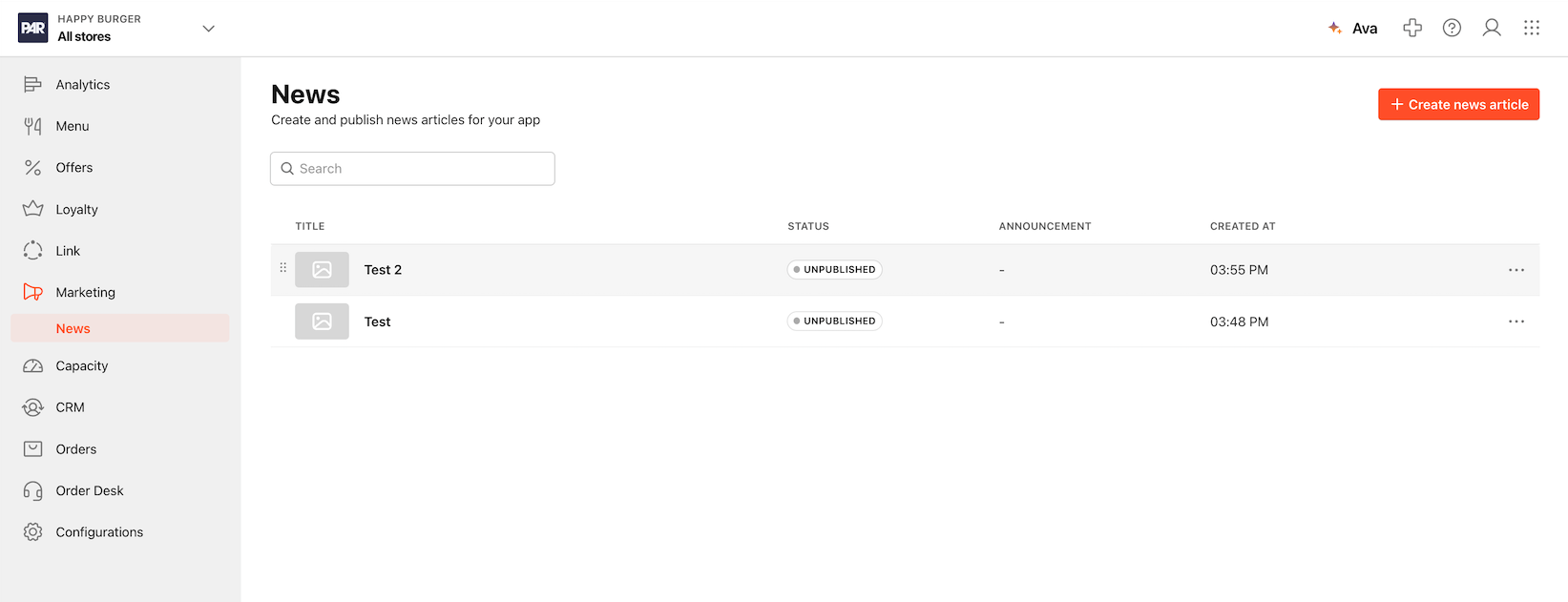
News section in the Management Center informs Customers of the latest news about the restaurant Brand including Promotions, various benefits and other related info.
- To Navigate to News, On Brand level under Marketing > News
To add News:
- Select Create News Article
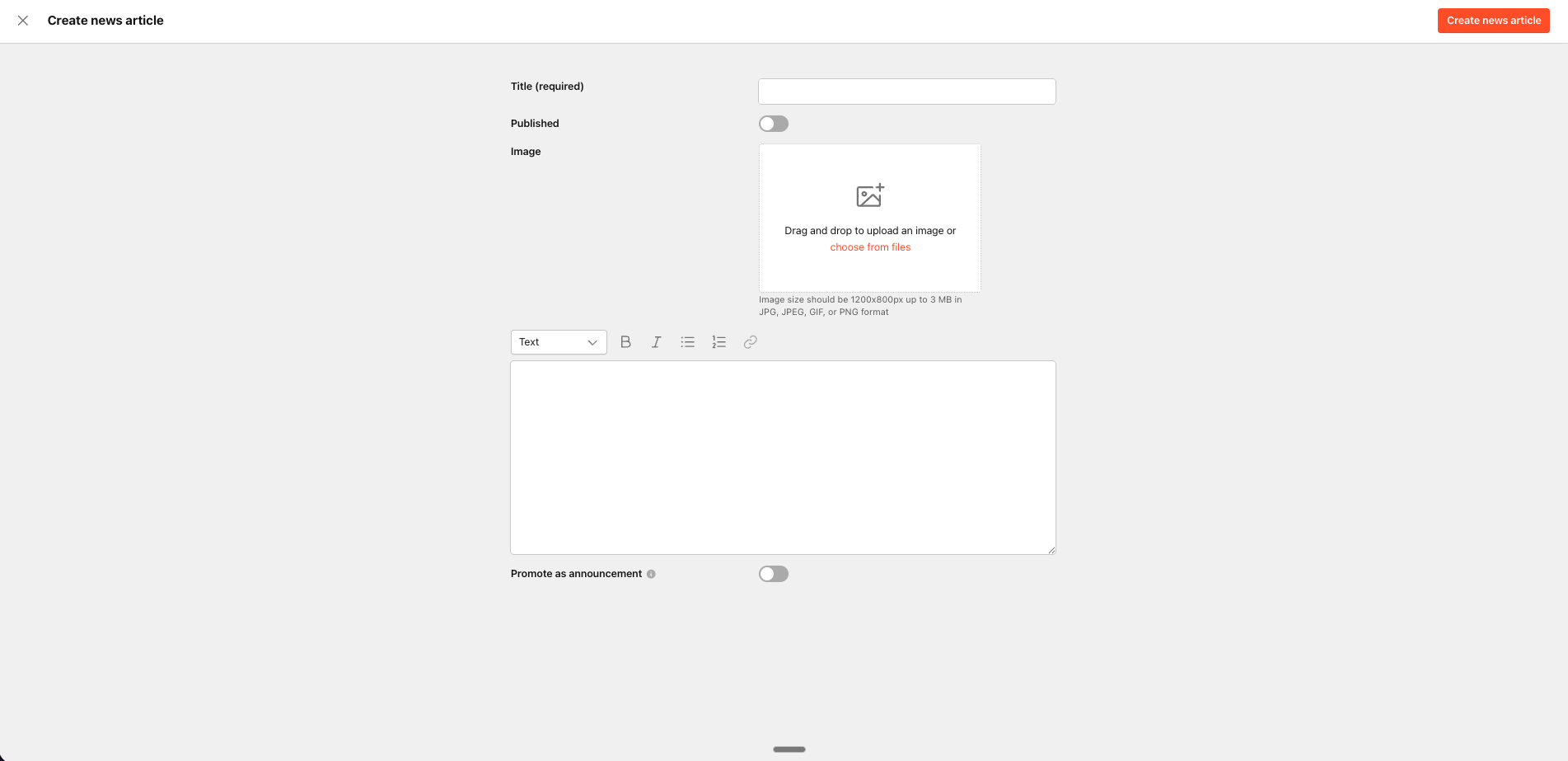
- New Add News section appears with fields: Title, Image and Article and Assigned Coupons Section
- Enter the title of the news article and insert image
- In the Article section, enter article text and or links as necessary: How to add link to News article?
- Enable promote as an announcement will tigger the news as a home page layover to grab the guests attention.
- Click Create News Article after you enter all the necessary information to save the article.

Once save the article needs to be published. To do so, click on the 3 dots at the end of the article.
Select Publish.
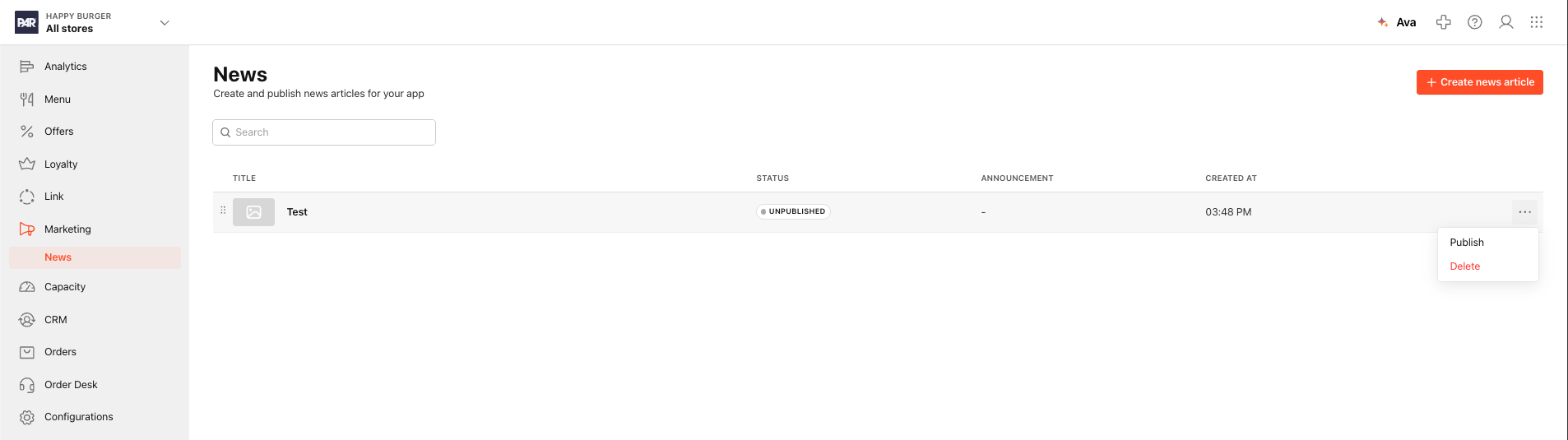
Once published the article will show on the channel apps.
To Unpublish an article, again select the 3 dots and select Unpublish.
Articles can be reordered by hovering on the dots at the being of the article until you see the hand icon. You can then drag to the correct position, this will alter the order of the articles on the ordering channels.