How to Add Discount Conditions?
| User Role | Chain | Chain Venue |
|---|---|---|
| Brand Manager | ✅ | ❌ |
| Chain Manager | ❌ | ❌ |
| Company Manager | ❌ | ❌ |
| Local Manager | ❌ | ❌ |
Discount Conditions are used by restaurant Brands to define what needs to be fulfilled for a Discount to apply (under which circumstances the Discount will be applied). In that way, Brands can target the Customers in a better way with better defined offers.
Discount Conditions are available for all Discount Types: Coupons, Promotions and Loyalty Rewards. Also, they can be combined to create more complex requirements (e.g. Free dessert for Delivery Orders above 20€).
For more information on Discount Conditions, check out What are Discount Conditions?
You can add Discount Condition for the already made Coupon/Promotion/Reward (edit mode), or for the one you are currently making (add mode).
To add Discount Conditions:
- Select your Brand
- Select Discounts or Promotions tab depending on where you would like to set the Condition
- Click ADD DISCOUNT or select the existing one
- Go to Discount Conditions section
- Click ADD CONDITION
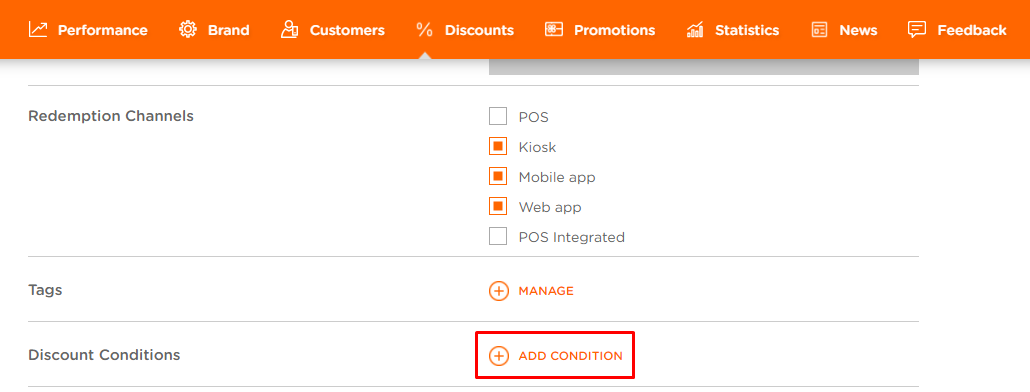
-
Add Discount Condition modal appears
-
Select from the dropdown to which Discounts this Discount Condition you would like it to apply to:
- Specific Stores
- Spend certain amount
- Certain Order Types
If Specific Stores is selected:
- Select Chains/Stores to which this Discount Condition will be applied
Discount is now available in Specific Stores (Venues).
If Spend a certain amount is selected:
- Set Amount field appears
- Enter amount in the Set Amount field
Discount is available in the Order reaches the amount entered in the Set Amount field.
If Certain Order Types is selected:
-
Select Order Type: Dine-in (FS), Bill Settling, Pick & Pay, Dine-in (QS), Takeout, Delivery, Curbside Pickup, Foodspot
- You can select as many Order Types as you like
-
Click SUBMIT
Discount is now available only for the Order Types that you selected.
If Order Count is selected:
The Order count Discount Condition allows brands to restrict Discounts to only be available for users that have a certain order count.
Currently, only order count = 0 is available. In the future, order count conditions can be defined as >, <, =, or between a certain value.
For users that do not and will never meet an order count condition (e.g. user has placed 5 orders and the condition is for order count = 0), Discounts are hidden.
For users that do not currently meet the order count condition but can in the future (e.g. user has placed 0 orders and the condition is for order count > 0), Discounts are displayed as locked.
Examples:
“30% off your first order”
"Free Softdrink on your 5th order"
If all types of Discount Conditions have been added, the ADD CONDITION button in the Discount Condition section will no longer be available.

You can add one rule per Discount Condition type (e.g. Only one rule for Specific Stores; the number of selected Stores can be changed).
