Deposit Payments
The Deposit Payments feature enables customers to place high-value catering orders by paying a partial deposit upfront. This allows store managers to track and manage outstanding balances, ensuring full payment is received before order fulfillment.
Management Center configuration
To enable deposit payments, configuration is required at both the Brand and Store levels.
Brand-Level Setup
Navigate to:
MC > Brand > Order Type > Catering Delivery / Catering Pickup
Enable both Order Required and Deposit Payments.
Store-Level Setup
Navigate to:
MC > Store > Order Type > Catering Delivery / Catering Pickup
Enable Deposit Payments within the order type settings.
Once enabled, configuration options will appear based on the selected deposit type.
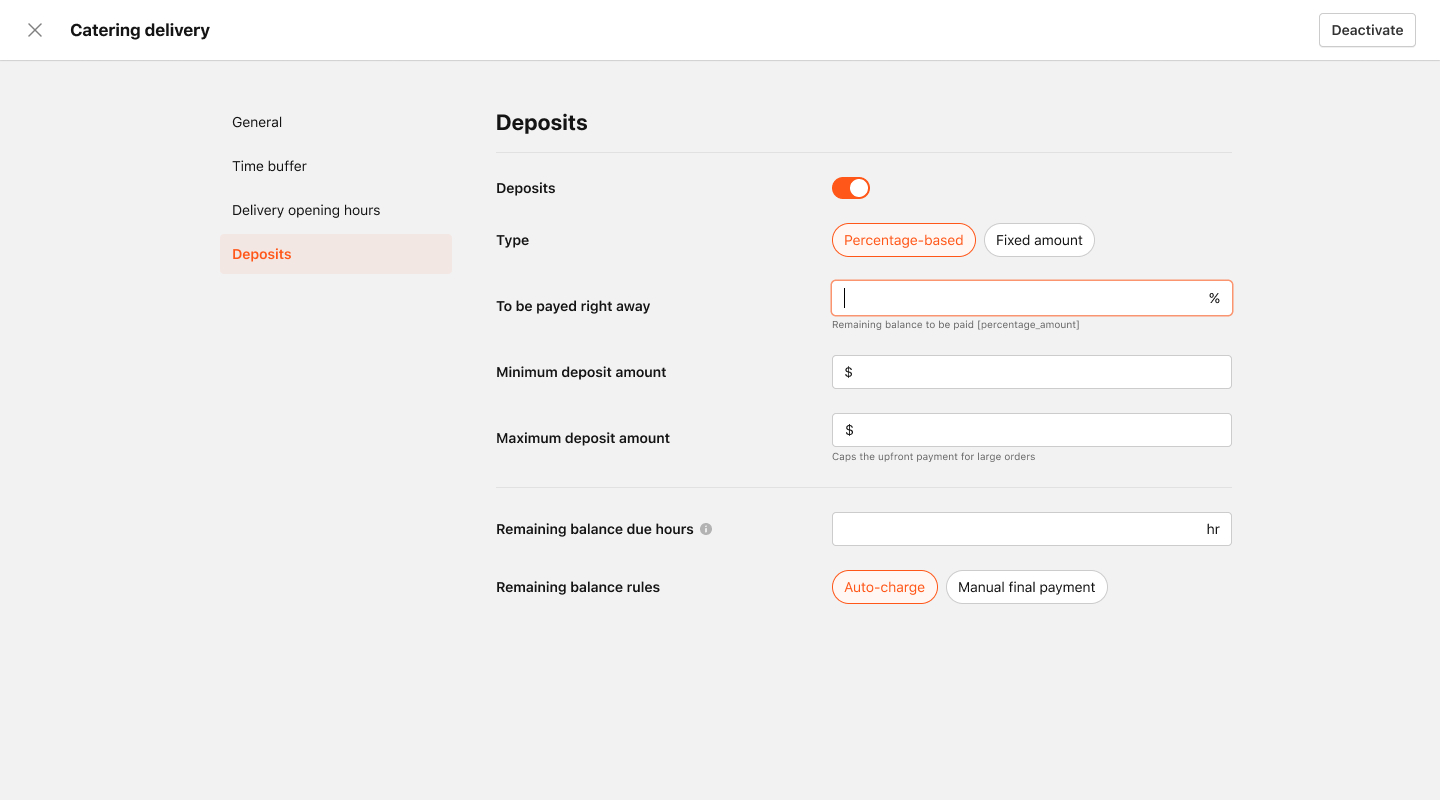
Percentage-Based Deposits
-
To Be Paid Right Away: Set the percentage of the order total to be paid upfront.
- Minimum Deposit Amount: Ensures a base amount is collected for smaller orders.
- Maximum Deposit Amount: Caps the upfront payment for larger orders.
-
Remaining Balance Rules:
- Auto Charge: Automatically charges the saved payment method on the due date.
- Manual Payment: Sends reminders for manual payment completion.
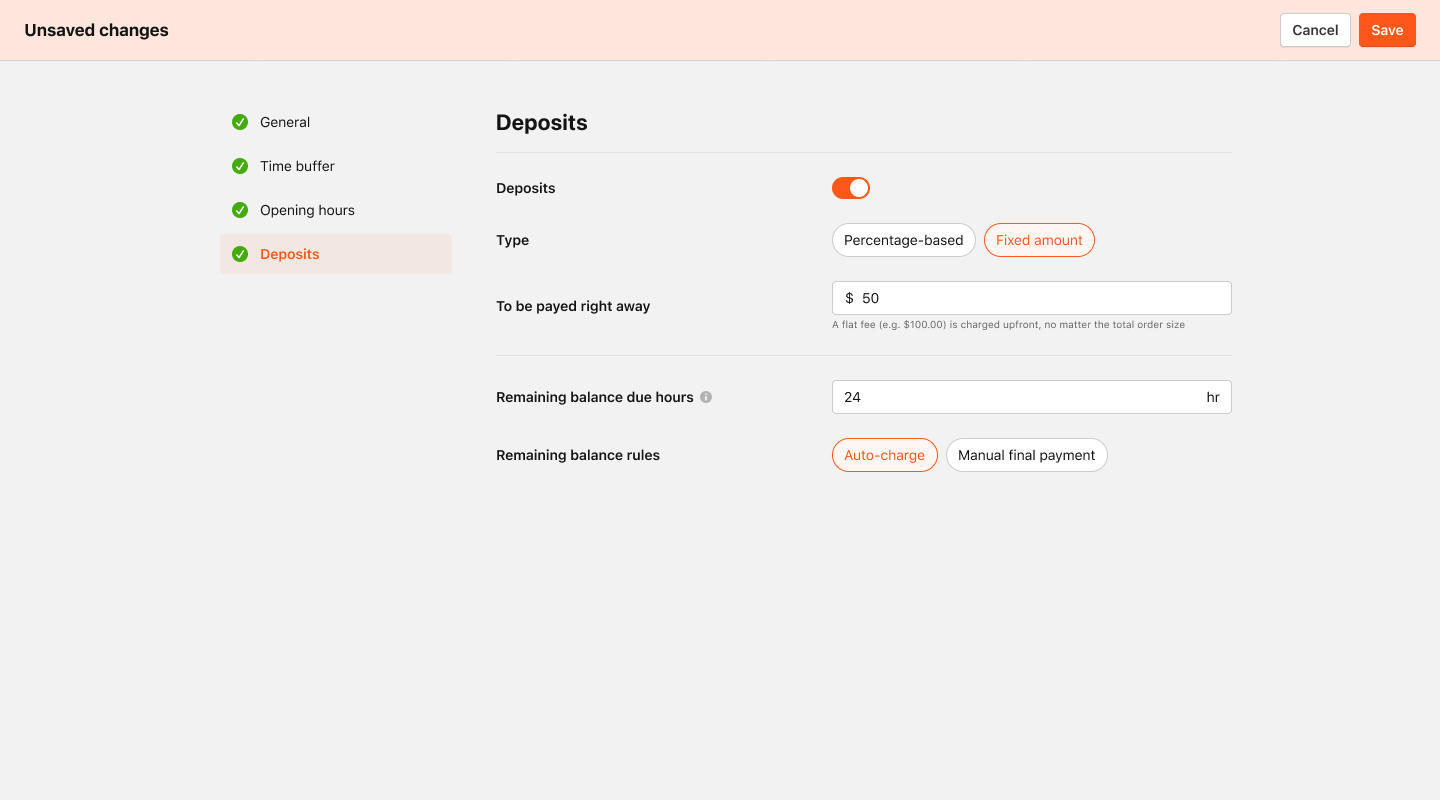
Fixed Amount Deposits
- To Be Paid Right Away: A flat fee is charged regardless of order size.
- Remaining Balance Due Hours: Define how many hours before the event the remaining balance must be paid.
Remaining Balance Rules:
- Auto Charge: Automatically charges the saved payment method on the due date.
- Manual Payment: Sends reminders for manual payment completion.
Checkout Experience
-
Eligibility: Deposit payments are available only to registered customers. Guests will not see this option.
-
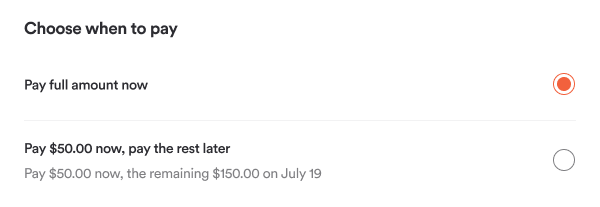
Payment Options: Customers can choose to pay the full amount or just the deposit.
-
Checkout Display: Shows:
- Deposit amount due now
- Remaining balance
- Due date
(All driven by MC configuration)
Payment Reminders
- Push Notifications: Sent to registered customers with a redirect link.
- Email Notifications: Triggered based on MC settings.
- Last Chance Notification: Sent 1 hour before the payment deadline.
If unpaid, the order is automatically cancelled before reaching the kitchen.
Remaining Balance Payments
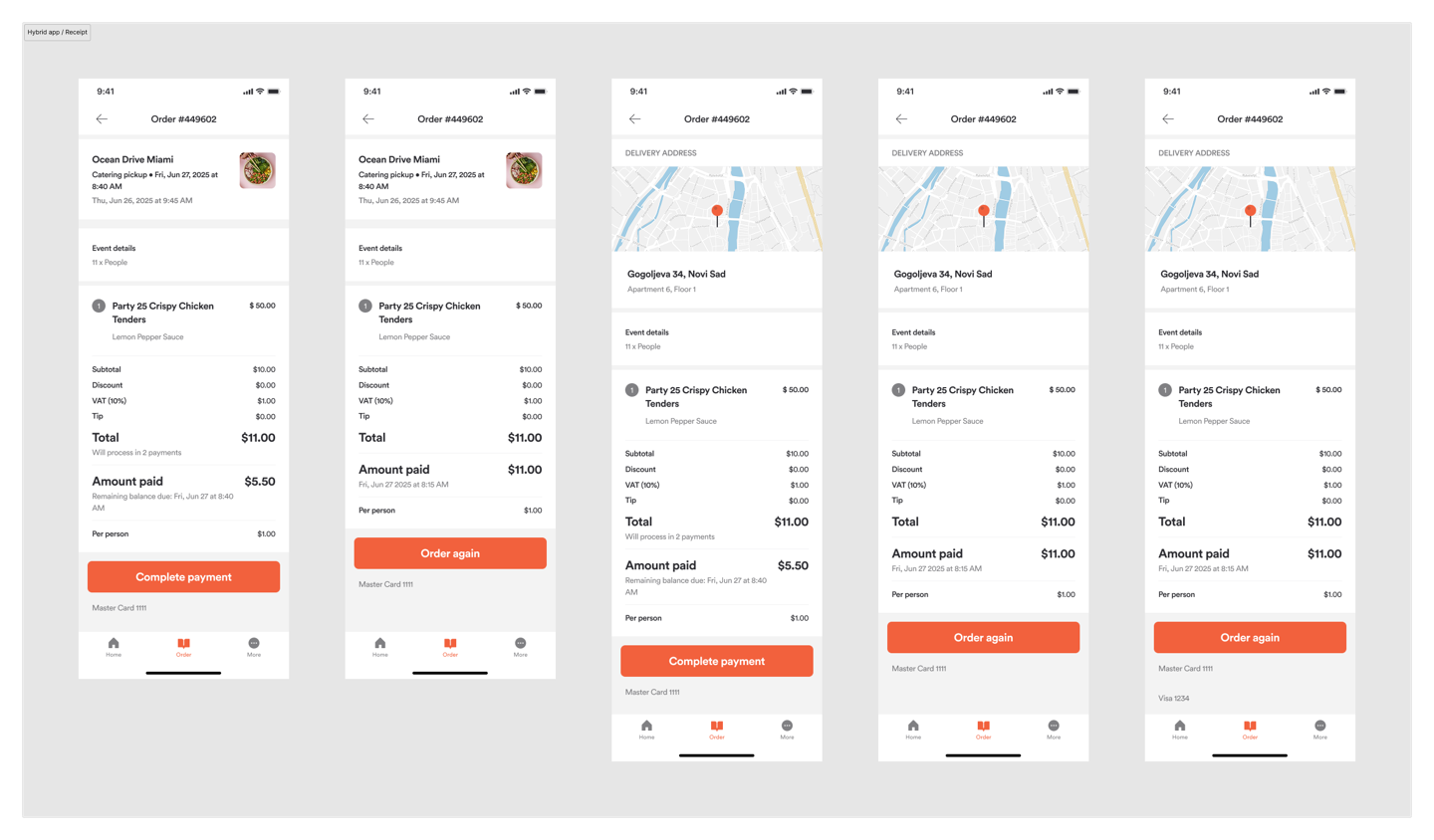
For manual payments, customers can complete the balance via the Order History page:
- Click Complete Payment
- Opens a modal with saved payment methods and option to add new ones
This will transition to a hosted web checkout in an upcoming release.
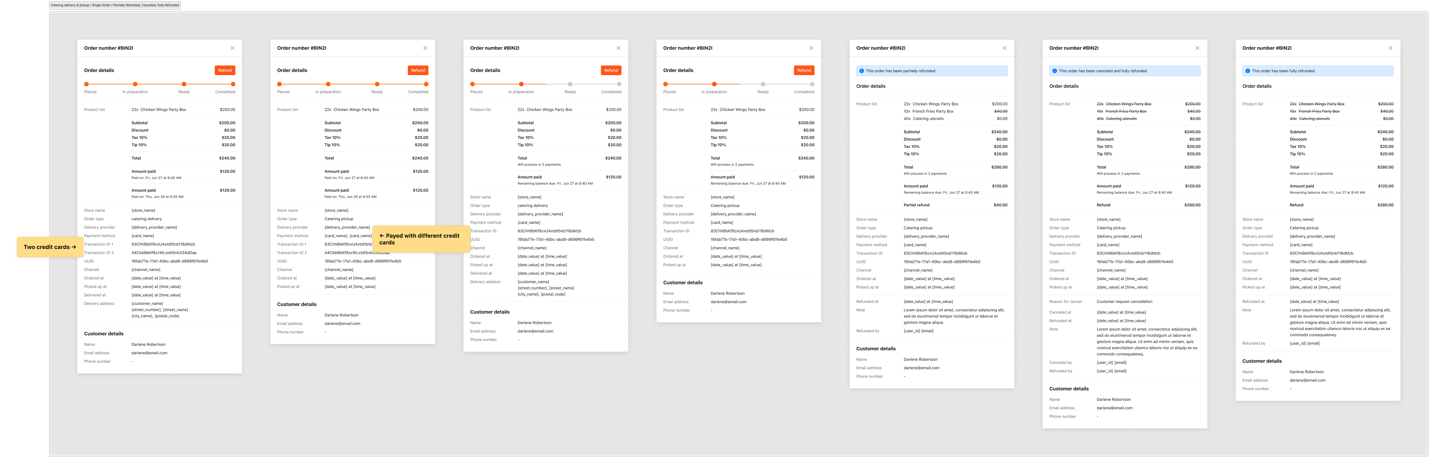
Order Details Overview
Brands can view deposit-based orders in the Order Details Drawer:
- Two transaction IDs will be shown
- Indicates if different payment methods were used
- Integrates with brand-specific Cancellation and Refund Policies