Creating a Product: Step-by-Step Guide
- Log in to the Management Center (MC) with your Brand Manager credentials.
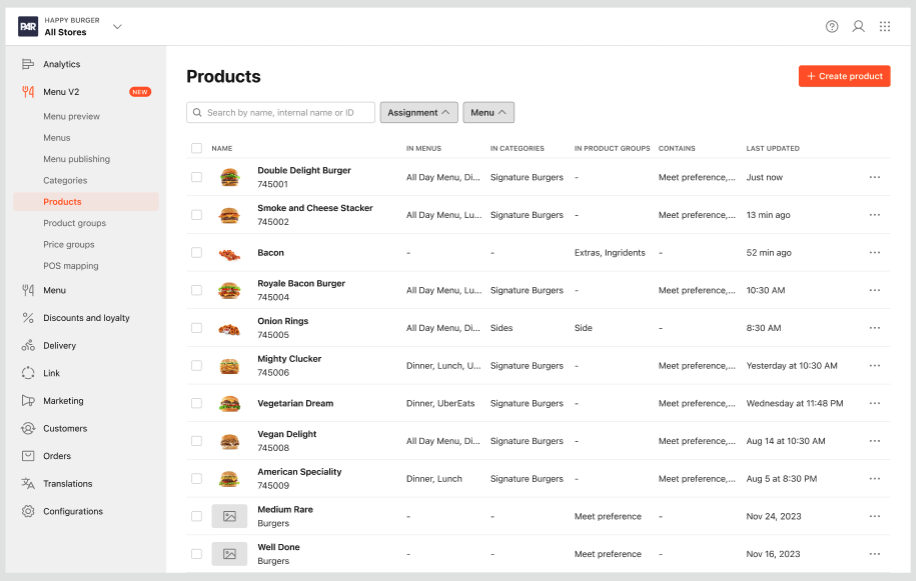
- Navigate to the Products page section under Menu in the MC.
- Click on the 'Create Product' button. This will open a new product title modal. When the product is created it is opened in edit mode show the snack bar "product successfully created"
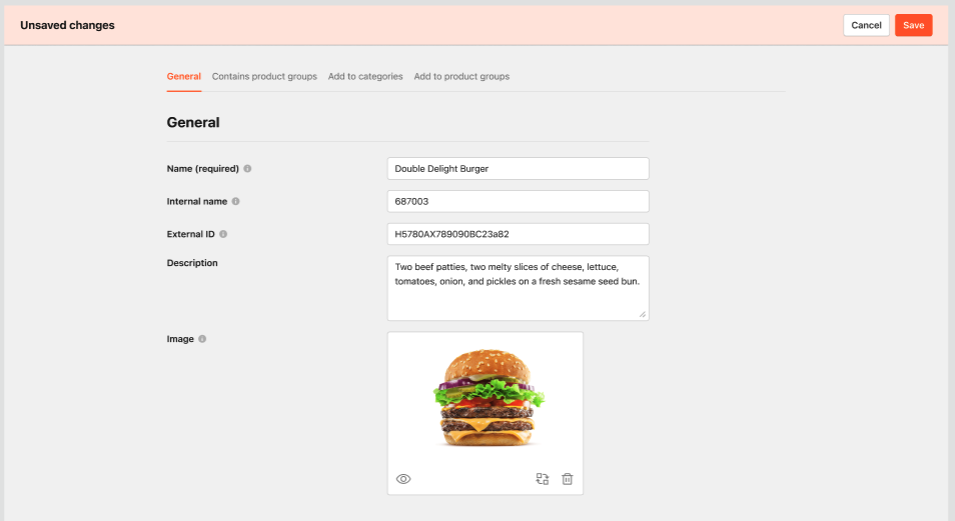
- Fill in the required and optional fields as per your requirements:
- Name: This is a required field. Enter the name of the product as it should appear in the MC and applications.
- Internal Name: This is an optional field. You can enter a name that will be used for back office understanding of same-name entities, or as an internal identifier used in the brand or stores, familiar to operators.
- External ID: This is an optional field. If you have an external system (like OAPI), you can enter the ID from that system here.
- Description: This is an optional field. You can enter a description for the product which will appear on your applications."
- Image: This is an optional field. You can upload an image that represents the product.
- Click on 'Choose from files' on image field will open OS's file explorer. We only allow JPG, JPEG, GIF, or PNG to be selected. Other file formats are be disabled.
- Image size can only be a max of 1 MB. If the format or the file size are incorrect you will be presented with an error message.
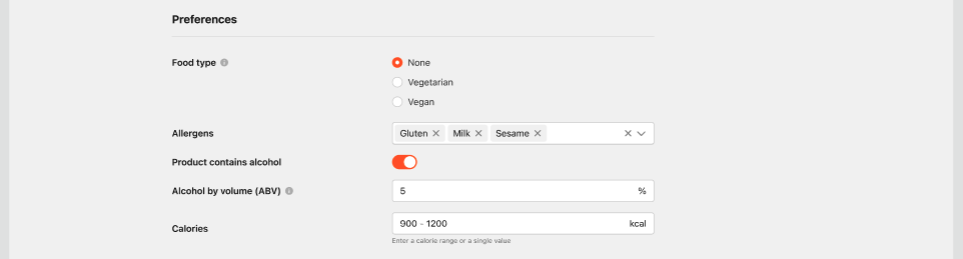
- Food Type: This is an optional field. Select "Vegan" for dishes with no animal products, "Vegetarian" for those excluding meat. This information will be used to display appropriate icons in the apps.
- Allergens: This is an optional field. Select from the drop down all of the allergens which apply to the product.
- Alcohol flag: This is an optional field. Enabling the flag for alcohol, add a tag to the product which will be used to display appropriate icons in the apps.
- Additionally you can provide the ABV (the percentage indicating a drink's alcohol content).
- Calories: This is an optional field. This is a free text field where you can add the total calorie count for the product.
- Once you've filled in the details, click on the 'Save' button to create the product.
