Opening Hours and Special Dates
Your Store's Opening Hours are visible to Customers in the Store Finder and control when Customers can place Orders. You can also set Special Dates to override your regular schedule for specific days, such as holidays, private events, or unplanned closures.
Opening Hours vs Special Dates
Your regular Opening Hours are set for days of the week. For irregular hours (for example holidays, special events or closures) you can set Special Dates to override your regular Opening Hours for a specific day or date range.
Special Dates can be set at two levels:
- Store level: overrides your Store's regular Opening Hours for all Order Types. Navigate to Configurations > Opening Hours and Special Dates
- Order Type level: overrides the hours for one specific Order Type, such as Catering Delivery or Drive Thru. Navigate to Configurations > Order Types > [Order Type] > Special Dates
Opening Hours
Adding Opening Hours
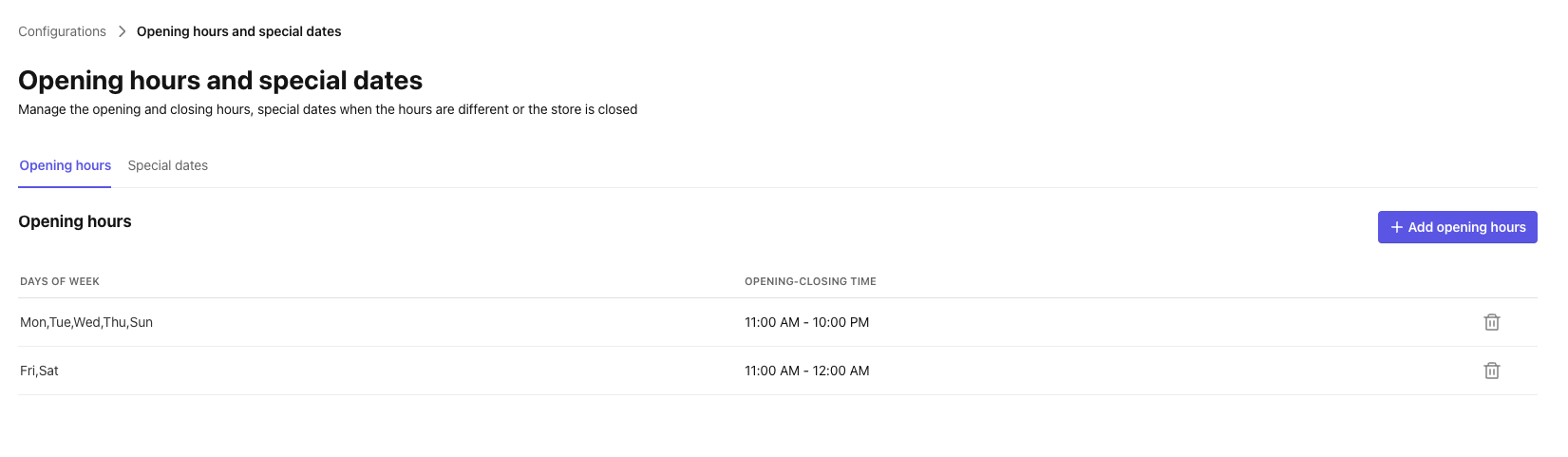
- Click + Add opening hours.
- Complete the following fields:
- On these days: The day picker allows you to select the day(s) when your Store is open.
- Opening time: opening time for your Opening Hours
- Closing time: closing time for your Opening Hours
- Click Add to save the new Opening Hours.
You can add multiple Opening Hours for your Store. To change your hours, delete the current set via the trashcan icon and then add new hours.
Stores open 24/7
For Stores that are open 24/7, set up the Opening Hours from 12:00 AM to 12:00 AM.
Special Dates
We recommend that you add your Special Dates for the entire year in the beginning of the year.
Adding Special Dates
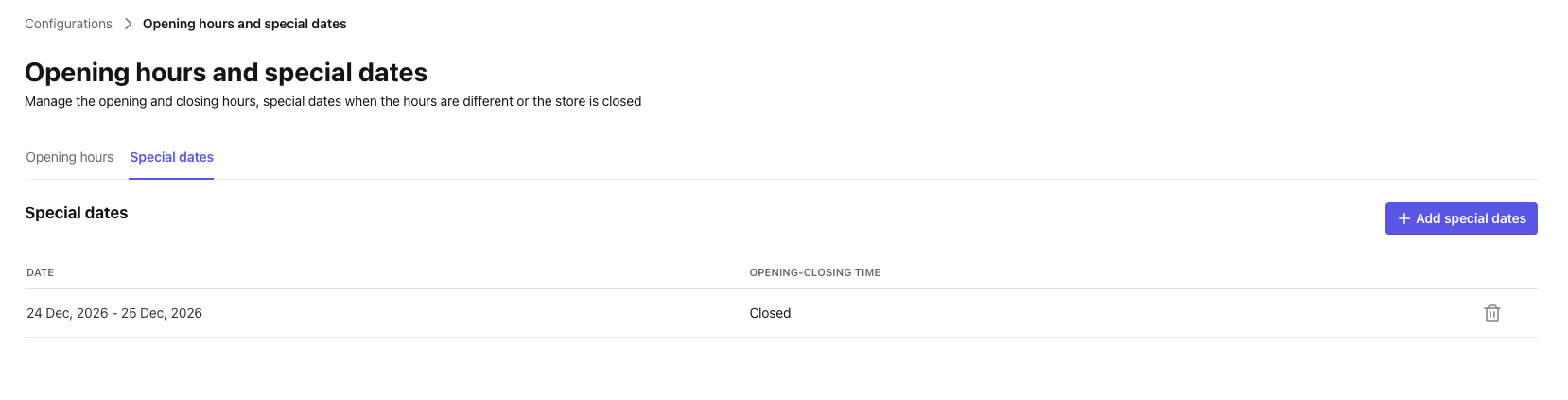
- Click the Special dates tab.
- Click + Add special dates.
- Complete the following fields:
- On these days: specific date or date range for the Special Date
- We are: Open / Closed: indicates if your Store is open or closed for the date or date range
- If Open, your Store will be open for the time specified in Opening time and Closing time
- If Closed, your Store will be closed for the day(s) and no times are required
- Click Add to save the Special Date.
You can add multiple Special Dates for your Store. To change your hours, delete the current set via the trashcan icon and then add new hours.
Opening Hours and Special Dates by Order Type
You can set Opening Hours and Special Dates for an individual Order Type using the same flows described above. This is available for Catering Delivery, Delivery, and Drive Thru. These settings apply to that Order Type only and do not affect your Store's regular Opening Hours.
Opening Hours by Order Type
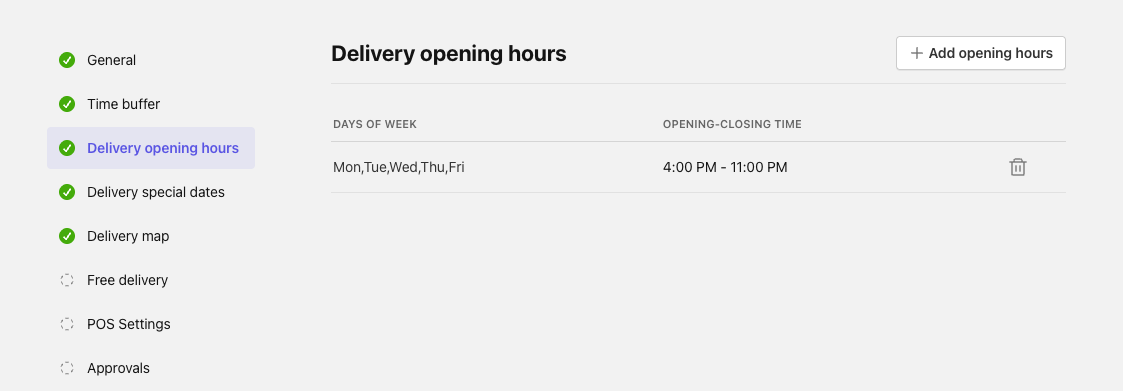
- Navigate to Configurations > Order Types > [Order Type].
- Select the Opening Hours tab.
- Click + Add opening hours.
- Complete the following fields:
- On these days: The day picker allows you to select the day(s) when your Order Type is open.
- Opening time: opening time for your Opening Hours
- Closing time: closing time for your Opening Hours
- Click Add to save the new Opening Hours.
- Click Activate.
You can add multiple Opening Hours for your Order Type. To change your hours, delete the current set via the trashcan icon and then add new hours.
Only configure Drive Thru hours if your Store offers Drive Thru as an Order Type. Drive Thru hours can extend beyond regular Store hours. For example, the Drive Thru can open earlier or stay open later than the Store.
Special Dates by Order Type
Use Special Dates by Order Type to close an Order Type or set custom hours for it on a specific date.
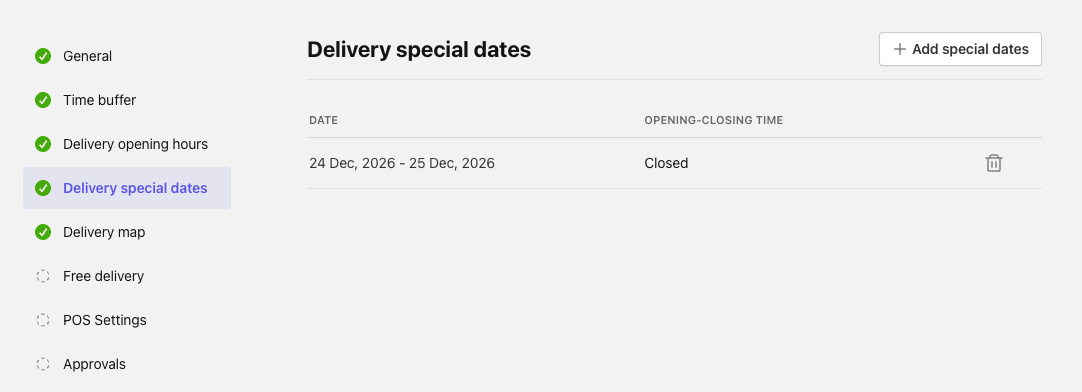
- Navigate to Configurations > Order Types > [Order Type] > Special Dates.
- Click [Order Type] Special Dates.
- Click + Add special dates.
- Complete the following fields:
- On these days: specific date or date range for the Special Date
- We are: Open / Closed: indicates if your Order Type is open or closed for the date or date range
- If Open, your Order Type will be open for the time specified in Opening time and Closing time
- If Closed, your Order Type will be closed for the day(s) and no times are required
- Click Add to save the Special Date.
- Click Activate.
The Special Date appears in the table. To change your hours, delete the current set via the trashcan icon and then add new hours.
Catering Delivery Special Dates are configured at the Store level only. This option is not available on Brand-level Order Type templates.
What Customers See
On a day when an Order Type is marked as closed via a Special Date, Customers cannot place that type of order from that Store.
Connected Marketplaces
If your Store uses external channel integrations, connected marketplaces are automatically notified when you add or delete a special date.
Use Case: Opening Hours Special Date: closing a Store that operates past midnight
Let's imagine: you have a Store that you want to close for one day. That Store normally operates past midnight.
For example: let's say your normal Opening Hours are 04:00 PM to 02:30 AM and you want the Store to be closed for one full day. If you add only a Closed Special Date for that day, the Store will still appear as open from 12:00 AM to 02:30 AM, because the system recognizes 12:00 AM as the start of the next calendar day and the tail end of the previous night's hours carries over.
To fully close the Store for that day:
- Add a Closed Special Date for the day you want to close
- Add a second Special Date for the following day, setting the opening time to 02:30 AM to match when your regular hours would otherwise resume
The Store is then fully closed for the intended day and your regular schedule picks back up the following day.