How to Manage Manual Input Locations?
If the Customer doesn't want to provide location permissions in the PAR Ordering app, Manual Input Locations feature offers a list of suggested Store locations. The Customer can then select the Store location from the list based on the proximity of his/her real location.
In the Management Center, Manual Input Locations are set on a Brand level by a Brand Manager but the coordinates can be managed for each Store individually.
To add Location:
- On Brand level
- Navigate to Configurations
- Store Locations
- Click on ADD LOCATION
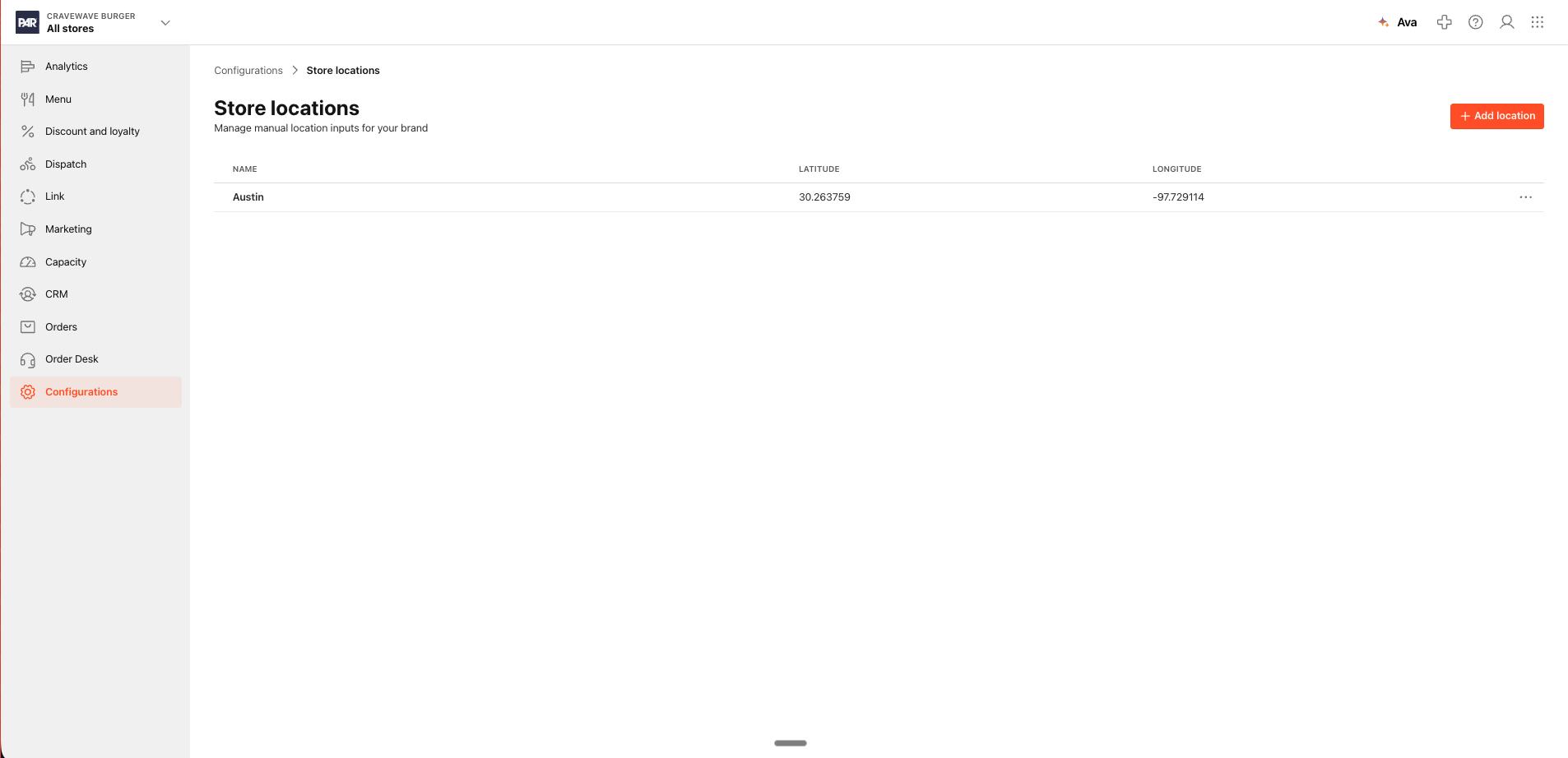
In Add Location form enter:
- Location Name: Name of the Manually Input Location
- Location Coordinates: Coordinates of the location you are creating
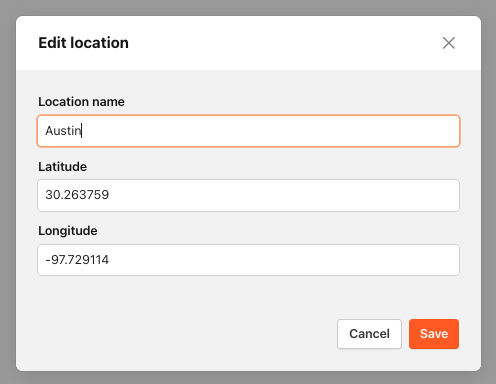
- Click SAVE to complete the action
You have successfully created a new Location.
To edit Location:
- Select the Location from the Locations list
- Edit Location parameters: Location Name and/or Location Coordinates
- Click SAVE to save the changes
To delete Location:
- Select the 3 dots at the end of the Location
- Click DELETE

- Confirmation dialog appears
-
Click DELETE to confirm the action
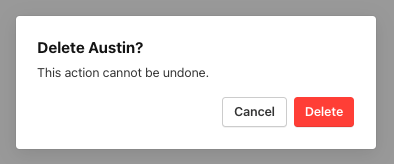
You've successfully deleted a Manually Input Location.
