How to Configure POS Order Injection for Future Orders
| User Role | Access |
|---|---|
| Brand Manager | ✅ |
| Area Manager | ❌ |
| Store Manager | ❌ |
Our system now gives you more control over when your orders are sent to your Point of Sale (POS) system. This helps ensure your kitchen receives orders at the right time, whether they are placed for immediate preparation or scheduled for the future.
What is POS Order Injection?
POS Order Injection is the process of sending customer orders from our platform to your store’s POS system. You can now choose how and when this happens for different types of orders.
Two Ways to Inject Orders
You can select one of two methods for each order type:
-
Immediate Injection
- Orders are sent to your POS system as soon as the customer places them.
- Best for orders that need to be prepared right away.
-
Hold Injection (Send Hold Delay) (Not currently available for PAR POS)
- Orders are held in our system and only sent to your POS at a set time before they need to be prepared.
- Ideal for advance orders, catering, or busy periods.
Order injection is available for all order types except Dine-in Full Service (FS).
How to Configure POS Injection
You can set up these options at both the brand and store level. Store-level settings will override brand-level settings if changed.
Steps to Configure
-
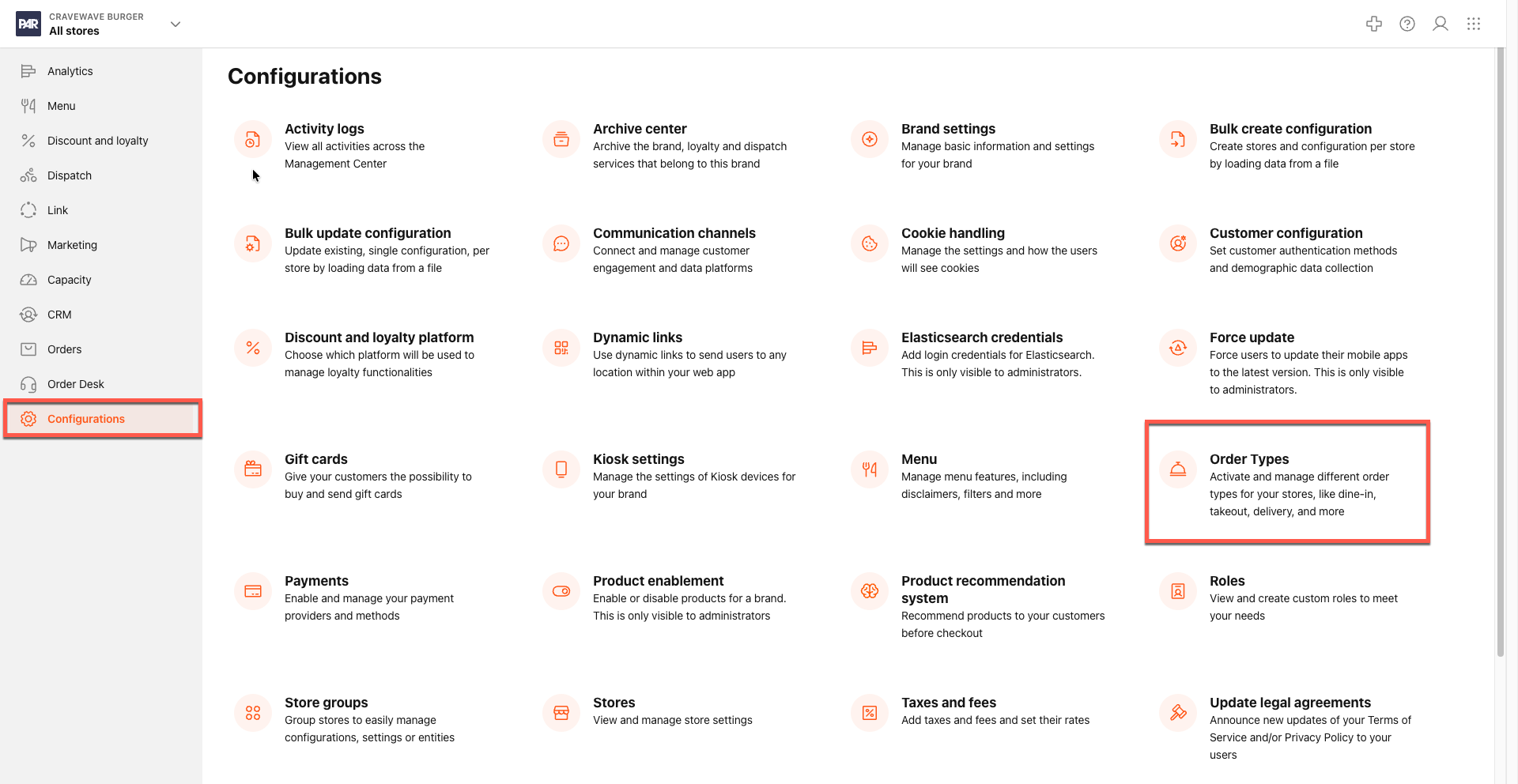
Choose the All Stores or the specific store you want to configure in the Management Center
-
Navigate to Configurations > Order Type.
-
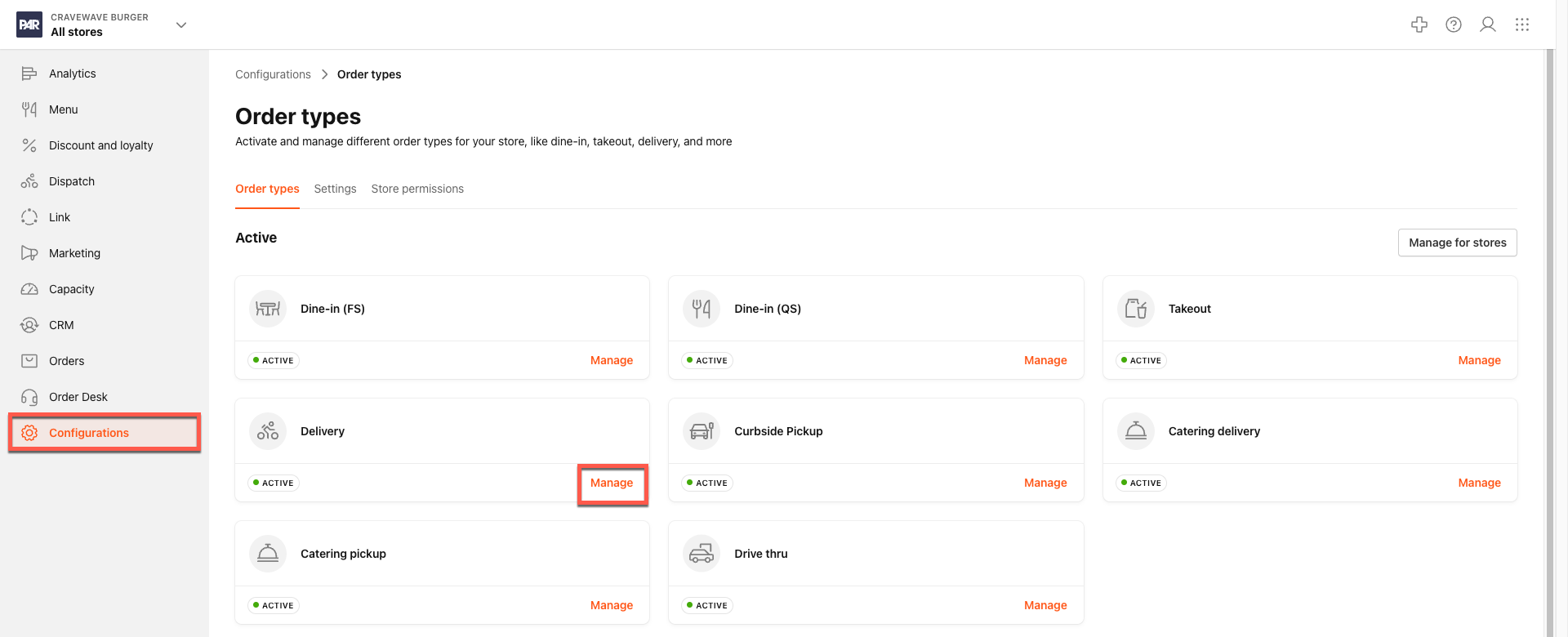
Click Manage for any of the Active order types (except Dine-In Full Service).
-
Click POS Settings.
-
For each order type, select either:
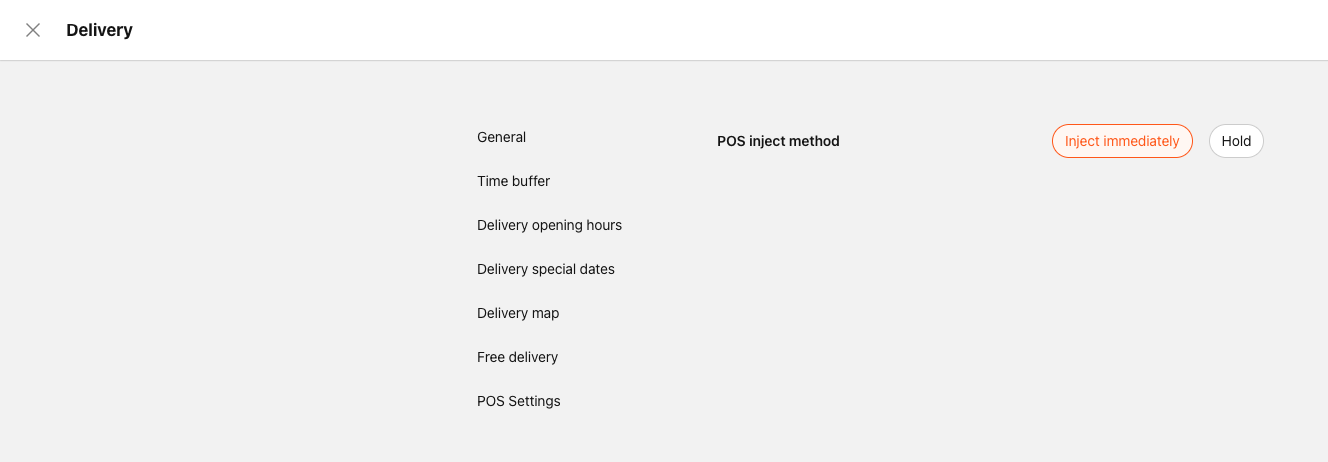
- Inject Immediately (default), or
- Hold (to delay sending the order to the POS)
-
For the Order Types: Catering Pickup and Catering Delivery
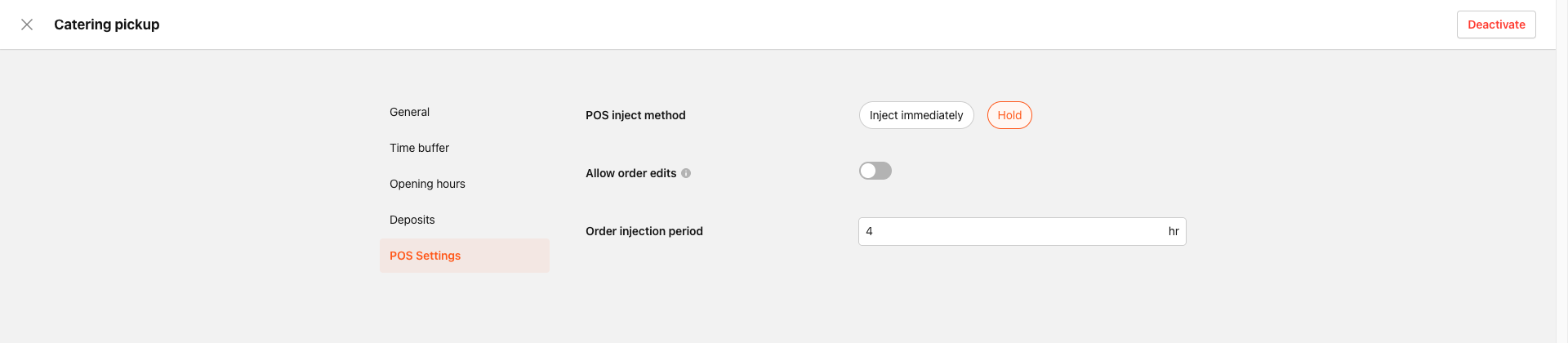
- If you select Hold, you will have the option to set the Order injection period.
- Enter the amount of time in hours, and the order is injected prior to the preparation time.
-
Save your changes.
What Happens if There’s a Problem?
Sometimes, orders may not be injected successfully when using the Hold option. Here’s what can happen and how it’s handled:
1. Payment Failed
- The customer is notified by push notification and email.
- They can retry payment or cancel the order in the app.
- If not resolved, the order is automatically canceled after a set time (15 minutes for most orders, 1 hour before prep time for catering).
2. Unavailable Items
- If some items are unavailable, the customer is notified and can accept the changes or cancel the order.
- If all items are unavailable, the order is canceled automatically.
3. For Catering Orders
- The Catering Manager can retry processing the order or edit it if items are unavailable.
- Customers do not receive notifications for unavailable items in catering orders; all actions are handled by the store.
Helpful Tips
- If payment fails, the system may try another saved payment method automatically.
- Receipts and notifications will clearly show any errors and what actions are needed.
