Cost Control Variance
The Cost Control Variance Report compares the purchase price of an item to the contract price and reports the variance.
Once you have opened Reports, perform the following.
-
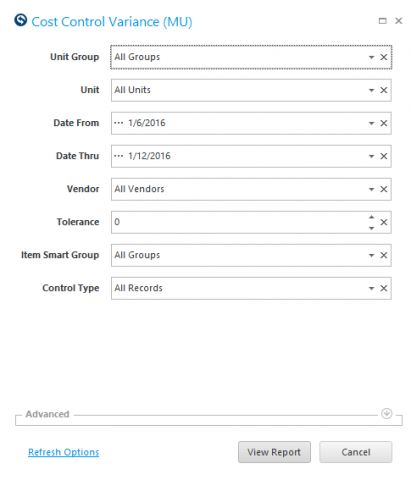
Open the Cost Control Variance report. The following screen displays.
-
Select a Unit Group to see a specific group of units as shown above
-
Select a Unit if you want to see variances for one specific unit as shown above
-
Enter the report start date in Date From as shown above
-
Enter the report end date in Date Thru as shown above
-
Select a vendor from the drop down list to look at variance for a single vendor as shown above
Quick Note: The Vendor field defaults to All Vendors and returns results for all vendors.
-
Enter the Tolerance amount as shown above
Quick Note: If you leave the default value of 0, the report will contain all amounts greater than the contract amount.
-
Select an Item Smart Group from the list, to view cost variance by specific item Smart Groups as shown above
-
Click View Report
Quick Note: Modify report parameters for this report using the Reports Setup activity
-
Set the Cost Control Variance Report to auto generate from the Reports Scheduler activity
For Example: The configuration for sending the report weekly as shown below
