Synchronize Unit Report
The Synchronize Unit Report allows you to quickly add data defined at the Administrator level to the Unit level. The same result may be accomplished in various activities by selecting a synchronize option.
For Example: In the My Items activity at the Unit level, clicking the Sync with Master icon will apply all items with Recommended = checked to the unit level. The Synchronize Unit report allows you to synchronize multiple activities quickly.
The data that can be synchronized includes:
- Vendors (Address, B2B Integration, Contact, Description, Enable B2B, Export File Mask, Hide, Pay to Code, Permission (FD))
- Vendors Template
- Vendors Delivery Schedule
- Items, Measures, and Defaults (Counting Measure, Description, Hide, Primary Vendor, Purchasing Measure, Reporting Measure)
- Count Templates
- Station Mate Templates
If any information needs to be different from unit to unit, for example, Vendor Pay to Code, verify that the parameters are set to NOT synchronize that information. Please verify that only fields that should be synchronized are selected so that nothing is overwritten.
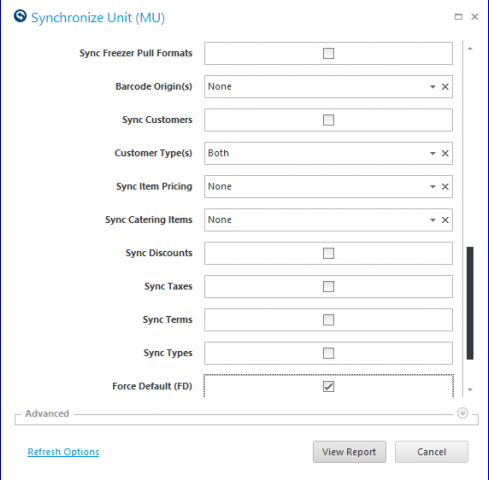
The Force Default parameter will automatically apply defaulted permissions to all new and current information.
The Synchronize Unit report, with Force Default unchecked, will simply add new Items, Vendors, etc. By setting Force Default to checked, then any defaults associated with the information will be applied as well.
For Example: Of a default is the purchase permission for a unit of measure of an item. Please note that the Force Default parameter is available from the (MU) version of the report only.
Example: Force Default (FD) = Checked
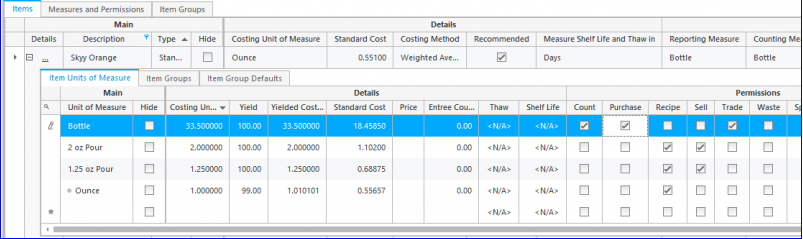
At the Admin level, the item has Bottle Checked for Purchase unit of measure as shown below
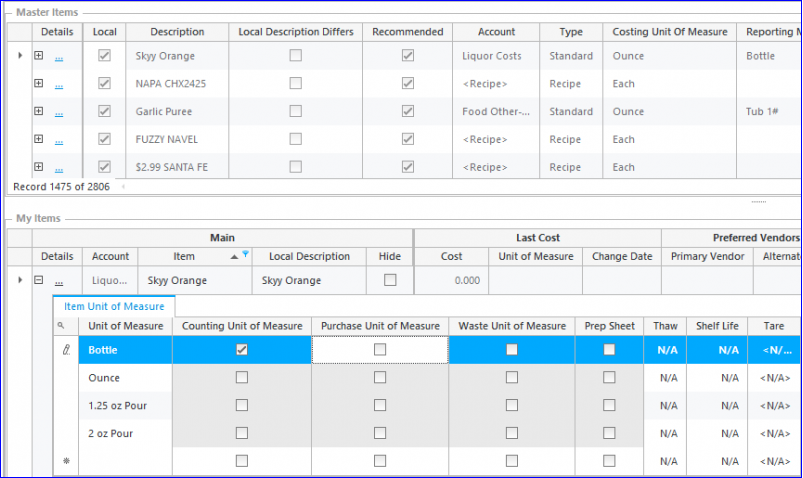
At the Unit level, the Item already exists, but the Purchase UOM is unchecked for 750ml as shown below
Run the Synchronize Unit (MU) with Force Default set as checked as shown below
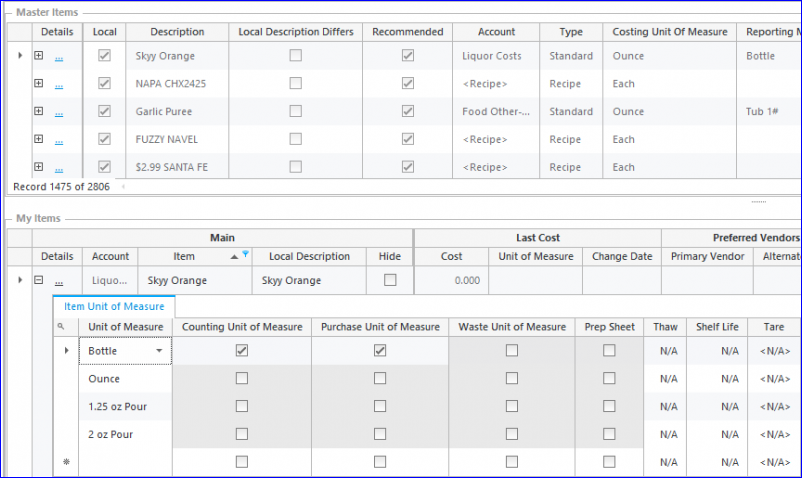
Now, the default permission at the Admin level (Purchase flag checked) is applied at the Unit level as shown below