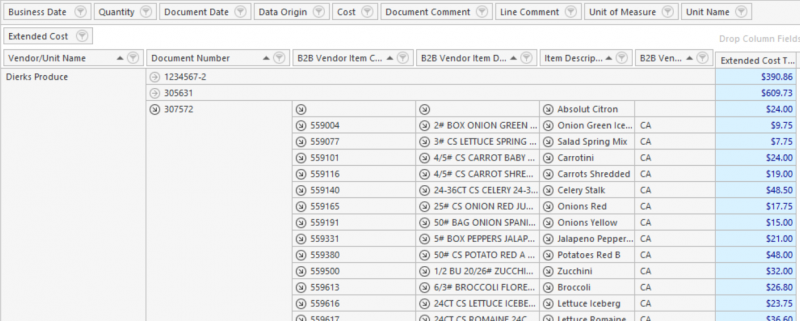
Purchase Detail Pivot Report
Use this report to view purchase details. If prices do not look correct on inventory sheets, use this report to verify the purchases history and confirm that the item was invoiced correctly.
Quick Note: You can enter an individual item in the parameters.
Parameters
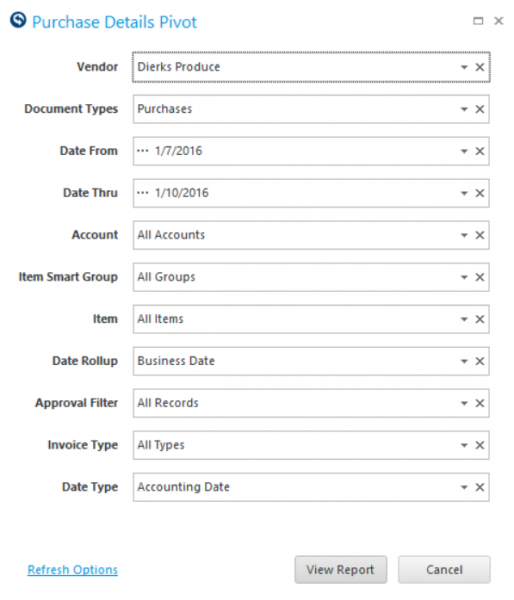
- Vendor: Select a vendor to streamline your view.
- Document Types: Purchases, Trade Memos, AP Documents, Adjustments.
- Date From: Select Date to view from.
- Date Thru: Select Date to view thru.
- Account: Select an account to streamline your view.
- Item Smart Group: Select a Smart Group to streamline your view.
- Item: Select an individual item to streamline your view.
- Date Rollup: Business Date, Sub-Period, Period, Sum All.
- Approval Filter: Approved, Not Approved, All Records.
Report
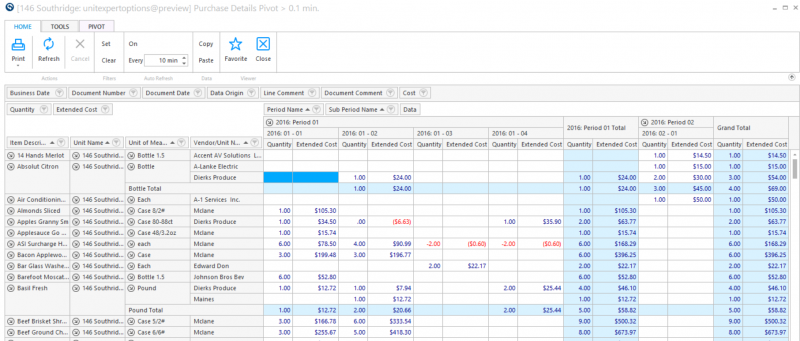
Use The Report To Compare Costs For An Item
-
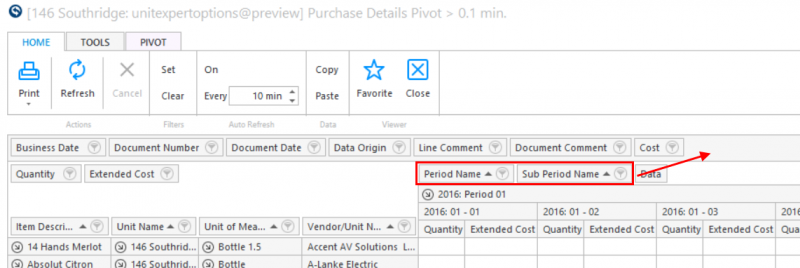
Drag Period Name and Subperiod Name off of the report to the Filter band to simplify the report.
-
Drag Cost from the Filter band between Quantity and Extended Cost.
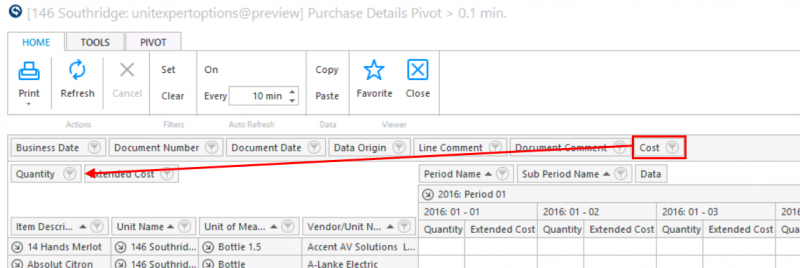
Quick Tip: If dragging items will not move to the location, click the Pivot tab and click Column Chooser, then close it. This should enable items to move freely.
This view of the report allows you to compare prices for different purchases, whether an item you Purchase from different vendors or a change in price from the same vendor.
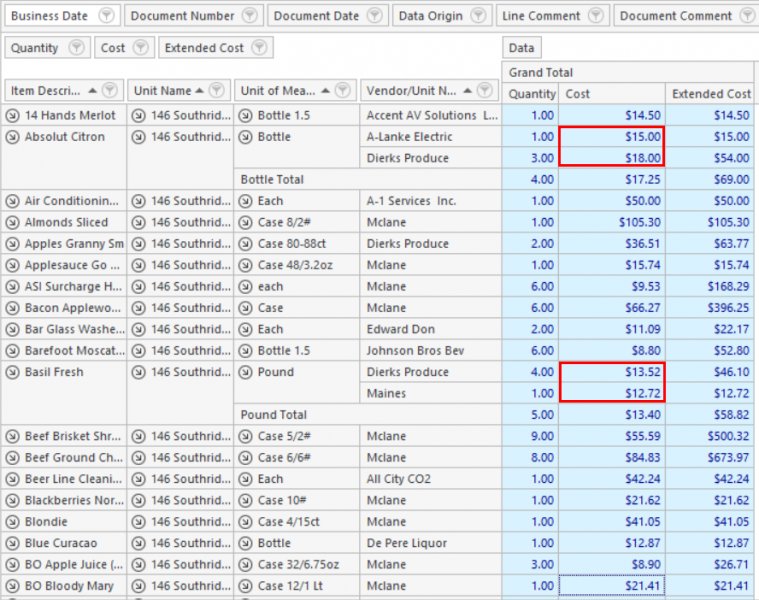
It can also compare costs of items that you traded to another Unit and the cost to replace it.
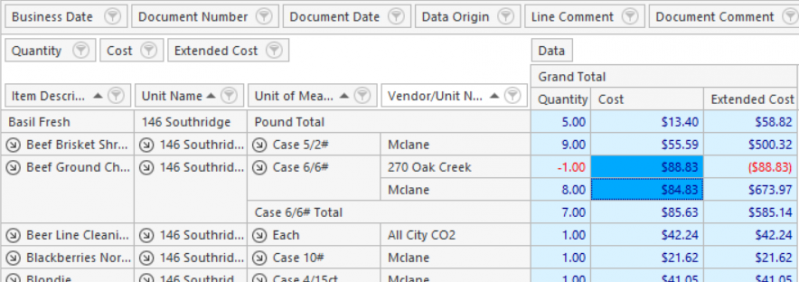
In this example, a case of Ground costing $88.83 was traded to Unit 270 Oak Creek. Ground Beef was also purchased from the vendor at a cost of $84.83. The beef traded may have been purchased from another vendor or at a time where it cost more.
Review Vendor Invoices
A simple report you can use to quickly review invoices can be built.
- Drag the following fields off the report back onto the Filter ribbon:
- Period Name
- Sub-period Name
- Item Description
- Unit Name
- Unit of Measure
- Quantity
- Cost
- Drag the follow field from the Filter Ribbon down onto the report to the right of the Vendor/Unit Name:
- Document Number
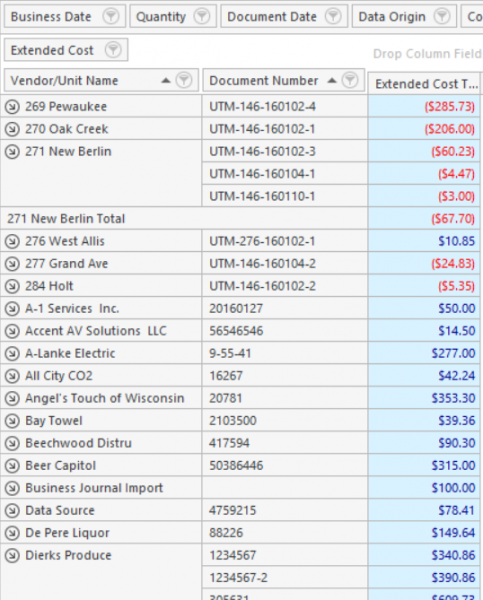
This report will show all documents (Invoices, Credit Memos, etc.) received from vendors and the amounts for those documents. This can help ensure that every document is accounted for and the amounts are accurately entered into the system.
Review B2B Purchase Details
A simple report you can use to quickly review invoices can be built.
- Drag the following fields off the report back onto the Filter ribbon:
- Period Name
- Sub-period Name
- Item Description
- Unit Name
- Unit of Measure
- Quantity
- Cost
- Drag the follow field from the Filter Ribbon down onto the report to the right of the Vendor/Unit Name:
- Document Number
- B2B Vendor Item Code
- Item Description
- B2B Vendor Item Description
- B2B Vendor Unit of Measure
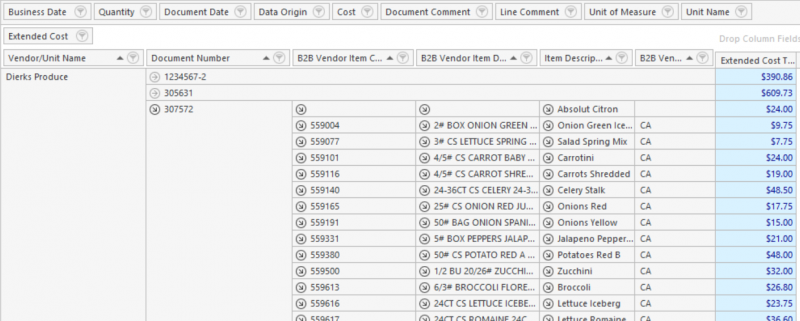
This report can allow you to look at purchases and confirm Vendor Item Descriptions, Codes and Units of Measure against the Data Central item the vendor item is linked to in Data Central.
Restore The Report To The Original Format
Sometimes, you drag so many fields into the report and off of it that you need to reset it to the original format to start over.
- Click
 in the Tools Tab.
Comments
There are several comments that may be entered into the Purchase Orders form, and the comments map to different fields of the report. Purchases has a Comment field in the Purchase Information document header. Additionally, each row has a Comment field in the Document Lines tab of the Purchase Details.
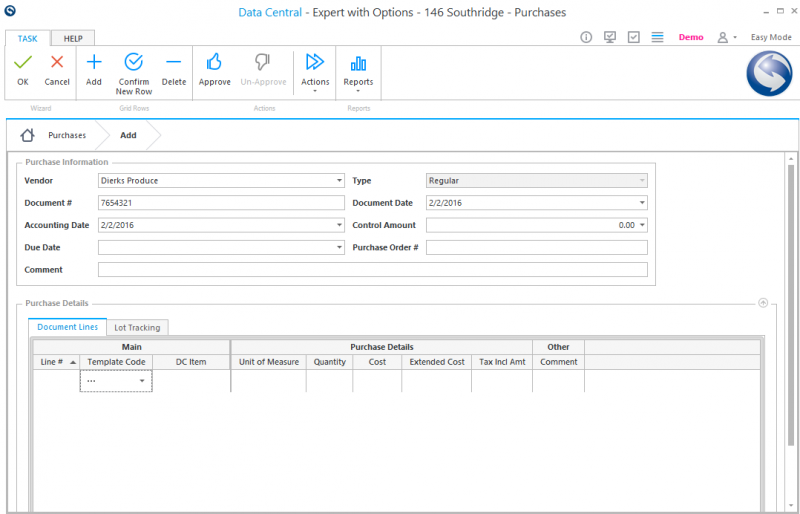
The Comment in the Purchase Information header maps to Document Comment and the Comment for each row in details maps to Line Comment.