Inventory Cost of Goods Sold Detail Report
The Cost of Goods Sold - Detailed (MU) report (Inventory Cost Of Goods Sold Detail Report) displays your cost of goods by item and group.
Parameters
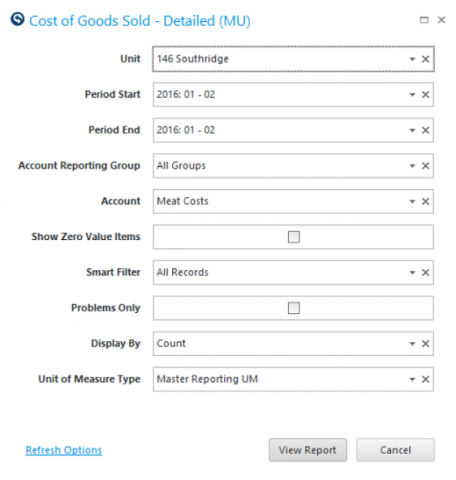
- Unit: Select the Unit to report on.
- Period Start: Select the beginning period to view.
- Period End: Select the ending period to view.
- Account Reporting Group: Select the Account Reporting Group.
- Account: Select the Account.
- Show Zero Value Items: Put a check in this box to view items that do not have counts or purchases for the periods selected.
- Smart Filter: Select All Records, Actual only, or Estimated only.
- Problems Only: Put a check in this box to view ONLY items with negative usage.
Quick Note: Negative usage is when your ending inventory is more than your starting inventory without the purchases or trades to support the increase in inventory.
- Display By: Select Count or Dollars.
- Unit of Measure Type: Select Master Reporting UM, Unit Reporting UM or Costing UM.
Columns
Cost Of Goods Sold Report Using Counts
-
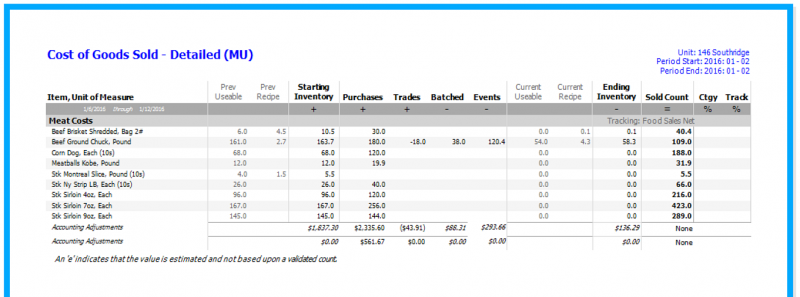
'ITEM DESCRIPTION, UNIT OF MEASURE' column: The Item Description and the Unit of Measure.
Quick Note: This will be the local (unit-level) description on a Unit level report, and the Item Master description for MU and Admin reports.
-
'STARTING INVENTORY' column: Count or value of the item from the last count (this includes Prev Usable count for the item, and Prev Recipe to add any amount of the item which is used in a recipe item which is counted).
-
'PURCHASES' column: Count or value the item added to inventory through purchasing activities (approved purchases).
-
' TRADES' column: Count or value the item added into your inventory or taken out of inventory to trade to another unit.
Quick Note: The trade column has positive values for trades in and negative values for trades out. Trades will only appear on the report when approved.
-
'BATCHED' column: Count or value of the item taken from inventory for use in batched/prepared items.
-
'EVENTS' column: Count or value of the item taken from inventory for events.
-
'ENDING INVENTORY' column: Count or value of the item from the current count count (Current Usable count for the item, and Current Recipe).
-
'SOLD COUNT' column: = Total Beginning + Purchases + Trades* – Batched-Events-Total Ending
Quick Note
into your unit are positive. Removing items from inventory to trade to another unit is negative. -
'CTGY %' column: = Cost of Goods Sold for this Item/Total Cost of Goods for this Account.
-
'TRACKING ACCOUNT %' column: = Cost of Goods Sold for this Item/Tracking Account.
Adjustments
Adjustments are made to accounts, not items. This is an overstore (Admin or MU function) only.
AP Vouchers assign the adjustment costs to an account and the associated restaurants. This could be a shared cost, such as a cable subscription cost across a set of restaurants.
Cost Of Goods Sold Report Using Dollars
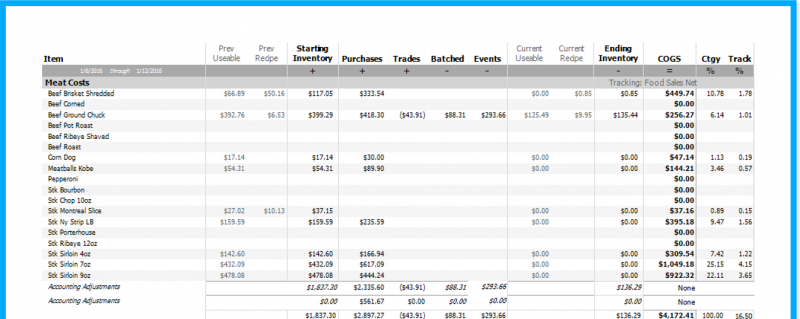
The only difference between using Dollars instead of Counts in the report is the COGS Column, providing a dollar value for the Cost of Goods Sold instead of a Sold Count figure.